


Contact our support team for more information.
Warning Tracking Protections provides Company and Project Administrators the ability to apply Guardian’s traditional protection modes, Monitor, Guide, and Prevent, to every native Revit warning surfaced by the API.
Administrators can:
Once enabled at the Project Configuration level, Warning Tracking Protections adopt instantly across registered models. Each warning becomes a teachable moment, educating users on risks such as model instability, inaccurate geometry, hosting conflicts, or coordination issues. These warnings can also be tracked in real-time through Project Central.
This protection can be configured globally or overridden per project, utilizing File Overrides.
Reducing Revit warnings is an essential part of maintaining healthy models, but users commonly, or almost always, ignore them. Warning Tracking Protections delivers proactive quality control, helping teams avoid unnecessary rework while improving model performance and reduces downstream risk, all the while educating users.
Across hundreds of firms, we’ve seen the same issues:
And with Prevent mode, Guardian goes a step further: it can automatically reverse the action that generated the warning, ensuring risky commands never compromise the project.
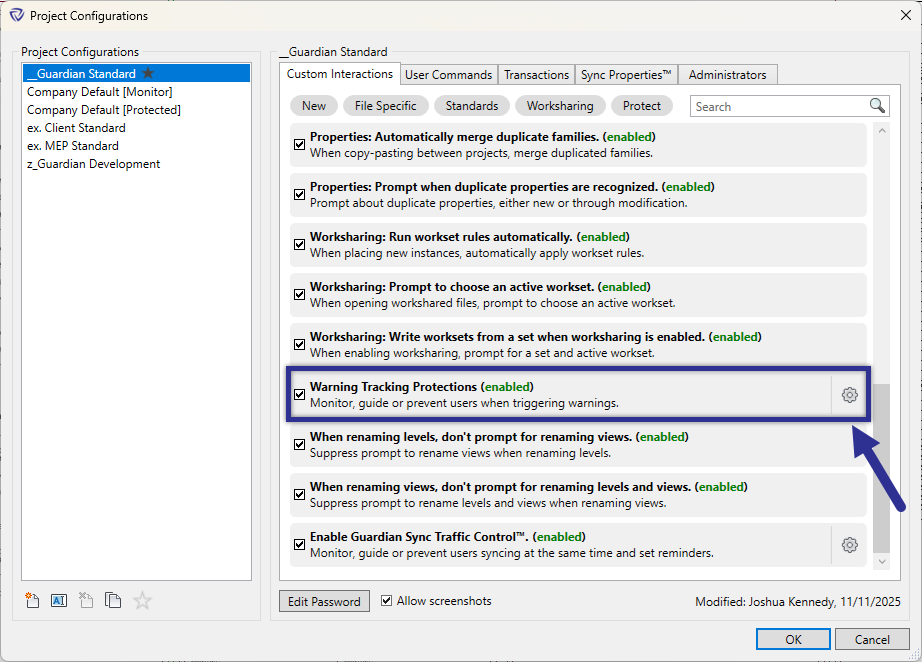
This feature can be enabled and customized through Project Configurations. As with all Project Configuration settings, Guardian’s Warning Tracking Protections can be customized on a project-by-project basis within File Settings. The specific warnings to be tracked can be customized by selecting the settings cog.
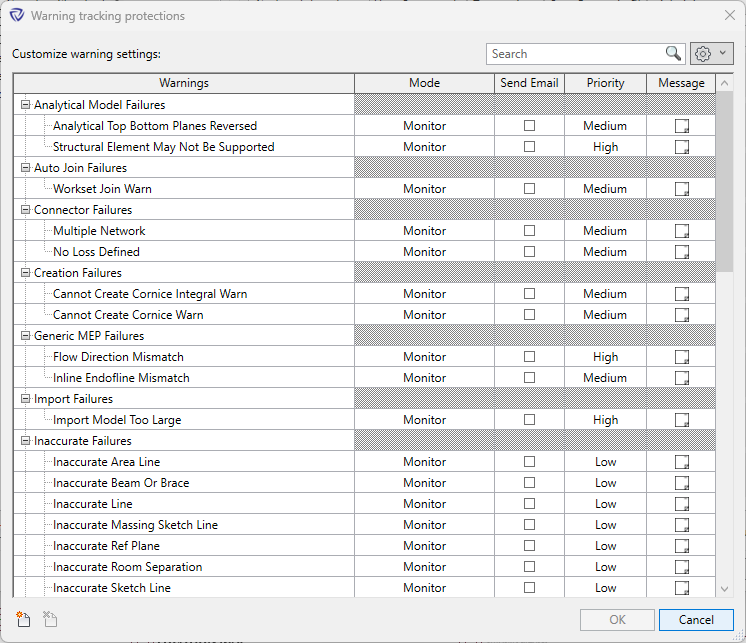
The Warning Tracking Protections dialog shows all the selected Revit warnings to be tracked. For each warning, a mode, notification, priority, and message can be set.
Guardian comes preloaded with the most common Revit warnings listed and priorities set. Nearly 2,000 of the available Revit warnings can be added to the list of tracked warnings. To add a new warning, simply click the Add New button in the lower left corner.
Within Project Central, the Revit warnings generated by each user can be found under Users at a Glance. Clicking on the number of warnings filters the Activity Feed accordingly. The Revit warnings can all be seen under the Timeline tab. Lastly, the Activity Feed can be filtered by warnings. Clicking on any of the warnings displays an informational dialog providing detailed information about that warning, giving admins the information they need to resolve Revit warnings quickly and effectively.
IMAGE
Contact our support team for more information.
Warning Tracking Protections provides Company and Project Administrators the ability to apply Guardian’s traditional protection modes, Monitor, Guide, and Prevent, to every native Revit warning surfaced by the API.
Administrators can:
Once enabled at the Project Configuration level, Warning Tracking Protections adopt instantly across registered models. Each warning becomes a teachable moment, educating users on risks such as model instability, inaccurate geometry, hosting conflicts, or coordination issues. These warnings can also be tracked in real-time through Project Central.
This protection can be configured globally or overridden per project, utilizing File Overrides.
Reducing Revit warnings is an essential part of maintaining healthy models, but users commonly, or almost always, ignore them. Warning Tracking Protections delivers proactive quality control, helping teams avoid unnecessary rework while improving model performance and reduces downstream risk, all the while educating users.
Across hundreds of firms, we’ve seen the same issues:
And with Prevent mode, Guardian goes a step further: it can automatically reverse the action that generated the warning, ensuring risky commands never compromise the project.
This feature can be enabled and customized through Project Configurations. As with all Project Configuration settings, Guardian’s Warning Tracking Protections can be customized on a project-by-project basis within File Settings. The specific warnings to be tracked can be customized by selecting the settings cog.
The Warning Tracking Protections dialog shows all the selected Revit warnings to be tracked. For each warning, a mode, notification, priority, and message can be set.
Guardian comes preloaded with the most common Revit warnings listed and priorities set. Nearly 2,000 of the available Revit warnings can be added to the list of tracked warnings. To add a new warning, simply click the Add New button in the lower left corner.
Within Project Central, the Revit warnings generated by each user can be found under Users at a Glance. Clicking on the number of warnings filters the Activity Feed accordingly. The Revit warnings can all be seen under the Timeline tab. Lastly, the Activity Feed can be filtered by warnings. Clicking on any of the warnings displays an informational dialog providing detailed information about that warning, giving admins the information they need to resolve Revit warnings quickly and effectively.
IMAGE
Contact our support team to receive personalized assistance.
