Enabling a Guardian Link

guardian-link
Knowledge Base
Enabling a Guardian Link
In Beta

In This Article


Overview

The company initiating Guardian Link becomes the Primary Project Team for a model. From that point on, their Guardian configurations are applied to the model for every company working in it.

This article walks admins through enabling a Link and the two choices the Primary Project Team must make.

New to Guardian Link? Start with Guardian Link: Overview & Key Concepts.

Before You Begin

  • Who can enable a Link? A Company Admin, or a Project Admin who is assigned as an administrator on that model.
  • Eligible models: Workshared models hosted on the cloud, network, or local. Support for non-workshared models is planned for general availability. Templates and family templates aren’t eligible, and a model that’s already in an active Link won’t offer the option.
  • Partner companies: Every company, or Linked Collaborators, participating in the Link needs its own active Guardian license and its own registration of the same project.
  • Guardian version: Each Revit user working in the model must be on Guardian 3.4.0 or later. Users on older versions follow their own company’s configurations, not those of the Primary Project Team.

Pro Tip: Talk to your partners first. Being Primary is permanent for the life of the Link. To make another company Primary, end the Link and have that company enable a new one. Collaborators also can’t decline a Link; they can only accept it or leave it later. Before enabling, agree with the other companies that the Primary’s configurations will govern the model.
Enabling a Link

Enable Guardian Link
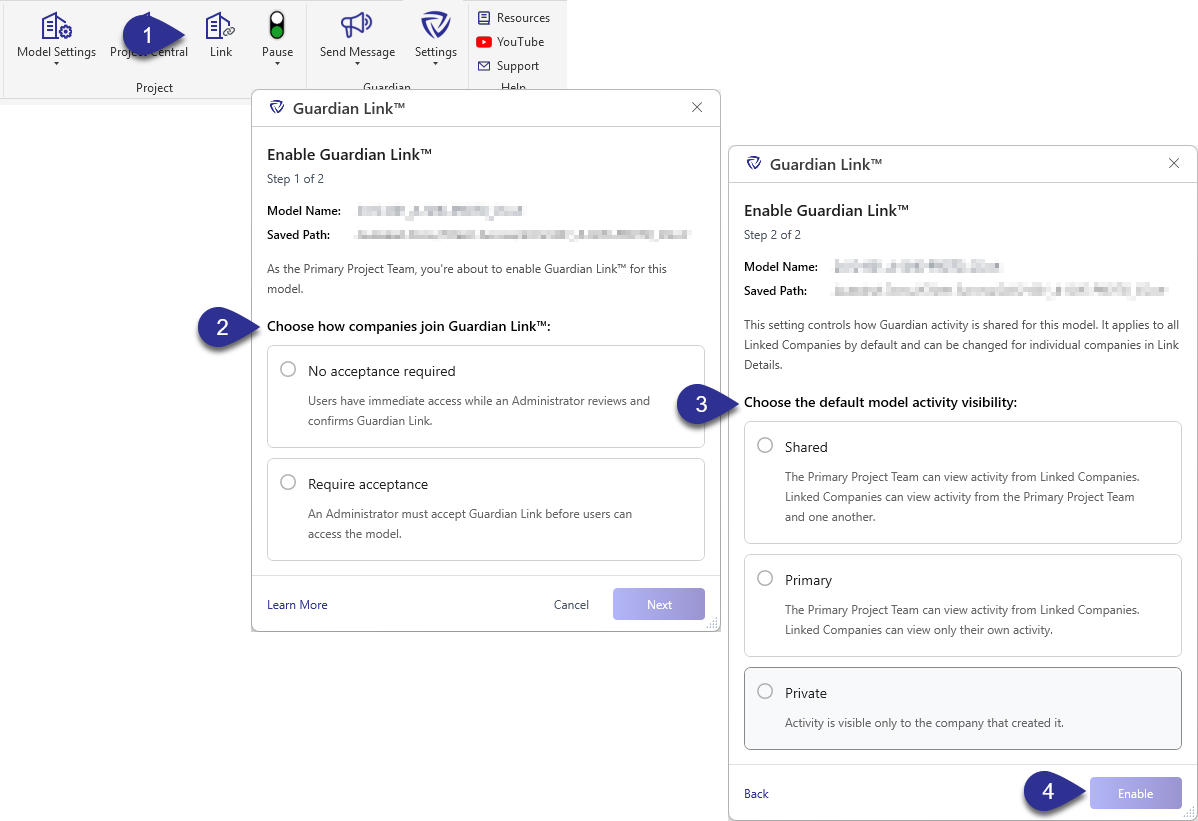
  1. Open the model and select Link within the Project panel of the Guardian ribbon, or go to Registered Projects and select Enable Link from the project’s action menu.
  2. Guardian will prompt for the Acceptance requirements for Link Collaborators to engage in a Guardian Link. See Choosing an Acceptance Mode below.
    • Require acceptance
    • No acceptance required
  3. Next, Guardian will ask for the Model Activity sharing: See Choosing a Model Activity Sharing Setting below.
    • Shared
    • Primary
    • Private
  4. Select Enable.
  5. The Link is now active, and the enabling company is the Primary. In Registered Projects, the model shows a Link Status of Pending Actions until every Link Collaborator has accepted or reviewed the Link.

Note: If the Enable Link button isn’t active, the model isn’t eligible, is already Linked, or the project administrator isn’t assigned as a Project Admin for the active model.

Choosing an Acceptance Mode

ModeWhat Collaborators ExperienceConsider It When
Require acceptance
(Manual Acceptance)
Collaborators can not work in the model until an admin from their company accepts. The Accept Link prompt appears while the model is opening, and the model finishes opening once the Link is accepted.Each company must formally acknowledge the primary’s configurations before anyone works in the model.
No acceptance required
(Auto Accept)
Collaborators work right away under the Primary’s configurations. The Collaborator’s Company or Project Admin sees a Review Link prompt the next time they open the model.Work is already under way, and teams need immediate access to the model.

Neither mode is selected by default, and the acceptance mode can’t be changed after the Link is enabled.

Choosing a Model Activity Sharing Setting

This setting controls what each company sees in Project Central’s Activity Feed, History Feed, Users at a Glance, Transaction Insights, and Backstage for the Linked model.

Note: Messages and Sync Traffic Control aren’t affected by this setting. Sync Traffic Control always includes users from every company in the Link, and Messages follow each company’s own messaging settings.

SettingWhat Each Company SeesConsider It When
SharedAll companies see their own activity plus the activity of the other companies in the Link.Companies are coordinating closely and want full transparency.
PrimaryThe Primary sees its own activity plus every Collaborator’s. Collaborators set to Shared get the same full view as the Primary. All other Collaborators see only their own activity.The Primary needs oversight of the whole model. Shared fits joint ventures, where partner firms need the same full view of the project as the Primary. Standard Collaborators only need insight into their own work.
PrivateNo activity crosses company boundaries. Each company, including the Primary, sees only its own model activity.Privacy matters most and cross-company visibility isn’t needed.

The chosen setting here is the starting setting for every Collaborator. Neither option is selected by default, and this Link-level setting can’t be changed after the Link is enabled. Later, the Primary can change the setting for an individual Collaborator from Link Details. A change only affects activity from that point on. It doesn’t change who can see past activity.

Some details are always shared: last saved by, last saved date, and file size are visible to every active company in the Link, even when the setting is Private.

Who Becomes a Collaborator

Collaborators are not invited, but Guardian identifies each model that has a Link enabled for which the collaborators have access to.

How Guardian identifies Linked Models:

  • Cloud model: companies whose registration points to the same Hub, Project, and Cloud Model.
  • Local or network model: companies whose registration has exactly the same model name and full Saved Path (not case-sensitive). A different drive mapping, a UNC path or a copied file won’t match.

During the beta, a company that registers the project after the Link is enabled joins the Link the next time its users close and reopen the model. At general availability, Guardian will register these models automatically, even for companies that use manual registration, so the review or accept step starts as soon as anyone opens the model.

Pro Tip: A partner isn’t showing up in the Link? Verify that they have successfully installed 3.4.0 or later. Check that their registration of the project matches the primaries: the same Saved Path for a local or network model, or the same Hub, Project, and Cloud Model for a cloud model. A registration that points somewhere slightly different, such as a mapped drive letter instead of a UNC path, is treated as a different project.
Managing the Link with Link Details

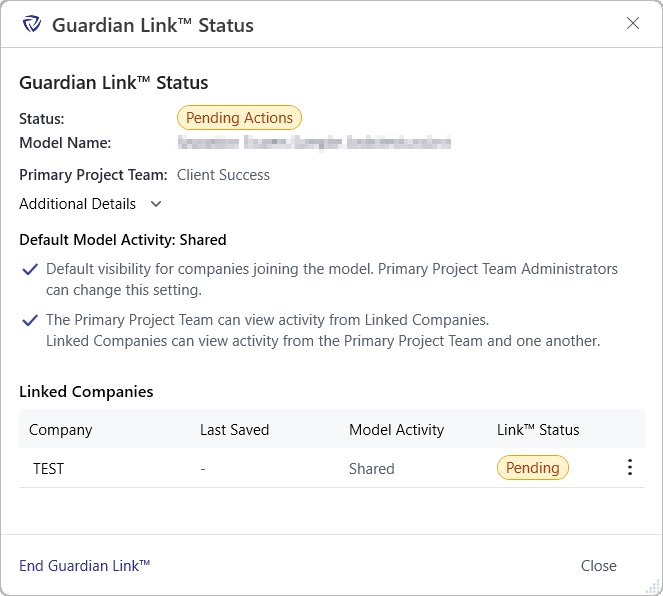
Link Status

After a Link is enabled, Link Details shows its status. Open it from the Link icon in the Guardian ribbon or from the project in Registered Projects. Link Details information provided:

  • See which companies are in the Link and which haven’t yet accepted or reviewed it.
  • Change the Model Activity sharing setting for a single company from its action menu. For example, the default for all partners is set to Primary, then move one trusted partner to Shared so that the collaborator company sees what the primary sees.
  • End the Link. See Ending a Guardian Link.

Note: Only the Primary can change a company’s sharing setting.

Knowledge Base
Enabling a Guardian Link
In Beta

In This Article


Overview

The company initiating Guardian Link becomes the Primary Project Team for a model. From that point on, their Guardian configurations are applied to the model for every company working in it.

This article walks admins through enabling a Link and the two choices the Primary Project Team must make.

New to Guardian Link? Start with Guardian Link: Overview & Key Concepts.

Before You Begin

  • Who can enable a Link? A Company Admin, or a Project Admin who is assigned as an administrator on that model.
  • Eligible models: Workshared models hosted on the cloud, network, or local. Support for non-workshared models is planned for general availability. Templates and family templates aren’t eligible, and a model that’s already in an active Link won’t offer the option.
  • Partner companies: Every company, or Linked Collaborators, participating in the Link needs its own active Guardian license and its own registration of the same project.
  • Guardian version: Each Revit user working in the model must be on Guardian 3.4.0 or later. Users on older versions follow their own company’s configurations, not those of the Primary Project Team.

Pro Tip: Talk to your partners first. Being Primary is permanent for the life of the Link. To make another company Primary, end the Link and have that company enable a new one. Collaborators also can’t decline a Link; they can only accept it or leave it later. Before enabling, agree with the other companies that the Primary’s configurations will govern the model.

Enabling a Link

Enable Guardian Link
  1. Open the model and select Link within the Project panel of the Guardian ribbon, or go to Registered Projects and select Enable Link from the project’s action menu.
  2. Guardian will prompt for the Acceptance requirements for Link Collaborators to engage in a Guardian Link. See Choosing an Acceptance Mode below.
    • Require acceptance
    • No acceptance required
  3. Next, Guardian will ask for the Model Activity sharing: See Choosing a Model Activity Sharing Setting below.
    • Shared
    • Primary
    • Private
  4. Select Enable.
  5. The Link is now active, and the enabling company is the Primary. In Registered Projects, the model shows a Link Status of Pending Actions until every Link Collaborator has accepted or reviewed the Link.

Note: If the Enable Link button isn’t active, the model isn’t eligible, is already Linked, or the project administrator isn’t assigned as a Project Admin for the active model.

Choosing an Acceptance Mode

ModeWhat Collaborators ExperienceConsider It When
Require acceptance
(Manual Acceptance)
Collaborators can not work in the model until an admin from their company accepts. The Accept Link prompt appears while the model is opening, and the model finishes opening once the Link is accepted.Each company must formally acknowledge the primary’s configurations before anyone works in the model.
No acceptance required
(Auto Accept)
Collaborators work right away under the Primary’s configurations. The Collaborator’s Company or Project Admin sees a Review Link prompt the next time they open the model.Work is already under way, and teams need immediate access to the model.

Neither mode is selected by default, and the acceptance mode can’t be changed after the Link is enabled.

Choosing a Model Activity Sharing Setting

This setting controls what each company sees in Project Central’s Activity Feed, History Feed, Users at a Glance, Transaction Insights, and Backstage for the Linked model.

Note: Messages and Sync Traffic Control aren’t affected by this setting. Sync Traffic Control always includes users from every company in the Link, and Messages follow each company’s own messaging settings.

SettingWhat Each Company SeesConsider It When
SharedAll companies see their own activity plus the activity of the other companies in the Link.Companies are coordinating closely and want full transparency.
PrimaryThe Primary sees its own activity plus every Collaborator’s. Collaborators set to Shared get the same full view as the Primary. All other Collaborators see only their own activity.The Primary needs oversight of the whole model. Shared fits joint ventures, where partner firms need the same full view of the project as the Primary. Standard Collaborators only need insight into their own work.
PrivateNo activity crosses company boundaries. Each company, including the Primary, sees only its own model activity.Privacy matters most and cross-company visibility isn’t needed.

The chosen setting here is the starting setting for every Collaborator. Neither option is selected by default, and this Link-level setting can’t be changed after the Link is enabled. Later, the Primary can change the setting for an individual Collaborator from Link Details. A change only affects activity from that point on. It doesn’t change who can see past activity.

Some details are always shared: last saved by, last saved date, and file size are visible to every active company in the Link, even when the setting is Private.

Who Becomes a Collaborator

Collaborators are not invited, but Guardian identifies each model that has a Link enabled for which the collaborators have access to.

How Guardian identifies Linked Models:

  • Cloud model: companies whose registration points to the same Hub, Project, and Cloud Model.
  • Local or network model: companies whose registration has exactly the same model name and full Saved Path (not case-sensitive). A different drive mapping, a UNC path or a copied file won’t match.

During the beta, a company that registers the project after the Link is enabled joins the Link the next time its users close and reopen the model. At general availability, Guardian will register these models automatically, even for companies that use manual registration, so the review or accept step starts as soon as anyone opens the model.

Pro Tip: A partner isn’t showing up in the Link? Verify that they have successfully installed 3.4.0 or later. Check that their registration of the project matches the primaries: the same Saved Path for a local or network model, or the same Hub, Project, and Cloud Model for a cloud model. A registration that points somewhere slightly different, such as a mapped drive letter instead of a UNC path, is treated as a different project.

Managing the Link with Link Details

Link Status

After a Link is enabled, Link Details shows its status. Open it from the Link icon in the Guardian ribbon or from the project in Registered Projects. Link Details information provided:

  • See which companies are in the Link and which haven’t yet accepted or reviewed it.
  • Change the Model Activity sharing setting for a single company from its action menu. For example, the default for all partners is set to Primary, then move one trusted partner to Shared so that the collaborator company sees what the primary sees.
  • End the Link. See Ending a Guardian Link.

Note: Only the Primary can change a company’s sharing setting.

Need More Help?

Contact our support team to receive personalized assistance.

Guardian graphic