


Contact our support team for more information.
When content is loaded into the active model, Guardian's Incoming Properties dialog automatically launches to identify, process, and clean the incoming content. This dialog launches based on the transaction assigned within the Project Configuration and through Load Family Protections.
Depending on how Guardian is configured for end-users, Guardian will either process properties automatically based on known mappings or (for administrators) prompt the Model Properties dialog for manual cleanup.
Incoming Properties works in conjunction with Mapping Configurations, Model Properties, and Transactions. Mapping Configurations store the mapping rules, Model Properties maps and cleans properties, and Transactions control how those rules are applied to end users when content is loaded.
Transactions are the Revit commands that Guardian monitors when content is brought into a project model, such as Load Family, Insert from File, Copy and Paste from another model, or even Explode CAD. When one of these commands is detected, Guardian responds by automatically processing and cleaning incoming properties for end-users while providing a full Incoming Properties dialog for administrators. Learn more about Transactions and how to customize the end-user experience.
Load Family Protections can respond differently to incoming families based on different conditions and rules, such as enacting Incoming Properties when the family comes from a non-approved source and disabling scanning and processing for content inserted from the firm’s content management solution.
Guardian does this by comparing incoming families with any rules created by administrators. These rules can be specific to the location the file is loaded from, the families category, or even the name of the file itself.
If a match is determined, Guardian will, or will not, scan and process the family’s Incoming Properties as determined by the user experience set by company/project administration for that rule. If the protection mode for the triggered rule is set to Guide or Prevent, Guardian will provide the end-user a customized Command Message.
Learn more about customizing rules for Load Family Protections.
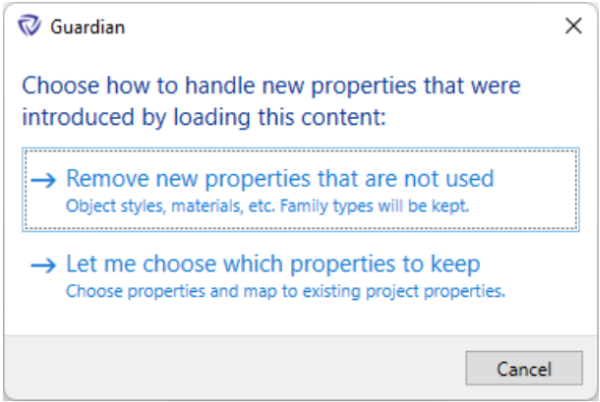
Once a family is loaded, admins will be prompted with a dialog to see the incoming elements or process them as normal.
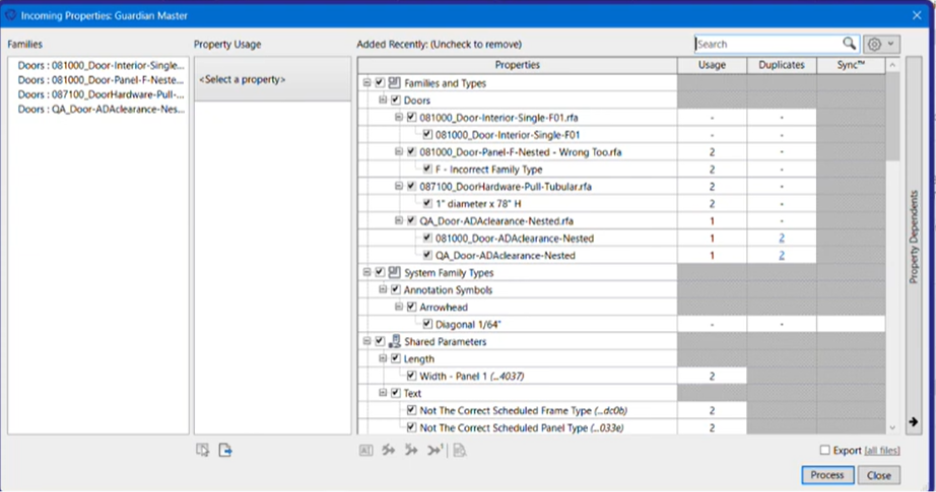
The Incoming Properties dialog looks similar to the Model Properties dialog and is made up of a few key panes:
The Incoming Properties settings menu (E) provides several options for controlling what is displayed and how mapping rules are managed:
Note: "Show only unused" and "Show only duplicate" filters require the relevant tab to be scanned first (via Scan for Usage / Scan for Duplicates) before they'll return results.
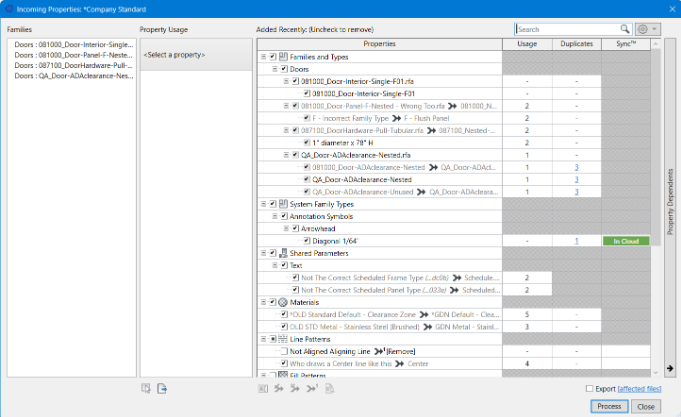
Incoming Properties gives you several functions for renaming properties, adding, or editing mappings.
Families and their family types are listed and grouped by family category. They can be renamed, purged, or mapped to families of the same category that already existed in the project. Please note, family types must be mapped independently of the family itself. There are unique situations for family types:
System family types are usually more common when used with insert views from another project or transfer project standards.
Guardian can identify the incoming shared parameter. Tooltips are available to examine information about the shared parameter. This is useful for comparing the GUID when there are multiple shared parameters with identical names.
Shared parameters can be mapped to those in the current model, to other shared parameters loaded in the family or model, or to ones in which mapping rules have already been assigned. The shared parameter can also set to be converted to Family Parameters.
Guardian will maintain all values, formulas and linked shared parameters wherever they existing within the family and nested families.
This provides an opportunity to update the old standards that exist in the incoming family with the new standard material.
When initially getting started with Guardian, it is best practice to use each of the cleanings as an opportunity to teach Guardian the proper mappings from an old or non-standard to the new standard.
Guardian will memorize these mappings for all future projects and automatically convert these properties.
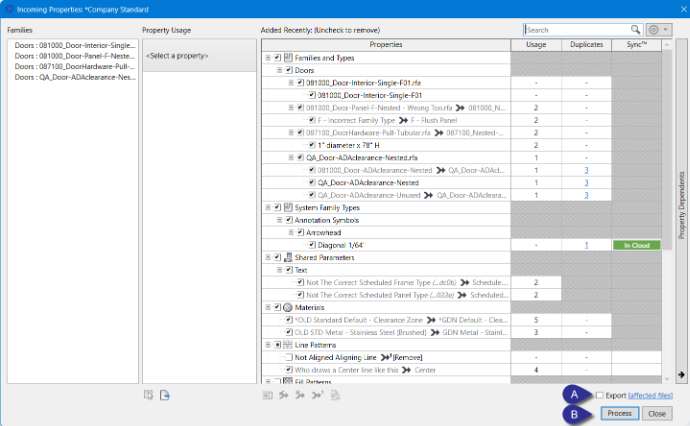
When mapping Revit properties hosted in the Guardian Cloud, a green link icon will appear next to each of those properties.
Contact our support team for more information.
When content is loaded into the active model, Guardian's Incoming Properties dialog automatically launches to identify, process, and clean the incoming content. This dialog launches based on the transaction assigned within the Project Configuration and through Load Family Protections.
Depending on how Guardian is configured for end-users, Guardian will either process properties automatically based on known mappings or (for administrators) prompt the Model Properties dialog for manual cleanup.
Incoming Properties works in conjunction with Mapping Configurations, Model Properties, and Transactions. Mapping Configurations store the mapping rules, Model Properties maps and cleans properties, and Transactions control how those rules are applied to end users when content is loaded.
Transactions are the Revit commands that Guardian monitors when content is brought into a project model, such as Load Family, Insert from File, Copy and Paste from another model, or even Explode CAD. When one of these commands is detected, Guardian responds by automatically processing and cleaning incoming properties for end-users while providing a full Incoming Properties dialog for administrators. Learn more about Transactions and how to customize the end-user experience.
Load Family Protections can respond differently to incoming families based on different conditions and rules, such as enacting Incoming Properties when the family comes from a non-approved source and disabling scanning and processing for content inserted from the firm’s content management solution.
Guardian does this by comparing incoming families with any rules created by administrators. These rules can be specific to the location the file is loaded from, the families category, or even the name of the file itself.
If a match is determined, Guardian will, or will not, scan and process the family’s Incoming Properties as determined by the user experience set by company/project administration for that rule. If the protection mode for the triggered rule is set to Guide or Prevent, Guardian will provide the end-user a customized Command Message.
Learn more about customizing rules for Load Family Protections.
Once a family is loaded, admins will be prompted with a dialog to see the incoming elements or process them as normal.
The Incoming Properties dialog looks similar to the Model Properties dialog and is made up of a few key panes:
The Incoming Properties settings menu (E) provides several options for controlling what is displayed and how mapping rules are managed:
Note: "Show only unused" and "Show only duplicate" filters require the relevant tab to be scanned first (via Scan for Usage / Scan for Duplicates) before they'll return results.
Incoming Properties gives you several functions for renaming properties, adding, or editing mappings.
Families and their family types are listed and grouped by family category. They can be renamed, purged, or mapped to families of the same category that already existed in the project. Please note, family types must be mapped independently of the family itself. There are unique situations for family types:
System family types are usually more common when used with insert views from another project or transfer project standards.
Guardian can identify the incoming shared parameter. Tooltips are available to examine information about the shared parameter. This is useful for comparing the GUID when there are multiple shared parameters with identical names.
Shared parameters can be mapped to those in the current model, to other shared parameters loaded in the family or model, or to ones in which mapping rules have already been assigned. The shared parameter can also set to be converted to Family Parameters.
Guardian will maintain all values, formulas and linked shared parameters wherever they existing within the family and nested families.
This provides an opportunity to update the old standards that exist in the incoming family with the new standard material.
When initially getting started with Guardian, it is best practice to use each of the cleanings as an opportunity to teach Guardian the proper mappings from an old or non-standard to the new standard.
Guardian will memorize these mappings for all future projects and automatically convert these properties.
When mapping Revit properties hosted in the Guardian Cloud, a green link icon will appear next to each of those properties.
Contact our support team to receive personalized assistance.
