Guardian Link

guardian-link
Knowledge Base
Guardian Link
In Beta

In This Article


Overview

Guardian Link lets one company keep its Guardian standards and protections in force on a Revit model, even when other companies do much of the work in it and even when that company isn’t actively working in the model.

The company that enables the Link becomes the model’s Primary Project Team, and its standards travel with the model. Every other company working in that model is a Linked Collaborator. Each Collaborator keeps its own Guardian license and its own setup on its other projects, but on the Linked model it works within the Primary’s standards.

What governs the model
Without Guardian LinkEach company’s Guardian applies its own standards to the same model, so the protections in place depend on whoever has it open.
With Guardian LinkOne company’s standards govern the model for everyone. The Primary sets the rules; Linked Collaborators work within them.

Common uses include:

  • A lead design company that needs its standards upheld while consultants or a design-build partner work in the model
  • A company that owns the model’s standards and needs them protected during phases when its own team isn’t working in it
  • A joint venture whose partners have agreed that one company’s standards govern the shared model

Note: A model can be part of only one active Link at a time. Over its lifetime, it may be part of different Links, but never two at once.

Note: Guardian Link doesn’t add any new role or permission. It changes only where your existing Company Administrator, Project Administrator, and end-user roles can act on a Linked model. See Roles and Permissions.

Why We Created Guardian Link

Clients have told us Guardian protects their own Revit users well, then asked the next question: what about partners from other companies working in the same models?

Over the past four to five years, most companies have adopted Autodesk Forma (formerly Autodesk Construction Cloud) as the common data environment for their projects. That put partner companies directly inside each other’s models. Where companies once worked in separate models, they now share them, and each company’s Guardian applies its own standards to the same file.

Guardian Link gives every project member one set of standards, processes, and best practices to follow, and gives the project team the insight to confirm the project is progressing as planned. Shared models need shared guardrails.

Primary Project Team vs. Linked Collaborator

Primary Project TeamLinked Collaborator
WhoThe company that enables the Link. Every Link has exactly one.Every other company that has registered the same model.
Standards on this modelIts own assigned Project Configuration, Mapping Configuration and Workset Configuration, and its Cloud Properties catalog.The Primary’s configurations and catalog, which are view-only.
Can end the LinkYes. Ending the Link applies to every member.No. A Collaborator can leave the Link for its own company only.

How Membership Is Determined

Members aren’t picked from a list. Guardian adds companies to the Link automatically based on how each company registered the model:

  • Local or network (workshared) model: every company whose registration has exactly the same model name and full Saved Path (not case-sensitive). A different drive mapping, a UNC path in place of a mapped drive, or a copied file doesn’t match
  • Cloud model: every company whose registration points to the same Hub, Project, and Cloud Model URN

Learn more about how models are registered in Model Registration.

What’s Shared and What Stays Local

While a Link is active, each area of Guardian behaves as follows for a Linked Collaborator:

Feature areaFor a Linked Collaborator
Project ConfigurationThe Primary’s assigned Project Configuration applies and is view-only on the Linked model. Your configurations for your other projects stay fully editable.
Mapping ConfigurationThe Primary’s assigned Mapping Configuration applies and is view-only, with one exception: when the Transaction is set to Show Dialogs (full mappings), a Collaborator’s user can add or update a mapping rule, and that rule is saved to the Primary’s Mapping Configuration.
Workset ConfigurationThe Primary’s Workset Configuration applies, and its definitions are view-only. Collaborators can add worksets the configuration contains and run any available rules.
Cloud Properties and Guardian Sync PropertiesShows the Primary’s catalog in each property type’s dialog. Collaborators can download and sync a property into their model but can’t create, edit, or upload to the catalog. All Cloud Properties and Manage Sync aren’t available to Collaborators on the Linked model.
Protections
(Protected Pins, Family Overwrite Protection, Family Type Protections, View Template Protections, View Filter Protections, Parameter Prompts)
Evaluated against the Primary’s standards.
Label ManagerStays independent. A Collaborator’s labels apply only to its own registration of the model.
Company SettingsUnaffected. Always company-wide, Linked or not.
User OverridesLink-aware. On a Linked model, the Primary’s administrators manage overrides for every user in the model, including Linked Collaborator users.
One-Time PasswordsNot Link-aware during the beta. A One-Time Password always comes from the user’s own company, whichever model they’re in, so a Primary administrator’s One-Time Password won’t work for a Collaborator user. See Administrator Setup.
Activity Feed, History and Transaction insightsGoverned by the Model Activity sharing setting (Shared, Primary or Private) chosen when the Link was enabled.
Guardian Messages, presence and Sync Traffic ControlAlways shared across active Link members, whatever the sharing setting. Guardian Messages still follow each company’s own messaging settings.

Pro Tip: Because Collaborator users can add rules to the Primary’s Mapping Configuration under Show Dialogs (full mappings), consider setting Linked models’ Transactions to Silent Mode or Show Dialogs (one time mappings), and checking for Model Overrides on the model, which take precedence, until partners are familiar with your standards. Learn more about Transactions.

How Guardian Link Works

A Link moves through four actions: the Primary enables it, Collaborators accept or review it, a Collaborator can leave it, and the Primary can end it.
Step 1: Enable the Link

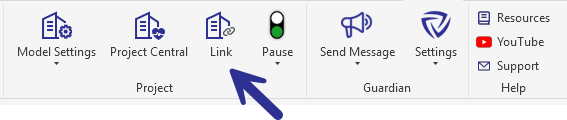
Link in Guardian ribbon

A Primary Company Administrator, or a Project Administrator assigned to the model, enables the Link from the Link icon in the Project panel of the Guardian ribbon, or from the model’s kebab menu in Registered Projects.
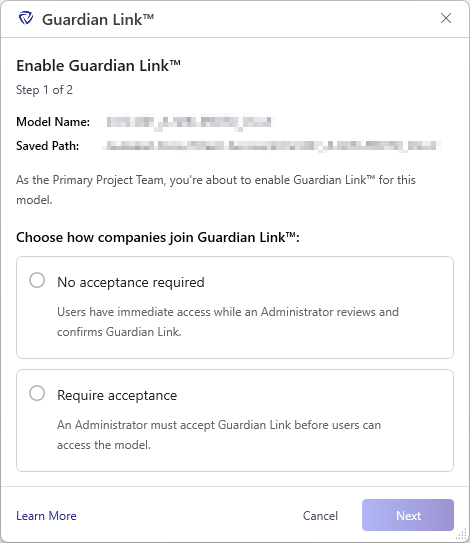
Enable Guardian Link

Enabling a Link takes two decisions:

  1. Acceptance: Require acceptance blocks Collaborators from working in the model until their company accepts the Link. No acceptance required lets them work right away, and their administrator reviews the Link afterward.
  2. Model Activity sharing: sets how much Project Central activity is visible across companies.
SettingWho sees model activity
SharedEvery company in the Link sees activity across all companies.
PrimaryThe Primary sees every company’s activity. Each Collaborator sees only its own.
PrivateEach company, including the Primary, sees only its own activity.

The setting chosen is the starting setting for every Collaborator. The Primary can later change an individual Collaborator’s setting from Link Details, but its own setting can’t be changed after the Link is enabled. If the Link is enabled as Private, the Primary doesn’t receive any other company’s activity, regardless of the setting it gives individual Collaborators.

Last saved by, last saved date, and file size are always shared with every active company in the Link, even when the setting is Private.

Note: Enabling, accepting, leaving, and ending a Link take effect for each user the next time they open the model. Right after a Link is enabled or ended, users who still have the model open may be in a separate Sync Traffic Control queue until they reopen it.

Learn more about Enabling a Guardian Link.

Step 2: Accept or Review the Link

Under Require acceptance, Collaborator users can’t work in the model until one of their administrators accepts the Link. Other users see their company’s administrator contacts instead.

Under No acceptance required, users work right away, and an administrator reviews and acknowledges the Link afterward.

Note: A Link can’t be declined. A Collaborator can accept it and leave it later.

Learn more about Accepting, Reviewing and Leaving a Guardian Link.

Step 3: Leave the Link (Collaborators)

A Collaborator’s Company Administrator or Project Administrator can leave a Link from Link Details once their company has accepted or reviewed it. Leaving affects only that company’s membership; the Link continues for everyone else. Leaving resets the company’s membership rather than removing it from the Link.

Under No acceptance required, the company stays active and returns to Review Link: its users keep working, and activity sharing, the shared sync queue, and the Primary’s configurations all continue.

Under Require acceptance, the company’s membership becomes pending, activity sharing stops in both directions, and its users are blocked the next time they open the model until an administrator accepts again.

Step 4: End the Link (Primary Only)

Only the Primary can end a Link. Ending it applies to every member at once, whatever their acceptance status, and each company’s model goes back to the Project Configuration and Mapping Configuration it had when it joined the Link.

An ended Link can’t be reactivated, but any former member can start a new one. Learn more about Ending a Guardian Link.
Link Status

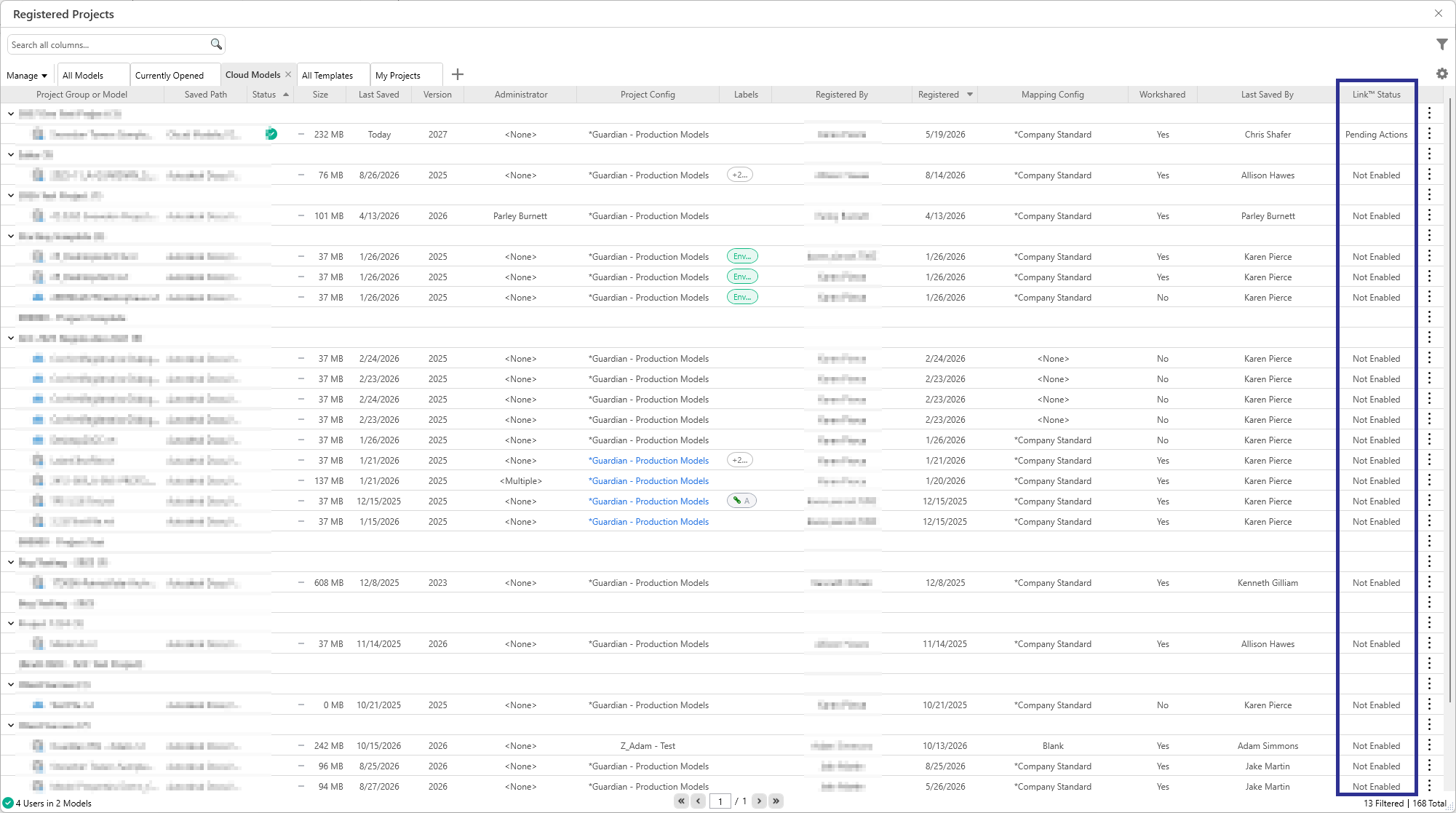
Link Status in Registered Projects

Each Linked model shows one of four statuses in Registered Projects, depending on whether you are the Primary or a Collaborator:

StatusWhat it means
ActiveCollaborator view: The Link is active, and your company has accepted or acknowledged it.

Primary view: Every Collaborator company has accepted or acknowledged the Link, or no other company has registered the model yet.
Pending ActionsPrimary view: One or more Collaborator companies haven’t accepted or reviewed the Link yet.
Review LinkCollaborator view: The Link was enabled with no acceptance required. Your users can work; an administrator needs to review and acknowledge it.
Accept LinkCollaborator view: Acceptance is required. Your users can’t work in the model until an administrator accepts.

Learn more about the Link Actions banner and Link filters in Registered Projects.

Roles and Permissions

RolePrimary Project TeamLinked Collaborator
Company AdministratorNo change. Can enable the Link, manage it from Link Details, and end it.Can accept or review the Link and can leave it once the company has accepted or reviewed. Can view the Primary’s configurations for the Linked model but not change them. All of the company’s other records stay fully editable.
Project AdministratorNo change. Can enable and end the Link on models they administer.Has the same view as on any model they don’t administer, whether or not they are assigned to it. Can accept or review the Link from the dialog that appears when they open the model, or from Registered Projects. Can leave it from Link Details in Registered Projects once their company has accepted or reviewed it. While a Linked model is active, Project Configurations, Registered Projects, User Overrides and One-time Password aren’t available to them, and the Link icon shows them the same read-only view an end user sees. Is never treated as an administrator of the model through the Primary’s administrator list.
End userNo change.Works in the model under the Primary’s standards. Can’t accept a Link and sees their company’s administrator contacts instead.

Requirements

  • Each participating company needs its own active Guardian license and its own registration of the model.
  • Everyone working in a Linked model must be on Guardian 3.4.0 or later. Users on earlier versions keep working without errors, but they see only their own company’s data and follow their own company’s configurations.
  • During the beta, the model must be workshared (local, network, or cloud). Support for non-workshared models is planned for general availability. Templates and family templates aren’t eligible.

Important Notes

  • Multiple Linked models: Several Linked models can be open in the same Revit session, even from different Links. Each uses its own Primary’s standards, and closing one doesn’t affect the others.
  • Collaborator administrators: On a Linked model, Collaborator administrators gain no elevated Sync Traffic Control or messaging actions over other companies.
  • Guardian Backstage: Guardian Link reporting will be available in Guardian Backstage at general availability.
Knowledge Base
Guardian Link
In Beta

In This Article


Overview

Guardian Link lets one company keep its Guardian standards and protections in force on a Revit model, even when other companies do much of the work in it and even when that company isn’t actively working in the model.

The company that enables the Link becomes the model’s Primary Project Team, and its standards travel with the model. Every other company working in that model is a Linked Collaborator. Each Collaborator keeps its own Guardian license and its own setup on its other projects, but on the Linked model it works within the Primary’s standards.

What governs the model
Without Guardian LinkEach company’s Guardian applies its own standards to the same model, so the protections in place depend on whoever has it open.
With Guardian LinkOne company’s standards govern the model for everyone. The Primary sets the rules; Linked Collaborators work within them.

Common uses include:

  • A lead design company that needs its standards upheld while consultants or a design-build partner work in the model
  • A company that owns the model’s standards and needs them protected during phases when its own team isn’t working in it
  • A joint venture whose partners have agreed that one company’s standards govern the shared model

Note: A model can be part of only one active Link at a time. Over its lifetime, it may be part of different Links, but never two at once.

Note: Guardian Link doesn’t add any new role or permission. It changes only where your existing Company Administrator, Project Administrator, and end-user roles can act on a Linked model. See Roles and Permissions.

Why We Created Guardian Link

Clients have told us Guardian protects their own Revit users well, then asked the next question: what about partners from other companies working in the same models?

Over the past four to five years, most companies have adopted Autodesk Forma (formerly Autodesk Construction Cloud) as the common data environment for their projects. That put partner companies directly inside each other’s models. Where companies once worked in separate models, they now share them, and each company’s Guardian applies its own standards to the same file.

Guardian Link gives every project member one set of standards, processes, and best practices to follow, and gives the project team the insight to confirm the project is progressing as planned. Shared models need shared guardrails.

Primary Project Team vs. Linked Collaborator

Primary Project TeamLinked Collaborator
WhoThe company that enables the Link. Every Link has exactly one.Every other company that has registered the same model.
Standards on this modelIts own assigned Project Configuration, Mapping Configuration and Workset Configuration, and its Cloud Properties catalog.The Primary’s configurations and catalog, which are view-only.
Can end the LinkYes. Ending the Link applies to every member.No. A Collaborator can leave the Link for its own company only.

How Membership Is Determined

Members aren’t picked from a list. Guardian adds companies to the Link automatically based on how each company registered the model:

  • Local or network (workshared) model: every company whose registration has exactly the same model name and full Saved Path (not case-sensitive). A different drive mapping, a UNC path in place of a mapped drive, or a copied file doesn’t match
  • Cloud model: every company whose registration points to the same Hub, Project, and Cloud Model URN

Learn more about how models are registered in Model Registration.

What’s Shared and What Stays Local

While a Link is active, each area of Guardian behaves as follows for a Linked Collaborator:

Feature areaFor a Linked Collaborator
Project ConfigurationThe Primary’s assigned Project Configuration applies and is view-only on the Linked model. Your configurations for your other projects stay fully editable.
Mapping ConfigurationThe Primary’s assigned Mapping Configuration applies and is view-only, with one exception: when the Transaction is set to Show Dialogs (full mappings), a Collaborator’s user can add or update a mapping rule, and that rule is saved to the Primary’s Mapping Configuration.
Workset ConfigurationThe Primary’s Workset Configuration applies, and its definitions are view-only. Collaborators can add worksets the configuration contains and run any available rules.
Cloud Properties and Guardian Sync PropertiesShows the Primary’s catalog in each property type’s dialog. Collaborators can download and sync a property into their model but can’t create, edit, or upload to the catalog. All Cloud Properties and Manage Sync aren’t available to Collaborators on the Linked model.
Protections
(Protected Pins, Family Overwrite Protection, Family Type Protections, View Template Protections, View Filter Protections, Parameter Prompts)
Evaluated against the Primary’s standards.
Label ManagerStays independent. A Collaborator’s labels apply only to its own registration of the model.
Company SettingsUnaffected. Always company-wide, Linked or not.
User OverridesLink-aware. On a Linked model, the Primary’s administrators manage overrides for every user in the model, including Linked Collaborator users.
One-Time PasswordsNot Link-aware during the beta. A One-Time Password always comes from the user’s own company, whichever model they’re in, so a Primary administrator’s One-Time Password won’t work for a Collaborator user. See Administrator Setup.
Activity Feed, History and Transaction insightsGoverned by the Model Activity sharing setting (Shared, Primary or Private) chosen when the Link was enabled.
Guardian Messages, presence and Sync Traffic ControlAlways shared across active Link members, whatever the sharing setting. Guardian Messages still follow each company’s own messaging settings.

Pro Tip: Because Collaborator users can add rules to the Primary’s Mapping Configuration under Show Dialogs (full mappings), consider setting Linked models’ Transactions to Silent Mode or Show Dialogs (one time mappings), and checking for Model Overrides on the model, which take precedence, until partners are familiar with your standards. Learn more about Transactions.

How Guardian Link Works

A Link moves through four actions: the Primary enables it, Collaborators accept or review it, a Collaborator can leave it, and the Primary can end it.

Step 1: Enable the Link

Link in Guardian ribbon

A Primary Company Administrator, or a Project Administrator assigned to the model, enables the Link from the Link icon in the Project panel of the Guardian ribbon, or from the model’s kebab menu in Registered Projects.

Enable Guardian Link

Enabling a Link takes two decisions:

  1. Acceptance: Require acceptance blocks Collaborators from working in the model until their company accepts the Link. No acceptance required lets them work right away, and their administrator reviews the Link afterward.
  2. Model Activity sharing: sets how much Project Central activity is visible across companies.
SettingWho sees model activity
SharedEvery company in the Link sees activity across all companies.
PrimaryThe Primary sees every company’s activity. Each Collaborator sees only its own.
PrivateEach company, including the Primary, sees only its own activity.

The setting chosen is the starting setting for every Collaborator. The Primary can later change an individual Collaborator’s setting from Link Details, but its own setting can’t be changed after the Link is enabled. If the Link is enabled as Private, the Primary doesn’t receive any other company’s activity, regardless of the setting it gives individual Collaborators.

Last saved by, last saved date, and file size are always shared with every active company in the Link, even when the setting is Private.

Note: Enabling, accepting, leaving, and ending a Link take effect for each user the next time they open the model. Right after a Link is enabled or ended, users who still have the model open may be in a separate Sync Traffic Control queue until they reopen it.

Learn more about Enabling a Guardian Link.

Step 2: Accept or Review the Link

Under Require acceptance, Collaborator users can’t work in the model until one of their administrators accepts the Link. Other users see their company’s administrator contacts instead.

Under No acceptance required, users work right away, and an administrator reviews and acknowledges the Link afterward.

Note: A Link can’t be declined. A Collaborator can accept it and leave it later.

Learn more about Accepting, Reviewing and Leaving a Guardian Link.

Step 3: Leave the Link (Collaborators)

A Collaborator’s Company Administrator or Project Administrator can leave a Link from Link Details once their company has accepted or reviewed it. Leaving affects only that company’s membership; the Link continues for everyone else. Leaving resets the company’s membership rather than removing it from the Link.

Under No acceptance required, the company stays active and returns to Review Link: its users keep working, and activity sharing, the shared sync queue, and the Primary’s configurations all continue.

Under Require acceptance, the company’s membership becomes pending, activity sharing stops in both directions, and its users are blocked the next time they open the model until an administrator accepts again.

Step 4: End the Link (Primary Only)

Only the Primary can end a Link. Ending it applies to every member at once, whatever their acceptance status, and each company’s model goes back to the Project Configuration and Mapping Configuration it had when it joined the Link.

An ended Link can’t be reactivated, but any former member can start a new one. Learn more about Ending a Guardian Link.

Link Status

Link Status in Registered Projects

Each Linked model shows one of four statuses in Registered Projects, depending on whether you are the Primary or a Collaborator:

StatusWhat it means
ActiveCollaborator view: The Link is active, and your company has accepted or acknowledged it.

Primary view: Every Collaborator company has accepted or acknowledged the Link, or no other company has registered the model yet.
Pending ActionsPrimary view: One or more Collaborator companies haven’t accepted or reviewed the Link yet.
Review LinkCollaborator view: The Link was enabled with no acceptance required. Your users can work; an administrator needs to review and acknowledge it.
Accept LinkCollaborator view: Acceptance is required. Your users can’t work in the model until an administrator accepts.

Learn more about the Link Actions banner and Link filters in Registered Projects.

Roles and Permissions

RolePrimary Project TeamLinked Collaborator
Company AdministratorNo change. Can enable the Link, manage it from Link Details, and end it.Can accept or review the Link and can leave it once the company has accepted or reviewed. Can view the Primary’s configurations for the Linked model but not change them. All of the company’s other records stay fully editable.
Project AdministratorNo change. Can enable and end the Link on models they administer.Has the same view as on any model they don’t administer, whether or not they are assigned to it. Can accept or review the Link from the dialog that appears when they open the model, or from Registered Projects. Can leave it from Link Details in Registered Projects once their company has accepted or reviewed it. While a Linked model is active, Project Configurations, Registered Projects, User Overrides and One-time Password aren’t available to them, and the Link icon shows them the same read-only view an end user sees. Is never treated as an administrator of the model through the Primary’s administrator list.
End userNo change.Works in the model under the Primary’s standards. Can’t accept a Link and sees their company’s administrator contacts instead.

Requirements

  • Each participating company needs its own active Guardian license and its own registration of the model.
  • Everyone working in a Linked model must be on Guardian 3.4.0 or later. Users on earlier versions keep working without errors, but they see only their own company’s data and follow their own company’s configurations.
  • During the beta, the model must be workshared (local, network, or cloud). Support for non-workshared models is planned for general availability. Templates and family templates aren’t eligible.

Important Notes

  • Multiple Linked models: Several Linked models can be open in the same Revit session, even from different Links. Each uses its own Primary’s standards, and closing one doesn’t affect the others.
  • Collaborator administrators: On a Linked model, Collaborator administrators gain no elevated Sync Traffic Control or messaging actions over other companies.
  • Guardian Backstage: Guardian Link reporting will be available in Guardian Backstage at general availability.

Need More Help?

Contact our support team to receive personalized assistance.

Guardian graphic