


Contact our support team for more information.
Guardian Messages lets Digital Practice Leaders, BIM Managers, and Model Managers send messages to users directly inside Revit. There’s nothing to set up: the feature is ready as soon as Guardian is installed.
Messages utilize rich-text formatting and images for maximum creativity to properly communicate to your users. Within the message editor, the text font, size, color, style, and formatting can be customized. Hyperlinks can also be added to the message, including links for websites, email addresses, and folder locations.
We’ve heard from clients that the traditional communication platforms, email and chat, are overused, and important communications from Digital Practice Leaders and BIM Managers just become another communication to be ignored. So, we developed Guardian Messages to provide you with the means to communicate directly within Revit in ways users can’t miss.
Messages can be sent from three places.
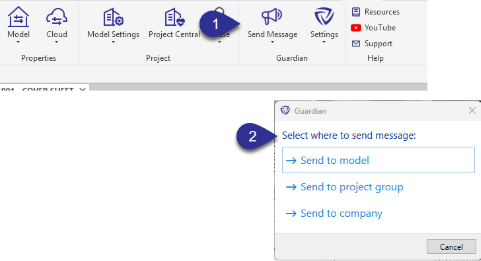
Project admins can send only to the active project or project group for the models within which they have been assigned.
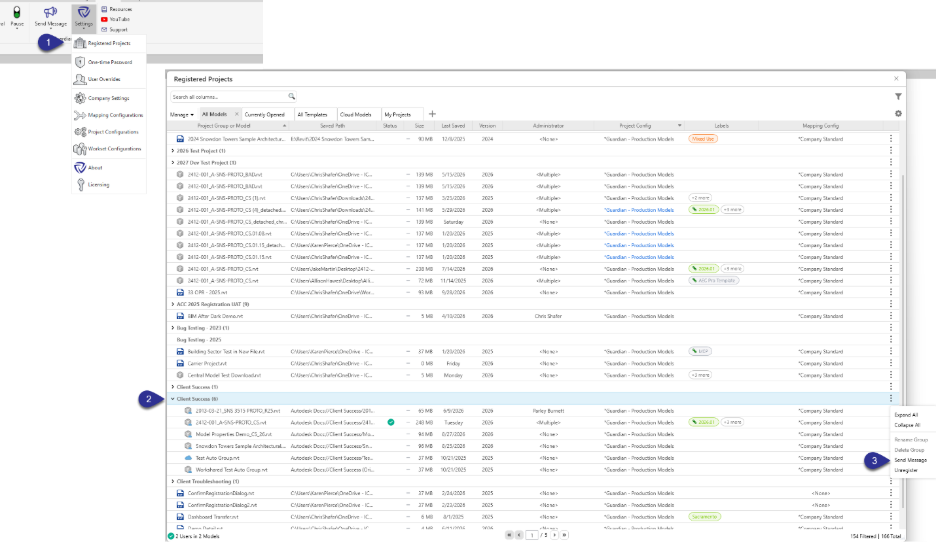
Use this option to send to specific models or several files at once.
Project Admins will see only the models and project groups they administer.
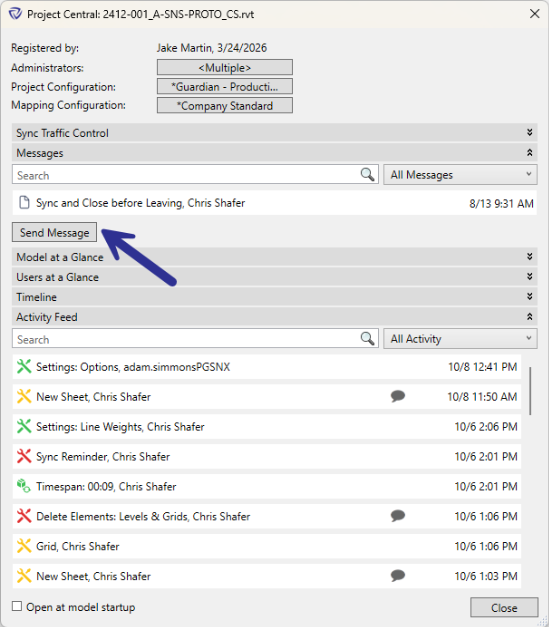
Click Send Message in Project Central. You’ll get the same recipient options as the ribbon.
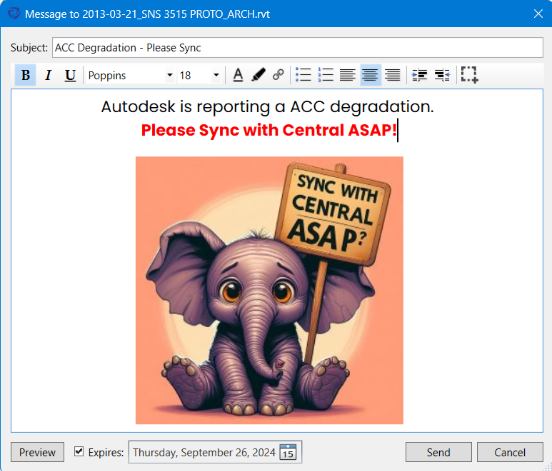
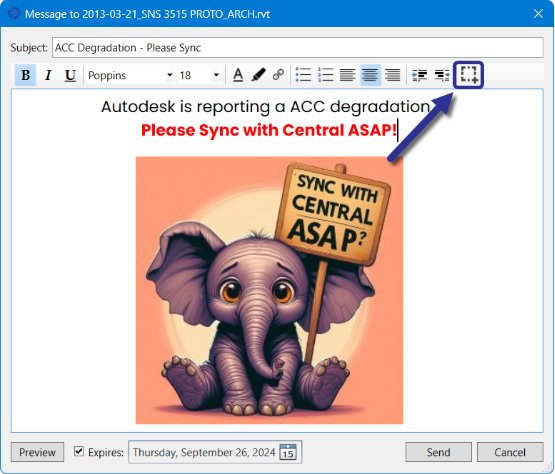
To see sent messages, open the Send Message dropdown and choose View Messages.
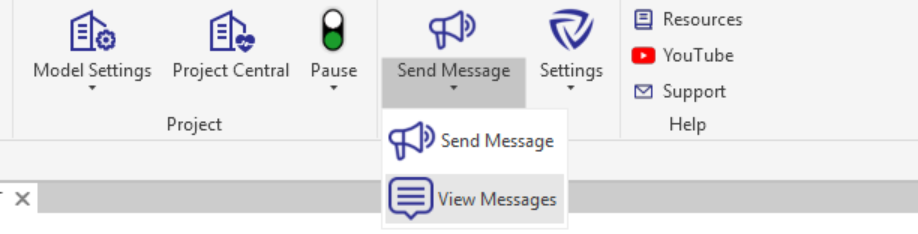
From there you can do the following:
Note: On a Guardian Link model, only the company that sent a message can edit or delete it, and the change applies for every company in the Link.
Company Admins can manage any message. Project Admins can manage only messages they sent.
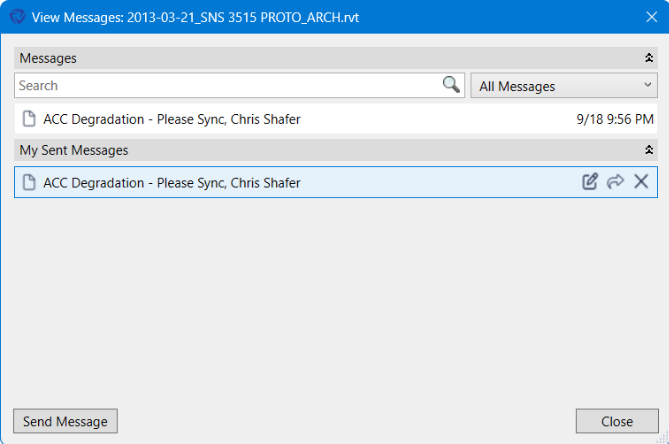
If users are in Revit when you send a message, it appears right away, along with a Windows notification.
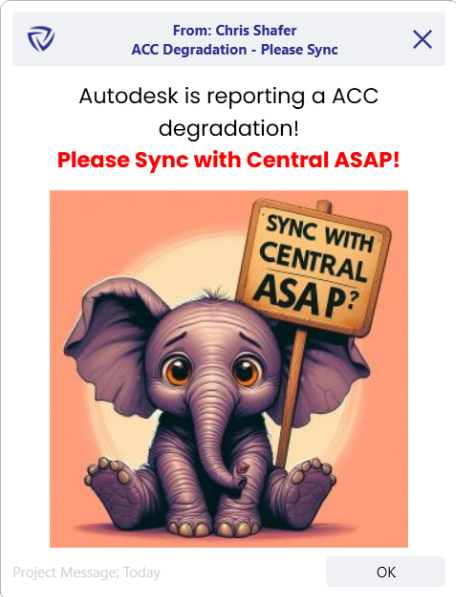
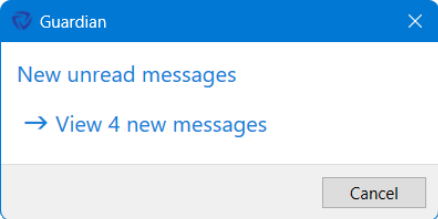
If they aren’t in Revit, they’ll see a notice about unread messages the next time they open a model.
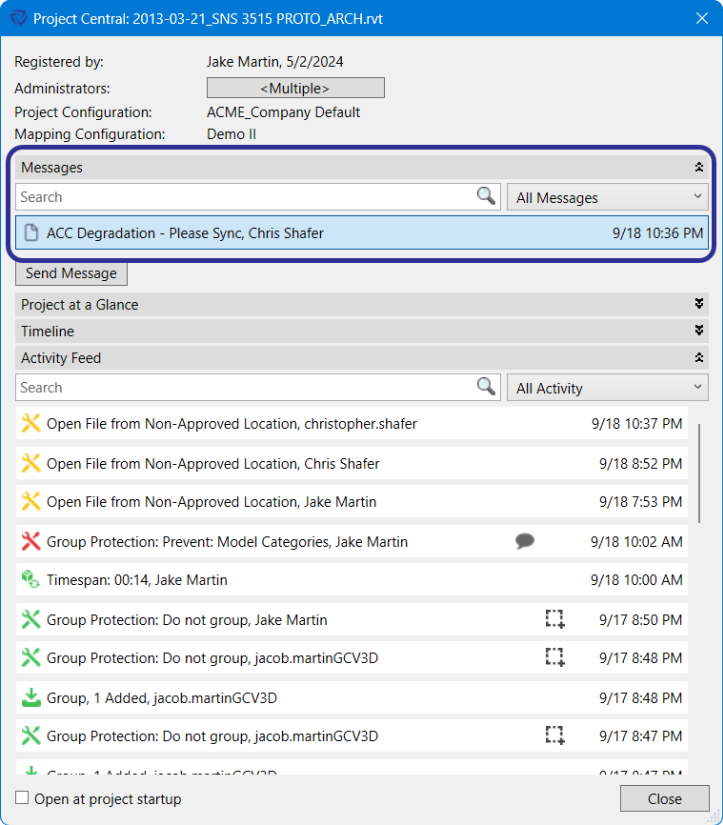
Users can reread messages anytime from View Messages or from the Messages area in Project Central. Both show company-wide and project messages.
Email and chat are crowded, and important updates from BIM and Digital Practice teams often get lost there. Messages reach people inside Revit, where they’re working. Some ways teams use them:
Guardian Link is currently in private beta.
Guardian Link lets one company, the Primary Project Team, keep its Guardian standards and protections in force on a model while other companies, Linked Collaborators, work in it. On a Linked model, messages can reach users at every company in the Link.
Whether an individual user can send or receive messages from other individual users depends on that user’s own company setting, not the Primary’s:
Only the company that sent a message can edit or delete it. Admins at other companies in the Link can't manage it. When the sending company edits or deletes a message, the change applies for every company in the Link, not just its own. A deleted message no longer appears in View Messages or Project Central for any company.
Messages aren’t affected by the Model Activity sharing setting
The Shared, Primary, and Private setting the Primary chooses for a Link controls activity in Project Central. It doesn’t limit messages. Messages follow the rules above for every company in the Link, whatever that setting is. See Project Central.
When a Link ends
Messages sent during the Link stay visible to the companies that could already see them.
Contact our support team for more information.
Guardian Messages lets Digital Practice Leaders, BIM Managers, and Model Managers send messages to users directly inside Revit. There’s nothing to set up: the feature is ready as soon as Guardian is installed.
Messages utilize rich-text formatting and images for maximum creativity to properly communicate to your users. Within the message editor, the text font, size, color, style, and formatting can be customized. Hyperlinks can also be added to the message, including links for websites, email addresses, and folder locations.
We’ve heard from clients that the traditional communication platforms, email and chat, are overused, and important communications from Digital Practice Leaders and BIM Managers just become another communication to be ignored. So, we developed Guardian Messages to provide you with the means to communicate directly within Revit in ways users can’t miss.
Messages can be sent from three places.
Project admins can send only to the active project or project group for the models within which they have been assigned.
Use this option to send to specific models or several files at once.
Project Admins will see only the models and project groups they administer.
Click Send Message in Project Central. You’ll get the same recipient options as the ribbon.
To see sent messages, open the Send Message dropdown and choose View Messages.
From there you can do the following:
Note: On a Guardian Link model, only the company that sent a message can edit or delete it, and the change applies for every company in the Link.
Company Admins can manage any message. Project Admins can manage only messages they sent.
If users are in Revit when you send a message, it appears right away, along with a Windows notification.
If they aren’t in Revit, they’ll see a notice about unread messages the next time they open a model.
Users can reread messages anytime from View Messages or from the Messages area in Project Central. Both show company-wide and project messages.
Email and chat are crowded, and important updates from BIM and Digital Practice teams often get lost there. Messages reach people inside Revit, where they’re working. Some ways teams use them:
Guardian Link is currently in private beta.
Guardian Link lets one company, the Primary Project Team, keep its Guardian standards and protections in force on a model while other companies, Linked Collaborators, work in it. On a Linked model, messages can reach users at every company in the Link.
Whether an individual user can send or receive messages from other individual users depends on that user’s own company setting, not the Primary’s:
Only the company that sent a message can edit or delete it. Admins at other companies in the Link can't manage it. When the sending company edits or deletes a message, the change applies for every company in the Link, not just its own. A deleted message no longer appears in View Messages or Project Central for any company.
Messages aren’t affected by the Model Activity sharing setting
The Shared, Primary, and Private setting the Primary chooses for a Link controls activity in Project Central. It doesn’t limit messages. Messages follow the rules above for every company in the Link, whatever that setting is. See Project Central.
When a Link ends
Messages sent during the Link stay visible to the companies that could already see them.
Contact our support team to receive personalized assistance.
