


Contact our support team for more information.
Protected Families allows Project Administrators to create rules to protect families from being overwritten by end-users. Specific families within a project can also be selected to be protected. Once activated for the project model, Protected Families will display a customized Guardian Command Message when an end-user attempts to reload the family from the family editor or replace the family of the same name from an external source. This action can be fully prevented or can be used to put a message in front of the user to guide them toward the correct practice.
Creating and maintaining families within a firm and on a project requires a tremendous amount of work and time. We routinely hear stories from BIM managers of how much effort goes into fixing mistakes when an end-user improperly edits families or overwrites them completely. Guardian’s Family Overwrite Protections does exactly as its name implies, it protects the Revit families in your project models from unwanted mistakes.
Certain families align the company standards put in place to maintain graphical consistency. If these families are overwritten, it can create a big headache for the BIM Manager. With protections enabled, you will be able to keep track of attempts to overwrite families. Not only does this protect your standards, but can offer insight into changes that can benefit the company library.
When Protected Families is first enabled within Project Configurations under the Custom Interactions tab, it will be adopted by each project model once the model is registered. Protected Families can be further customized at the project level within Model Settings on a model-by-model basis.
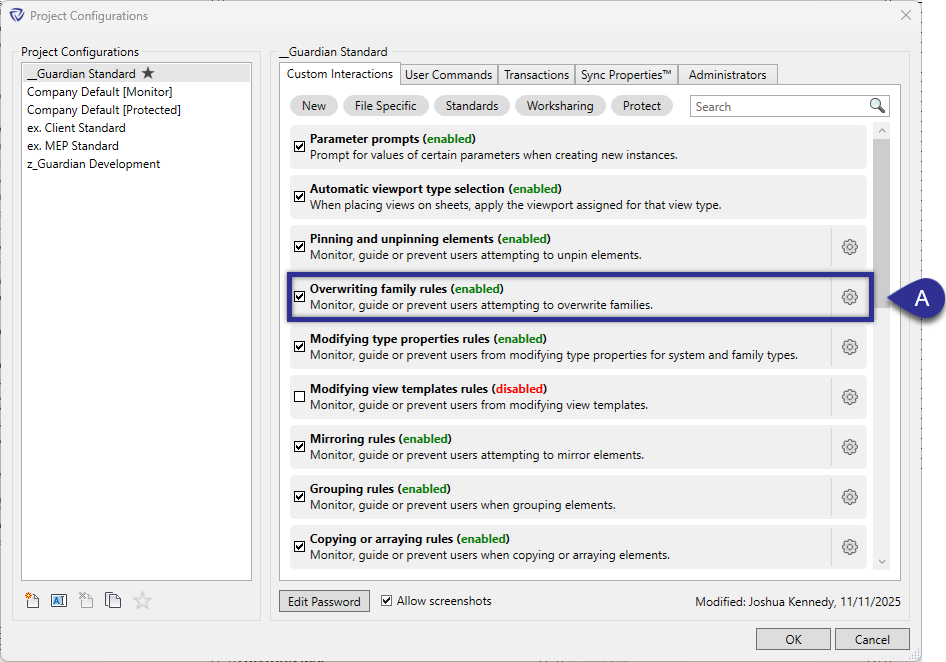
Both company and project level customization can be applied under the Custom Interactions tab within Project Configurations or Model Settings as follows.
Select the Setting Cog (A) to customize rules that will apply the override protection.

Within the Protected Families Rules dialog, any existing rules will be listed out (B). Each of these rules will run in order from top to bottom until a match is found (if any at all).
To create a new rule, the New button can be selected at the bottom (C).
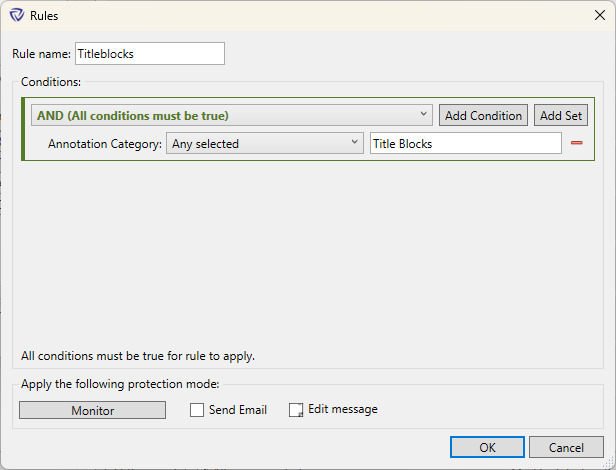
In the Rules dialog, a name for the rule can be set. Conditions can be added in AND or OR sets to specify the types of families to apply the overwrite protection.
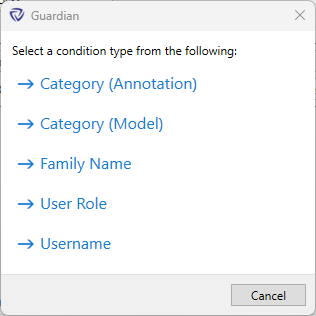
There are many different conditions that can be used to specify a family either by the category, family name, or even by user role or username of who is attempting to overwrite a family.
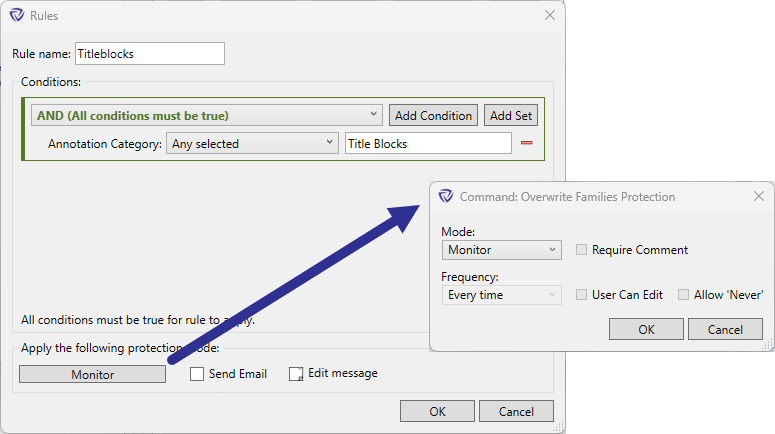
The protection mode can be customized for each rule:
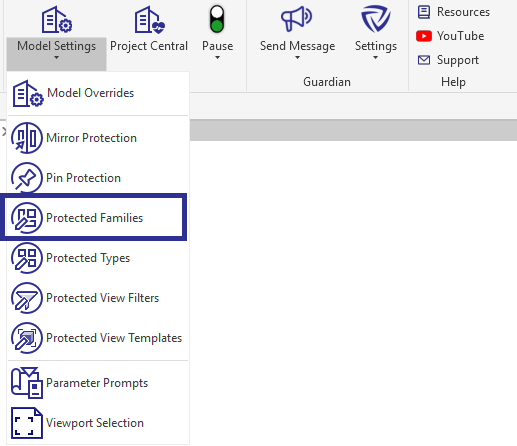
The overwrite protection can be applied to specific families as well. Guardian’s Protected Families can be accessed from the Guardian ribbon by selecting the down arrow below Model Settings.
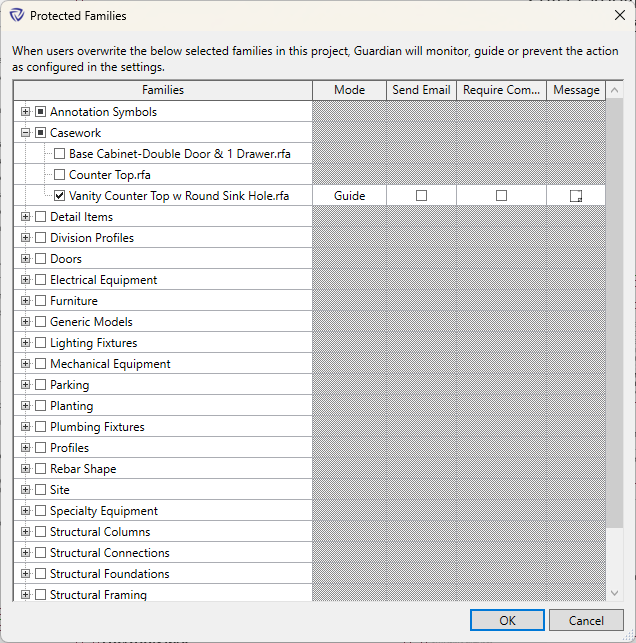
Within the Protected Families dialog, the Project Administrator is presented with all families loaded into the project model, grouped by Family Category.
Simply checking the box will apply the Protected Families protections for the selected family.
Once selected, the Project Administrator can then customize the Protection Mode and Command Message applied to that family.
Pro Tip: Shift+Left Mouse click allows to select multiple families at once to be protected.
It is also possible to apply the overwrite protection within the Family Editor using the same Protected Families dialog found in the Guardian Ribbon.
When an end-user attempts to reload a protected family from the family editor or replace the family of the same name from an external source, Guardian will alert them with the custom Command Message provided by the Project Administrator. The Command Message will also display the name of the rule that was triggered.
Depending on the protection mode settings applied, the end-user may need to enter a comment and/or a password before proceeding.

Enable notifications in the rules by checking Send email. When an end-user attempts to overwrite a family, the project admin will be notified with an email containing the pertinent information. This is great insight and an opportunity to ask the user what changes they are attempting to make. It could be an indication that the family needs to be updated in the library.

Contact our support team for more information.
Protected Families allows Project Administrators to create rules to protect families from being overwritten by end-users. Specific families within a project can also be selected to be protected. Once activated for the project model, Protected Families will display a customized Guardian Command Message when an end-user attempts to reload the family from the family editor or replace the family of the same name from an external source. This action can be fully prevented or can be used to put a message in front of the user to guide them toward the correct practice.
Creating and maintaining families within a firm and on a project requires a tremendous amount of work and time. We routinely hear stories from BIM managers of how much effort goes into fixing mistakes when an end-user improperly edits families or overwrites them completely. Guardian’s Family Overwrite Protections does exactly as its name implies, it protects the Revit families in your project models from unwanted mistakes.
Certain families align the company standards put in place to maintain graphical consistency. If these families are overwritten, it can create a big headache for the BIM Manager. With protections enabled, you will be able to keep track of attempts to overwrite families. Not only does this protect your standards, but can offer insight into changes that can benefit the company library.
When Protected Families is first enabled within Project Configurations under the Custom Interactions tab, it will be adopted by each project model once the model is registered. Protected Families can be further customized at the project level within Model Settings on a model-by-model basis.
Both company and project level customization can be applied under the Custom Interactions tab within Project Configurations or Model Settings as follows.
Select the Setting Cog (A) to customize rules that will apply the override protection.
Within the Protected Families Rules dialog, any existing rules will be listed out (B). Each of these rules will run in order from top to bottom until a match is found (if any at all).
To create a new rule, the New button can be selected at the bottom (C).
In the Rules dialog, a name for the rule can be set. Conditions can be added in AND or OR sets to specify the types of families to apply the overwrite protection.
There are many different conditions that can be used to specify a family either by the category, family name, or even by user role or username of who is attempting to overwrite a family.
The protection mode can be customized for each rule:
The overwrite protection can be applied to specific families as well. Guardian’s Protected Families can be accessed from the Guardian ribbon by selecting the down arrow below Model Settings.
Within the Protected Families dialog, the Project Administrator is presented with all families loaded into the project model, grouped by Family Category.
Simply checking the box will apply the Protected Families protections for the selected family.
Once selected, the Project Administrator can then customize the Protection Mode and Command Message applied to that family.
Pro Tip: Shift+Left Mouse click allows to select multiple families at once to be protected.
It is also possible to apply the overwrite protection within the Family Editor using the same Protected Families dialog found in the Guardian Ribbon.
When an end-user attempts to reload a protected family from the family editor or replace the family of the same name from an external source, Guardian will alert them with the custom Command Message provided by the Project Administrator. The Command Message will also display the name of the rule that was triggered.
Depending on the protection mode settings applied, the end-user may need to enter a comment and/or a password before proceeding.
Enable notifications in the rules by checking Send email. When an end-user attempts to overwrite a family, the project admin will be notified with an email containing the pertinent information. This is great insight and an opportunity to ask the user what changes they are attempting to make. It could be an indication that the family needs to be updated in the library.
Contact our support team to receive personalized assistance.
