Administrator Login

getting-started
Knowledge Base
Administrator Login

In This Article


Which Administrator Are You?

Company Administrator Project Administrator
What you manage Company-level settings, the defaults new projects adopt, and every registered project Project-level settings for the projects you're assigned to
Company Settings Full access No access
Joining a project Can add yourself to any project Assigned by a Company Administrator, or add yourself if Allow Add is enabled
Managing other admins Add admins and assign them to projects Not available
Instant email alerts For projects you're assigned to, or projects with no admin For projects you're assigned to
Weekly reports All company activity Your assigned projects

Not sure which role you have? Ask a Company Administrator at your firm.
Log In

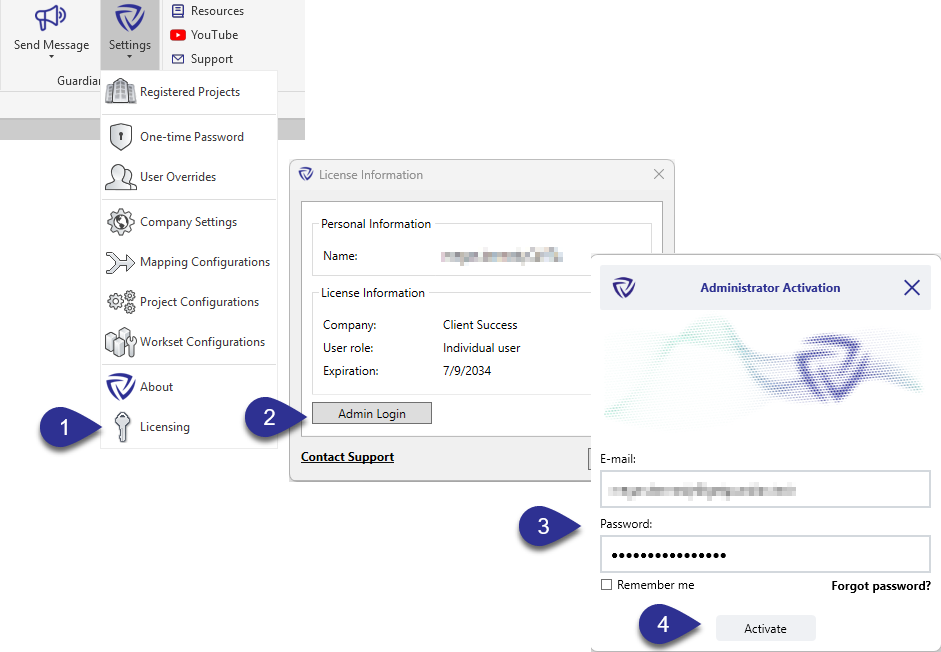
Admin login steps
  1. In Revit, go to Add-Ins > Guardian > Settings > Licensing > Admin Login
  2. Click Admin Login
  3. Enter the email address and password associated with your Guardian account
    • On your first login, enter the temporary password from your welcome email
  4. Click Activate  

Pro Tip: Check “Remember me” so you don’t have to renter your email and password each time you log in and out. Sometimes logging out helps administrators experience Guardian from an end-user perspective.  

After You Log In

Company Administrators can edit and manage Company Settings, edit Project, Mapping and Workset Configurations, add administrators, and assign them to projects in Registered Projects.

Project Administrators can edit Project, Mapping and Workset Configurations for the one’s they're assigned to. To get access to another project, ask a Company Administrator, or add yourself in Registered Projects if Allow Add is enabled for your account. Project Administrates can edit and maintain Model Based Protections and Model Overrides for their assigned projects.

Both roles can receive notifications when protected commands are used in their assigned projects.

Troubleshooting

  • ‍I logged in but can't find Company Settings. You're signed in as a Project Administrator. Company Settings is available to Company Administrators only. ‍
  • I can't edit a project. You aren't assigned to it. Ask a Company Administrator to assign you, or add yourself in Registered Projects if Allow Add is enabled. ‍
  • I'm a Company Administrator and stopped getting instant alerts for a project. Instant alerts go to that project's assigned admins. You'll get them only if you're assigned, or if the project has no admin. ‍
  • I forgot my password or my temporary password expired. Reach out to support@iconicbim.com for a password reset. ‍
  • My account isn't set up yet. Ask a Company Administrator to add you on the Administrators tab in Company Settings.
Knowledge Base
Administrator Login

In This Article


Which Administrator Are You?

Company Administrator Project Administrator
What you manage Company-level settings, the defaults new projects adopt, and every registered project Project-level settings for the projects you're assigned to
Company Settings Full access No access
Joining a project Can add yourself to any project Assigned by a Company Administrator, or add yourself if Allow Add is enabled
Managing other admins Add admins and assign them to projects Not available
Instant email alerts For projects you're assigned to, or projects with no admin For projects you're assigned to
Weekly reports All company activity Your assigned projects

Not sure which role you have? Ask a Company Administrator at your firm.

Log In

Admin login steps
  1. In Revit, go to Add-Ins > Guardian > Settings > Licensing > Admin Login
  2. Click Admin Login
  3. Enter the email address and password associated with your Guardian account
    • On your first login, enter the temporary password from your welcome email
  4. Click Activate  

Pro Tip: Check “Remember me” so you don’t have to renter your email and password each time you log in and out. Sometimes logging out helps administrators experience Guardian from an end-user perspective.  

After You Log In

Company Administrators can edit and manage Company Settings, edit Project, Mapping and Workset Configurations, add administrators, and assign them to projects in Registered Projects.

Project Administrators can edit Project, Mapping and Workset Configurations for the one’s they're assigned to. To get access to another project, ask a Company Administrator, or add yourself in Registered Projects if Allow Add is enabled for your account. Project Administrates can edit and maintain Model Based Protections and Model Overrides for their assigned projects.

Both roles can receive notifications when protected commands are used in their assigned projects.

Troubleshooting

  • ‍I logged in but can't find Company Settings. You're signed in as a Project Administrator. Company Settings is available to Company Administrators only. ‍
  • I can't edit a project. You aren't assigned to it. Ask a Company Administrator to assign you, or add yourself in Registered Projects if Allow Add is enabled. ‍
  • I'm a Company Administrator and stopped getting instant alerts for a project. Instant alerts go to that project's assigned admins. You'll get them only if you're assigned, or if the project has no admin. ‍
  • I forgot my password or my temporary password expired. Reach out to support@iconicbim.com for a password reset. ‍
  • My account isn't set up yet. Ask a Company Administrator to add you on the Administrators tab in Company Settings.

Need More Help?

Contact our support team to receive personalized assistance.

Guardian graphic