


Contact our support team for more information.
Note: Project Properties was renamed to Model Properties in Guardian 3.3.5.
Guardian's Model Properties is a powerful engine for aligning your project model properties with your firm's graphical and Revit standards. Model Properties identifies, processes, and cleans the furthest reaches of your project models and Revit families.
Model Properties functions in two distinct ways:
In both cases, Model Properties allows you to identify properties that are in (or out of) alignment with the firm’s standards and Guardian Sync Properties, duplicate properties, and property usage. Model Properties works in conjunction with Mapping Configurations and Transactions. Mapping Configurations store the mapping rules, and Transactions control how those rules are applied to end-users when content is loaded.
At the heart of Model Properties is Mapping Configurations. Model Properties and Incoming Properties are the interfaces in which mappings are created. Mapping Configurations are how and where Guardian memorizes those mappings, or conversions, of non-standard Revit properties to a standard Revit property. It's these Mapping Configurations that establish the automations Guardian uses to clean incoming content and align it with a firm's or project's graphical and Revit standards.
A Mapping Configuration must be created and assigned to the registered model before Model Properties functionality is enabled. For details on what Mapping Configurations do, how to set one up, and best practices for structuring master, discipline-specific, and client-specific configurations, see the Mapping Configurations article.
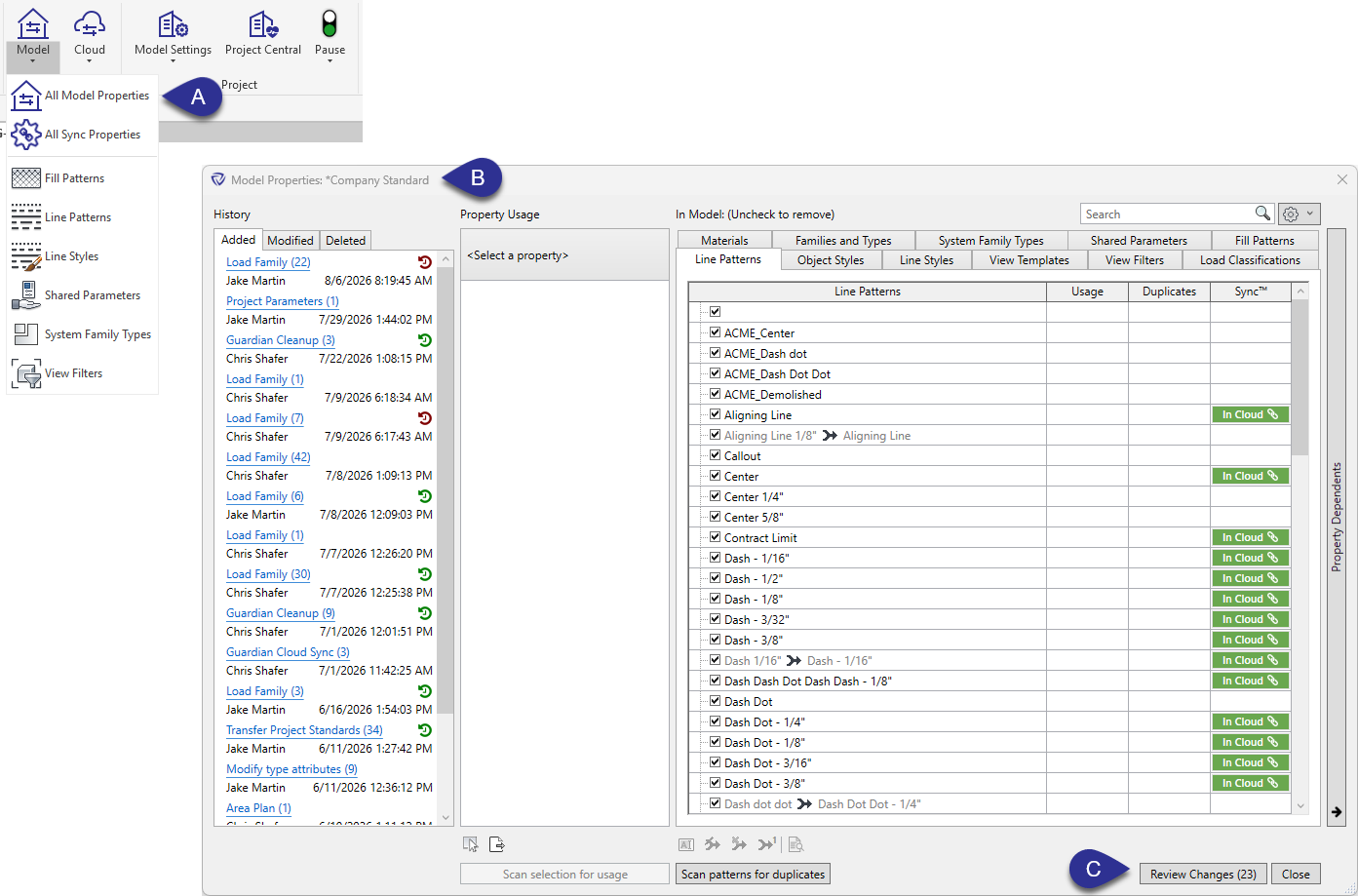
Model Properties can map and clean the Revit properties of the active model. Access it from Model > All Model Properties (A). Before mapping and cleaning, always confirm the correct Mapping Configuration is assigned to the active model (B). Also note the number next to Review Changes (C) in the lower-right corner. This shows how many mappings Guardian has already recognized automatically, based on the Mapping Configuration's existing rules.
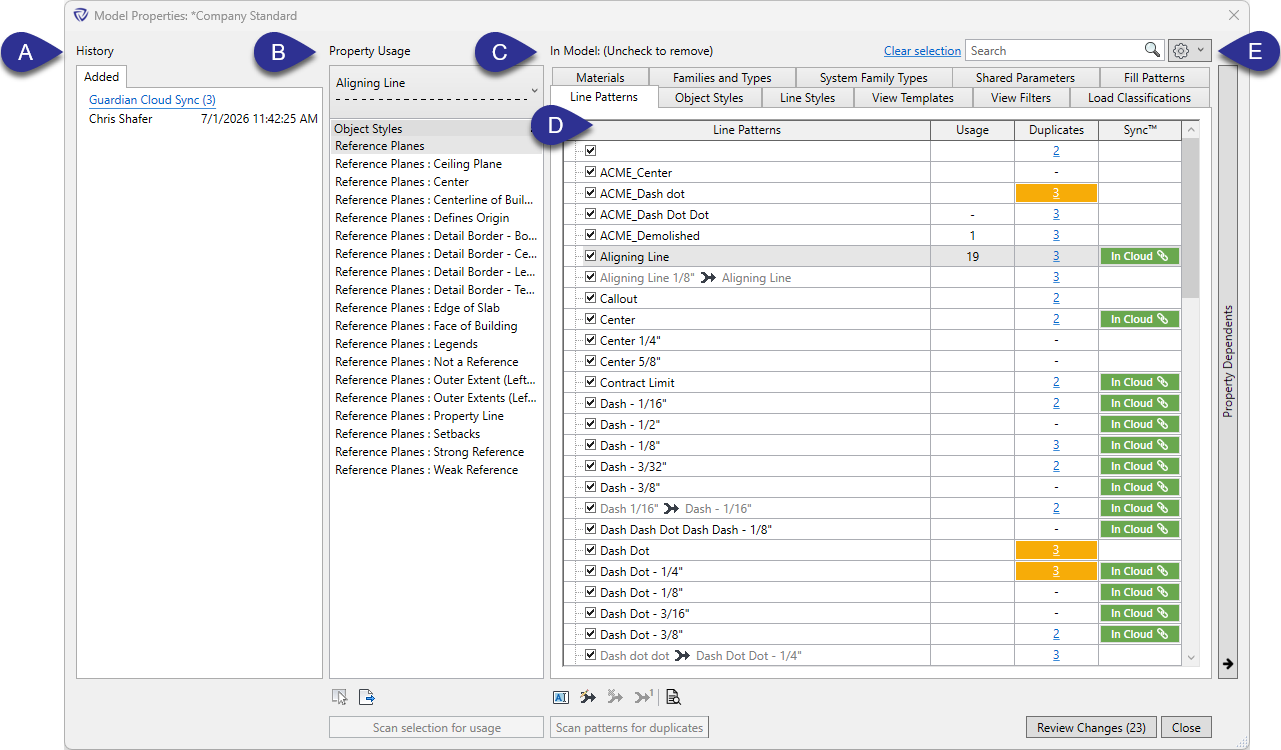
The Model Properties dialog is made up of a few key panes:
The Model Properties settings menu (E) provides several options for controlling what is displayed and how mapping rules are managed:
Note: "Show only unused" and "Show only duplicate" filters require the relevant tab to be scanned first (via Scan for Usage / Scan for Duplicates) before they'll return results.
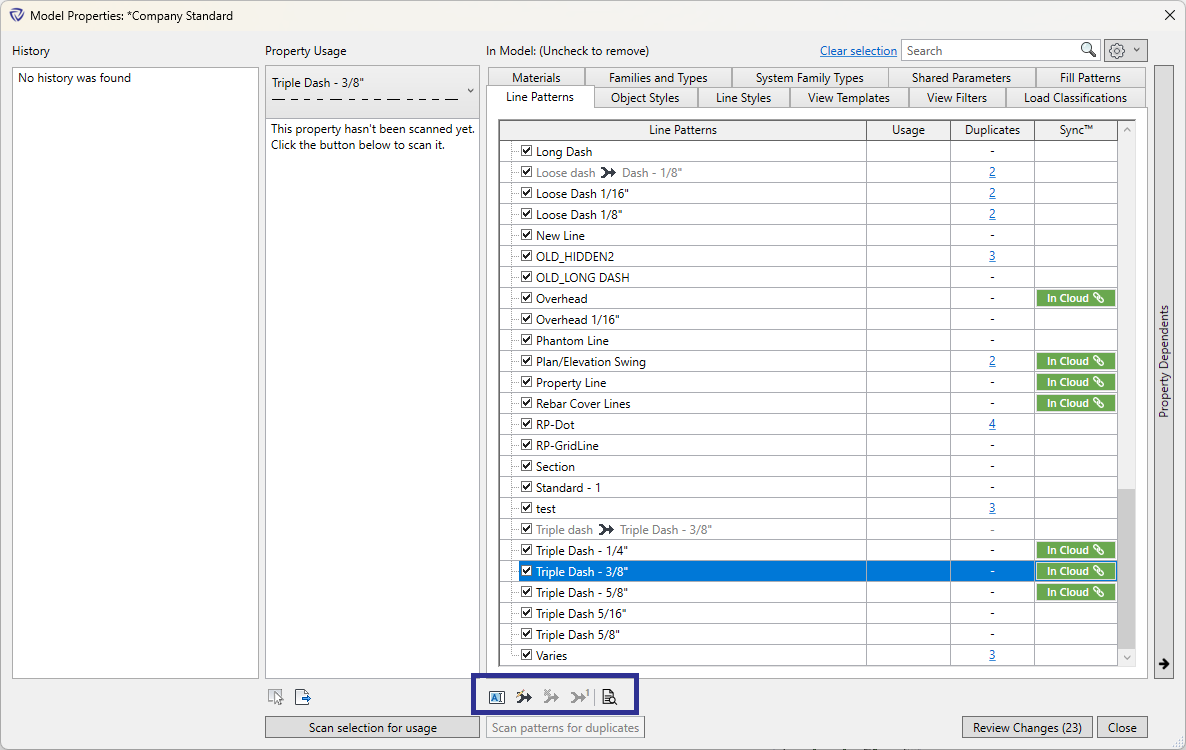
Model Properties gives you several functions for renaming properties, adding, or editing mappings.
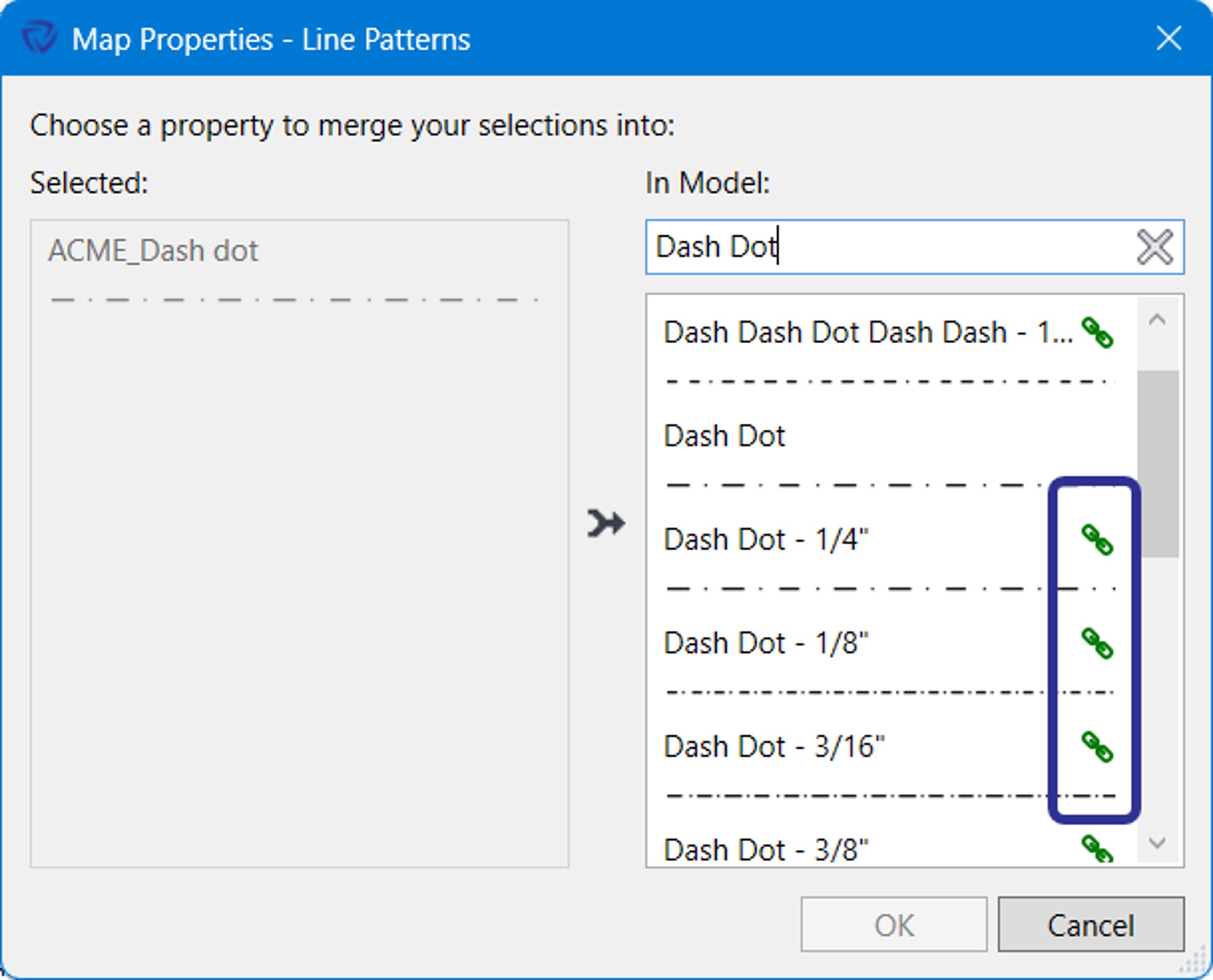
A full mapping, or a typical mapping, is a mapping stored in a Mapping Configuration and is mapping from one property (non-conforming standard) to another property (standard). When Edit Mapping is selected, the Map Properties dialog will appear. This dialog will show the selected property to merge on the left, along with a display of the property when available, and the list of all of the available like properties within the active model on the right.
Note: Project administrators will only have one-time mapping capabilities unless they are assigned as a Project Administrator on the assigned Mapping Configuration.
Properties listed with the link icon indicate they are also hosted on Guardian Sync Properties. This provides quick identification of the firm’s standards during the mapping process. Please note Guardian only maps to properties in the active model and does not map to properties that exist on Guardian Sync Properties but are not in the active model. They must first be downloaded from Guardian Sync Properties.
Pro tip: Guardian assumes the model you are working from is the source of truth, and all Revit and graphical properties are pre-loaded into the model as a Revit template or Starter Project.
A mapping can be applied on a one-time basis without being saved to a configuration. This approach is useful for project-specific cleanup that should not become permanent, typically associated with unique project-specific requirements that do not constitute a full standard.
A one-time mapping is indicated by a superscript 1 displayed next to the mapping symbol in Model Properties.
One-time mappings can be set two ways:
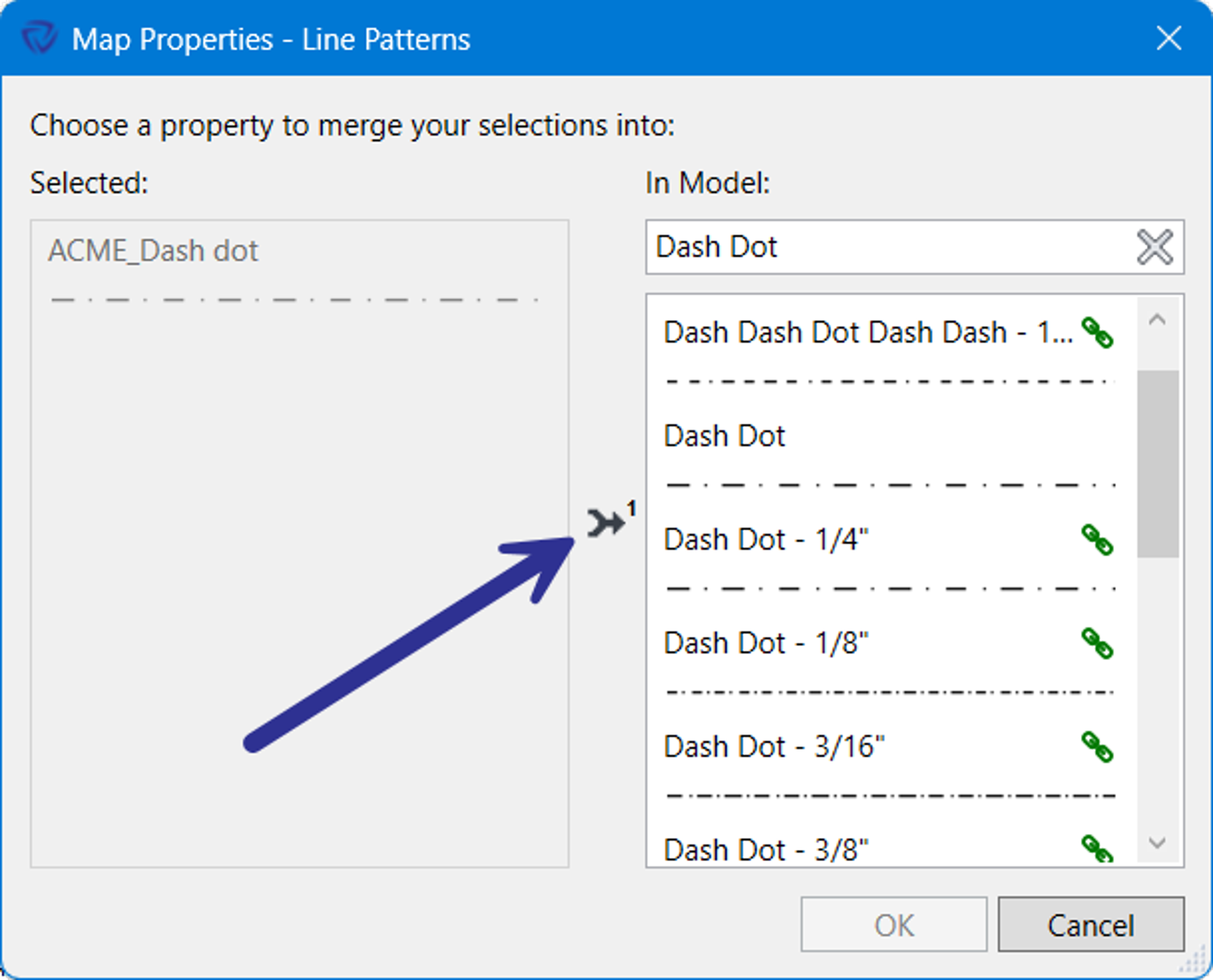
1. From the create/edit dialog: Toggle the Remember / Don't Remember option when creating or editing a mapping rule.
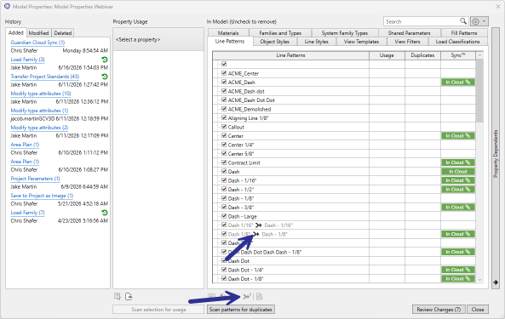
2. From Model Properties directly: Select an existing mapping rule and click the Remember / Don't Remember option to toggle its behavior.
Renaming is a form of mapping that keeps the makeup of the original property but only renames the property. This is an effective tool for updating naming standards.
Since Guardian treats renaming and mappings equally within Mapping Configurations, a rename can lead to a helpful mapping.
Example: If Family B is renamed to Family A. However, if an older and different version of Family B is loaded into the active model, Guardian will map the old Family B to the current Family A, thus eliminating the old Family B.
Pro Tip: Historically, bringing families and details from old Revit projects meant bringing those old standards along, limiting the full adoption for standards updates. Between Mappings and Renaming, over time, Guardian effectively purges those old standards to ensure the new standards are effectively adopted.
When a mapping rule is applied to a property, Guardian determines whether to map or rename based on whether the destination property already exists in the current model.
To preview which behavior will apply before committing to a change, enable Show additional mapping insight in the Model Properties settings menu. Properties that are set to be removed will display as [Remove].
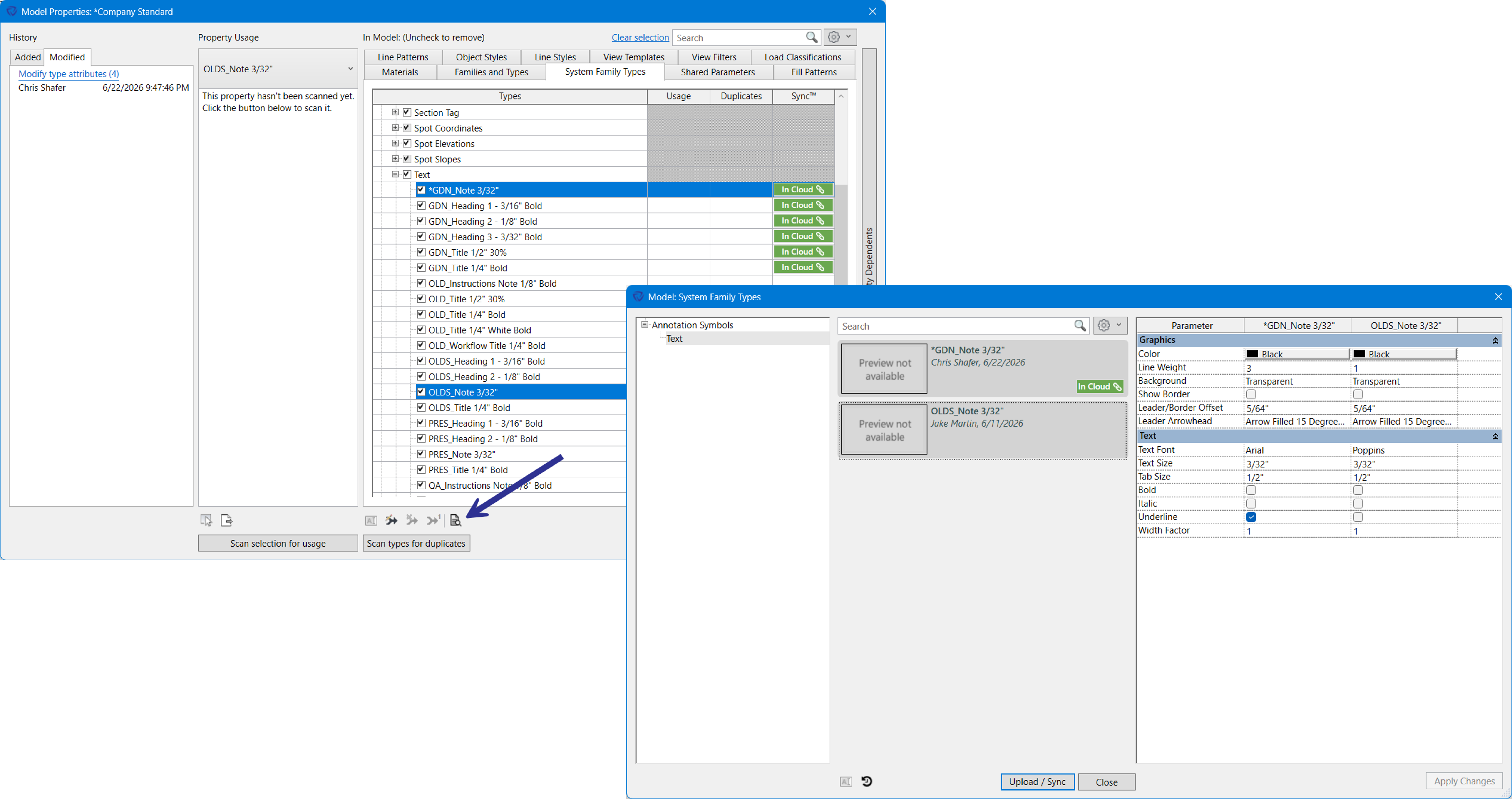
To see a quick side-by-side comparison of the makeup up of each property:
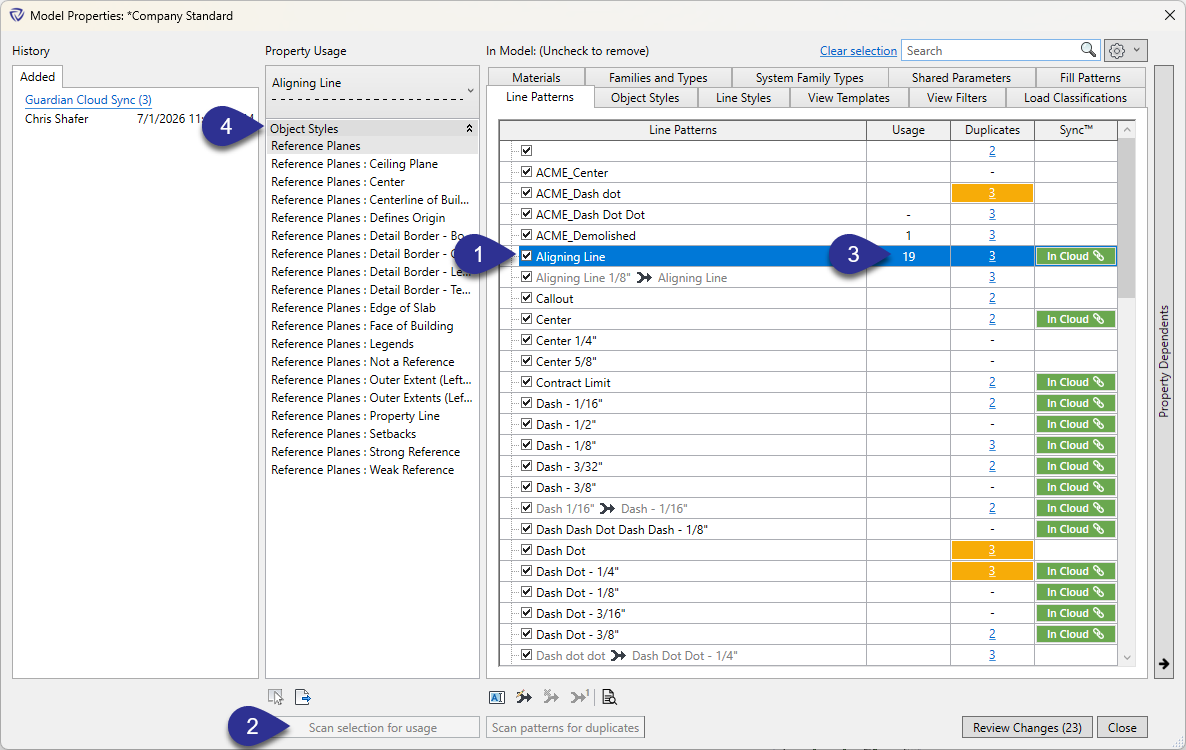
Scan selection for usage is a great way to see how frequent, or infrequent properties are used in the active project model.
Note: if a “remove mapping” is assigned to a property, Guardian will delete that property in all future mapping sessions regardless of if the property is used.
Guardian will then prompt to remember the action:
Pro Tip: Every property is a mapping opportunity to make Guardian smarter. It is recommended, especially early in a firm’s mapping journey, to map (or rename) unused properties of a non-conforming standard to a standard. More than likely, there will be instances in the future in which that property is used and it’s best to have the property mapped versus deleted.
Scan property for duplicates is an effective feature of Model Properties to identify properties that are identical in makeup, but named differently.
Note: Not all duplicates are bad as designers routinely have duplicate properties (example: line patterns) of the same makeup but are used for entirely different purposes as indicated by their names.
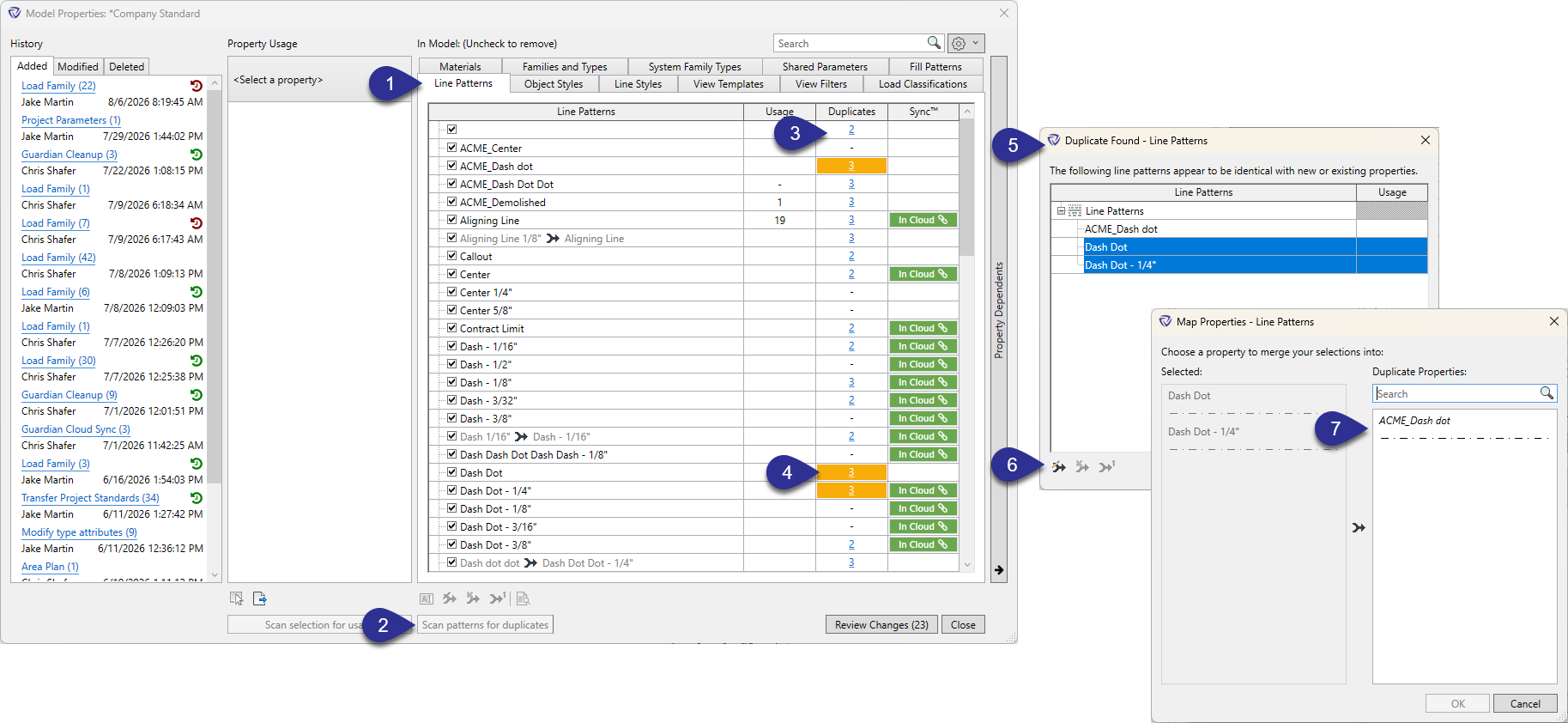
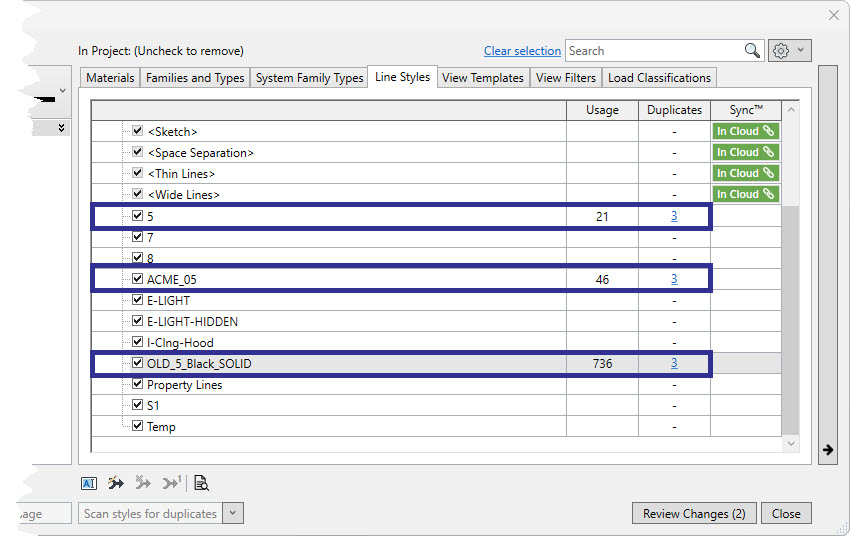
In the screenshot below, we have already scanned the Line Styles tab for duplicates. Guardian reported there are 3 styles that are the same.
In this example, ACME_05 represents our company standard naming convention and the one we ultimately want to remain in our template.
After scanning duplicates, the next step is to scan the usage of these three line styles.
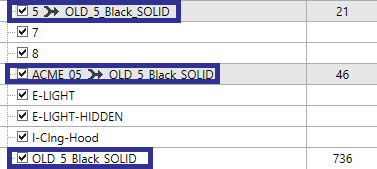
Instead of mapping OLD_5 and 5 into ACME_5, we will reverse the operation by mapping everything into OLD_5 to minimize processing time and then simply rename it.
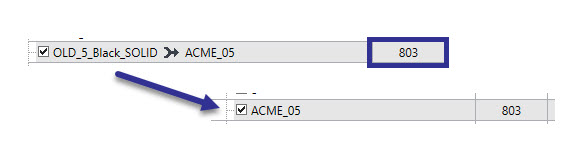
After mapping 5 and ACME_5 into OLD_5, we have a combined usage of 803. Now all we need to do is rename OLD_5 to ACME_5 and we saved ourselves a considerable amount of time.
Once all mappings are complete, select Review Changes to proceed with cleaning the model or family. Guardian prepares the model for the changes tied to each mapping, then opens the Review Changes dialog, a single consolidated list (rather than separate tabs) where administrators can:
Selecting Process executes the changes, and the Revit model or family is cleaned accordingly.
Happy Mappings!
Contact our support team for more information.
Note: Project Properties was renamed to Model Properties in Guardian 3.3.5.
Guardian's Model Properties is a powerful engine for aligning your project model properties with your firm's graphical and Revit standards. Model Properties identifies, processes, and cleans the furthest reaches of your project models and Revit families.
Model Properties functions in two distinct ways:
In both cases, Model Properties allows you to identify properties that are in (or out of) alignment with the firm’s standards and Guardian Sync Properties, duplicate properties, and property usage. Model Properties works in conjunction with Mapping Configurations and Transactions. Mapping Configurations store the mapping rules, and Transactions control how those rules are applied to end-users when content is loaded.
At the heart of Model Properties is Mapping Configurations. Model Properties and Incoming Properties are the interfaces in which mappings are created. Mapping Configurations are how and where Guardian memorizes those mappings, or conversions, of non-standard Revit properties to a standard Revit property. It's these Mapping Configurations that establish the automations Guardian uses to clean incoming content and align it with a firm's or project's graphical and Revit standards.
A Mapping Configuration must be created and assigned to the registered model before Model Properties functionality is enabled. For details on what Mapping Configurations do, how to set one up, and best practices for structuring master, discipline-specific, and client-specific configurations, see the Mapping Configurations article.
Model Properties can map and clean the Revit properties of the active model. Access it from Model > All Model Properties (A). Before mapping and cleaning, always confirm the correct Mapping Configuration is assigned to the active model (B). Also note the number next to Review Changes (C) in the lower-right corner. This shows how many mappings Guardian has already recognized automatically, based on the Mapping Configuration's existing rules.
The Model Properties dialog is made up of a few key panes:
The Model Properties settings menu (E) provides several options for controlling what is displayed and how mapping rules are managed:
Note: "Show only unused" and "Show only duplicate" filters require the relevant tab to be scanned first (via Scan for Usage / Scan for Duplicates) before they'll return results.
Model Properties gives you several functions for renaming properties, adding, or editing mappings.
A full mapping, or a typical mapping, is a mapping stored in a Mapping Configuration and is mapping from one property (non-conforming standard) to another property (standard). When Edit Mapping is selected, the Map Properties dialog will appear. This dialog will show the selected property to merge on the left, along with a display of the property when available, and the list of all of the available like properties within the active model on the right.
Note: Project administrators will only have one-time mapping capabilities unless they are assigned as a Project Administrator on the assigned Mapping Configuration.
Properties listed with the link icon indicate they are also hosted on Guardian Sync Properties. This provides quick identification of the firm’s standards during the mapping process. Please note Guardian only maps to properties in the active model and does not map to properties that exist on Guardian Sync Properties but are not in the active model. They must first be downloaded from Guardian Sync Properties.
Pro tip: Guardian assumes the model you are working from is the source of truth, and all Revit and graphical properties are pre-loaded into the model as a Revit template or Starter Project.
A mapping can be applied on a one-time basis without being saved to a configuration. This approach is useful for project-specific cleanup that should not become permanent, typically associated with unique project-specific requirements that do not constitute a full standard.
A one-time mapping is indicated by a superscript 1 displayed next to the mapping symbol in Model Properties.
One-time mappings can be set two ways:
1. From the create/edit dialog: Toggle the Remember / Don't Remember option when creating or editing a mapping rule.
2. From Model Properties directly: Select an existing mapping rule and click the Remember / Don't Remember option to toggle its behavior.
Renaming is a form of mapping that keeps the makeup of the original property but only renames the property. This is an effective tool for updating naming standards.
Since Guardian treats renaming and mappings equally within Mapping Configurations, a rename can lead to a helpful mapping.
Example: If Family B is renamed to Family A. However, if an older and different version of Family B is loaded into the active model, Guardian will map the old Family B to the current Family A, thus eliminating the old Family B.
Pro Tip: Historically, bringing families and details from old Revit projects meant bringing those old standards along, limiting the full adoption for standards updates. Between Mappings and Renaming, over time, Guardian effectively purges those old standards to ensure the new standards are effectively adopted.
When a mapping rule is applied to a property, Guardian determines whether to map or rename based on whether the destination property already exists in the current model.
To preview which behavior will apply before committing to a change, enable Show additional mapping insight in the Model Properties settings menu. Properties that are set to be removed will display as [Remove].
To see a quick side-by-side comparison of the makeup up of each property:
Scan selection for usage is a great way to see how frequent, or infrequent properties are used in the active project model.
Note: if a “remove mapping” is assigned to a property, Guardian will delete that property in all future mapping sessions regardless of if the property is used.
Guardian will then prompt to remember the action:
Pro Tip: Every property is a mapping opportunity to make Guardian smarter. It is recommended, especially early in a firm’s mapping journey, to map (or rename) unused properties of a non-conforming standard to a standard. More than likely, there will be instances in the future in which that property is used and it’s best to have the property mapped versus deleted.
Scan property for duplicates is an effective feature of Model Properties to identify properties that are identical in makeup, but named differently.
Note: Not all duplicates are bad as designers routinely have duplicate properties (example: line patterns) of the same makeup but are used for entirely different purposes as indicated by their names.
In the screenshot below, we have already scanned the Line Styles tab for duplicates. Guardian reported there are 3 styles that are the same.
In this example, ACME_05 represents our company standard naming convention and the one we ultimately want to remain in our template.
After scanning duplicates, the next step is to scan the usage of these three line styles.
Instead of mapping OLD_5 and 5 into ACME_5, we will reverse the operation by mapping everything into OLD_5 to minimize processing time and then simply rename it.
After mapping 5 and ACME_5 into OLD_5, we have a combined usage of 803. Now all we need to do is rename OLD_5 to ACME_5 and we saved ourselves a considerable amount of time.
Once all mappings are complete, select Review Changes to proceed with cleaning the model or family. Guardian prepares the model for the changes tied to each mapping, then opens the Review Changes dialog, a single consolidated list (rather than separate tabs) where administrators can:
Selecting Process executes the changes, and the Revit model or family is cleaned accordingly.
Happy Mappings!
Contact our support team to receive personalized assistance.
