


Contact our support team for more information.
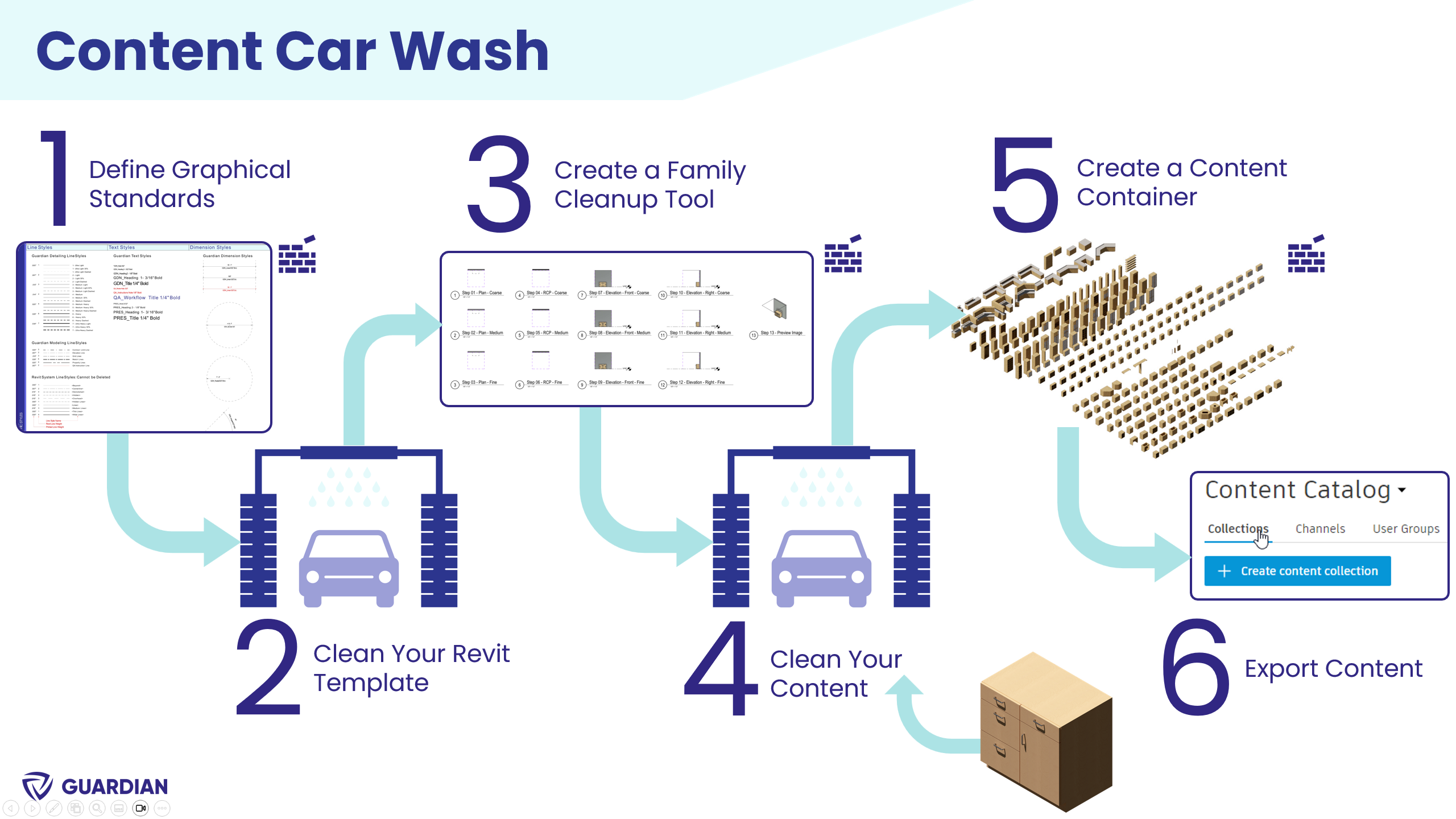
Guardian’s Content Car Wash is a repeatable process for cleaning and standardizing Revit content using Guardian’s Model Properties. This is a great process to follow when you:
This process uses your Revit template as the source of truth, allowing Guardian to map incoming content to approved standards and reuse those mappings in future projects.
Download our Content Cleanup Template to use as a guide as you build your own.
By following this workflow, you can:
Watch the on-demand session where we walk through this process step-by-step.
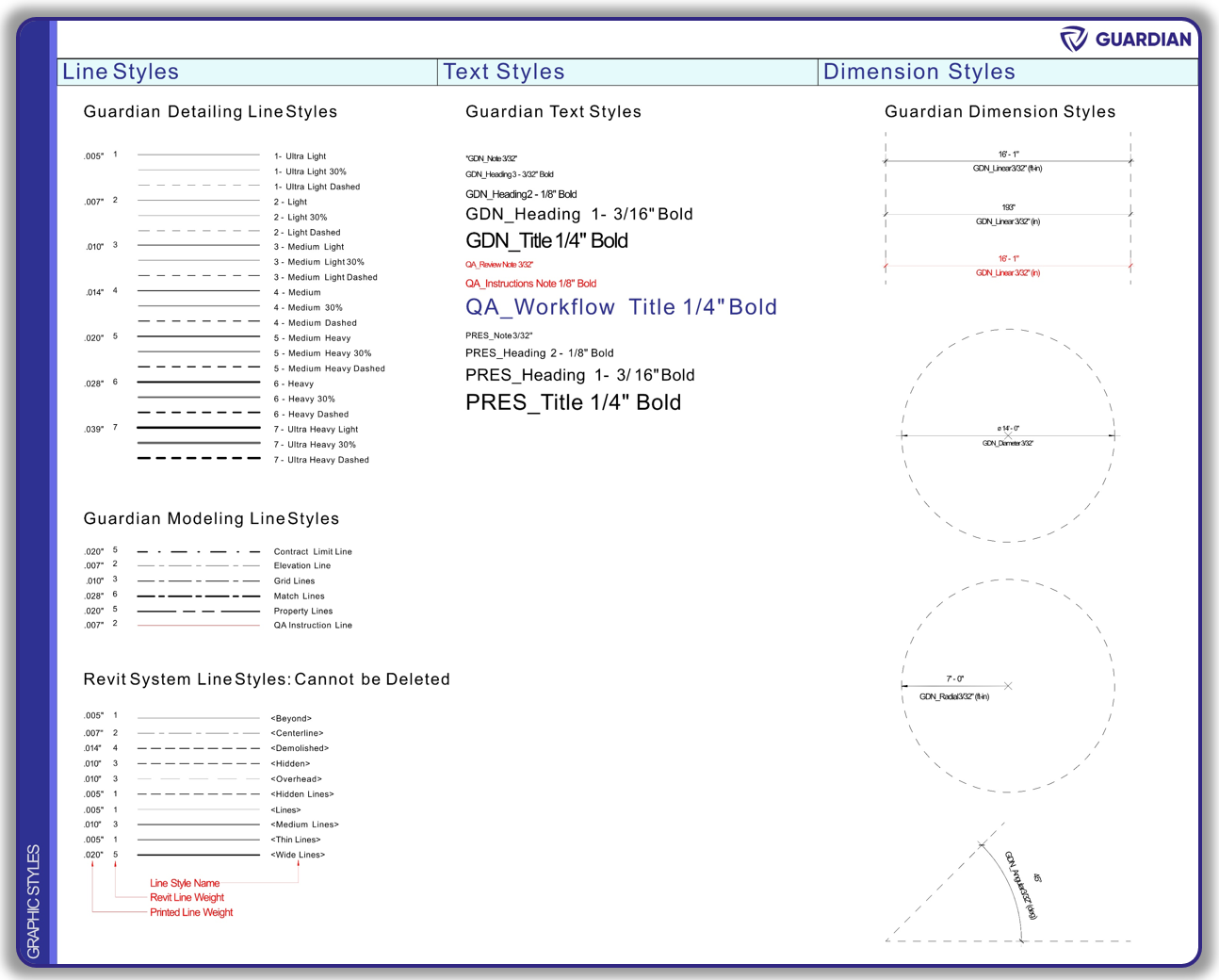
Start by defining the standards you want to enforce across your content.
How to do this:
What to include first:
Focus on high-impact standards such as:
If you don’t already have defined standards, start with a baseline such as the National CAD Standards and adapt from there.
Tips:
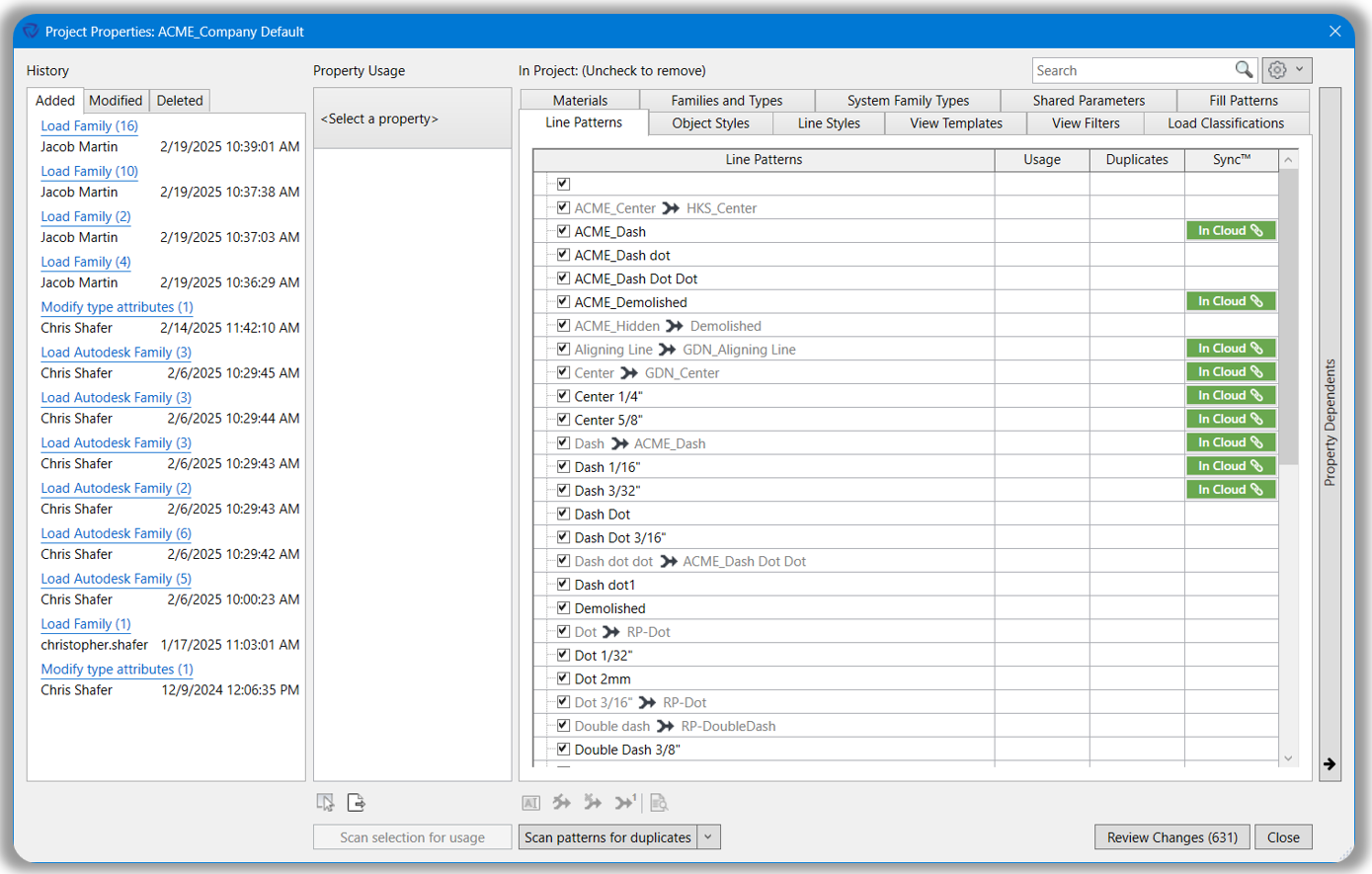
Before processing any families, ensure the correct mapping and project configuration files are assigned.
How to do this:
Tips:
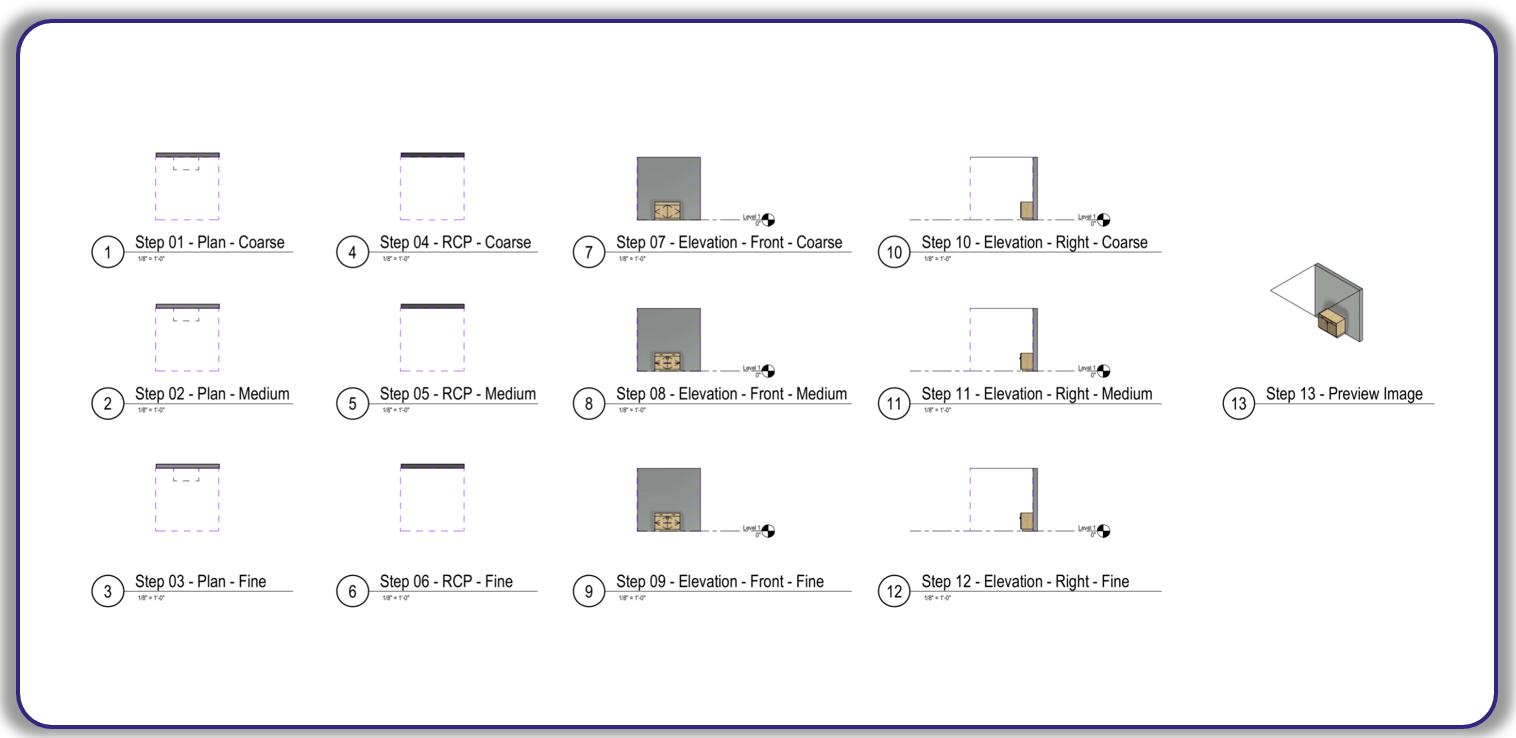
Create a dedicated Revit model used specifically for cleaning content. This acts as your “car wash environment” where families are cleaned before being added to your library.
How to do this:
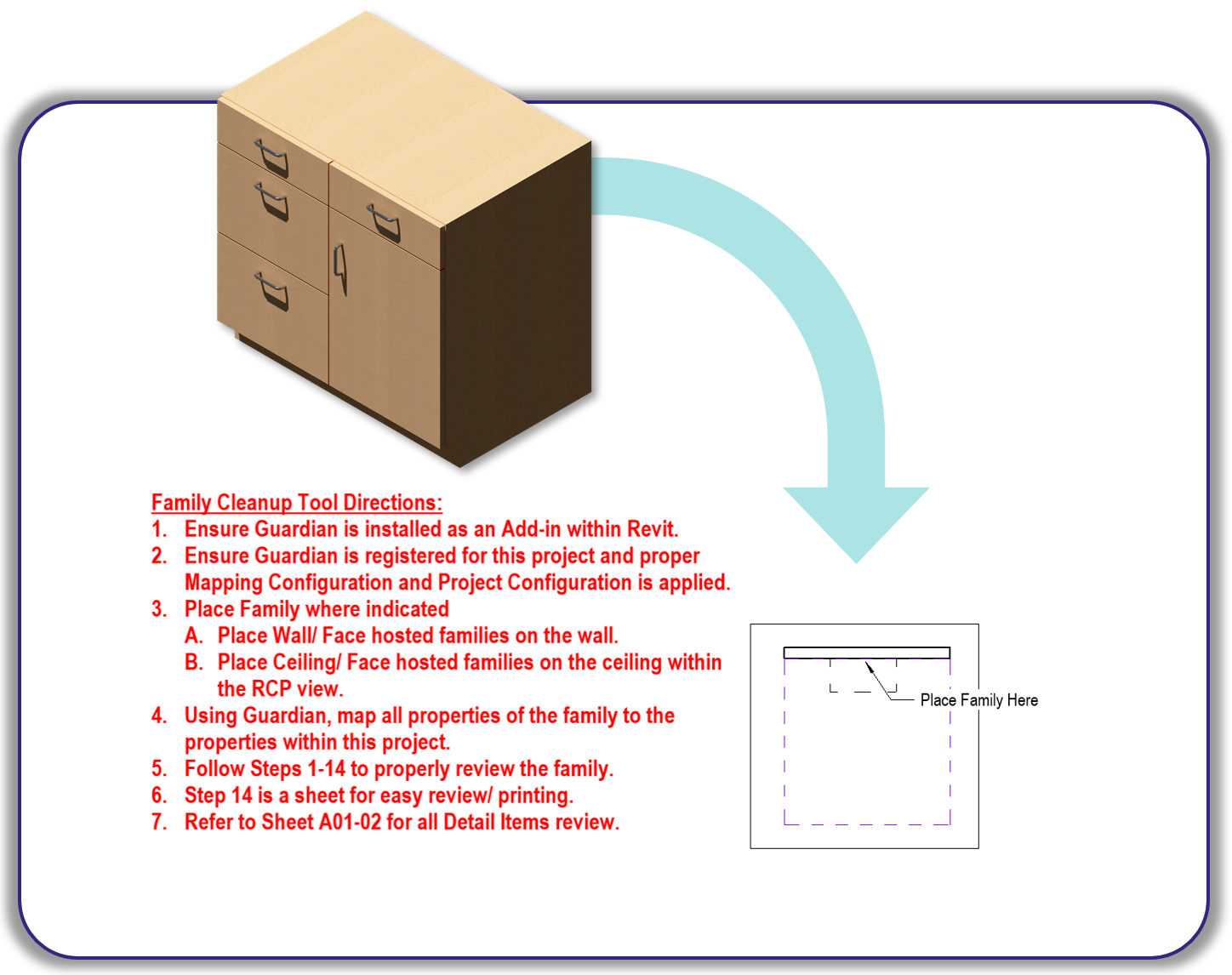
This is the core step where content is cleaned and standardized using Guardian.
How to do this:
Tips:
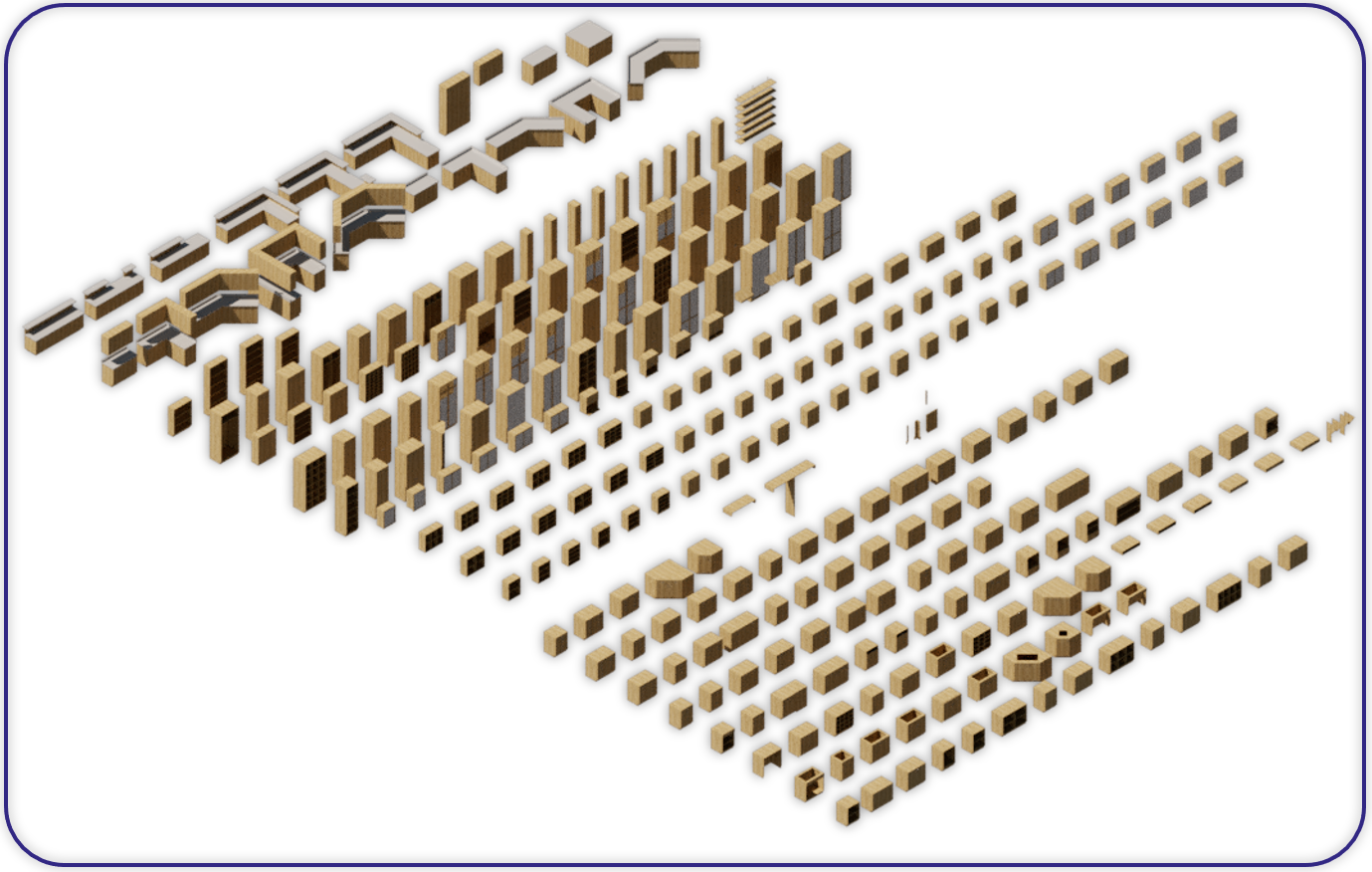
Create a centralized model that contains your cleaned content. This allows you to view all content in one place, identify duplicates and inconsistencies, and review standards at scale.
This model will be your ongoing source of truth for content and standards moving forward.
Over time as you become more confident with Guardian, you can skip the Content Car Wash Template and load families directly into the container, as Guardian will ensure your standards are safeguarded.
How to use it:
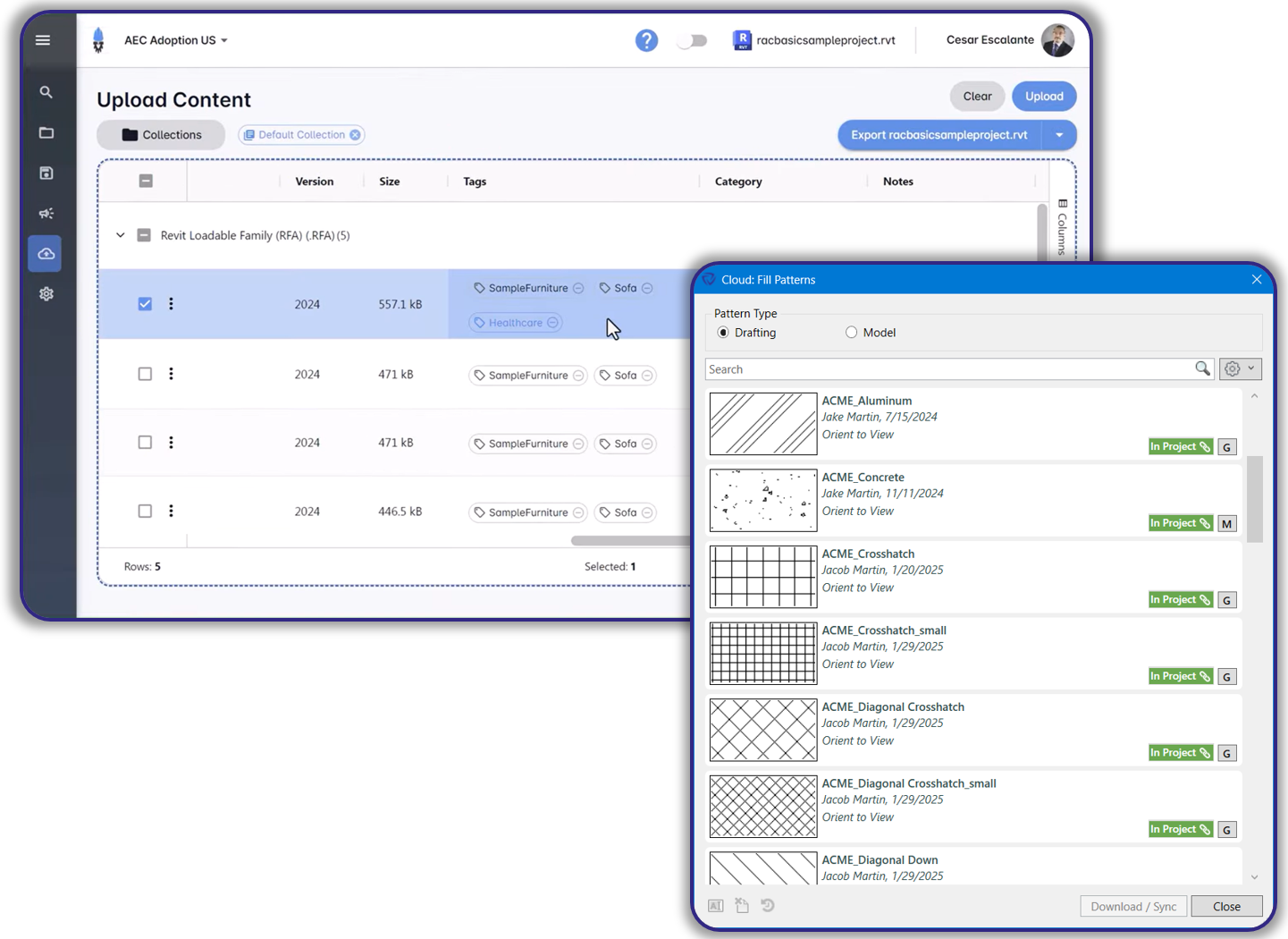
Tip: Saving families directly from Revit (instead of the family editor) can reduce file size.
Contact our support team for more information.
Guardian’s Content Car Wash is a repeatable process for cleaning and standardizing Revit content using Guardian’s Model Properties. This is a great process to follow when you:
This process uses your Revit template as the source of truth, allowing Guardian to map incoming content to approved standards and reuse those mappings in future projects.
Download our Content Cleanup Template to use as a guide as you build your own.
By following this workflow, you can:
Watch the on-demand session where we walk through this process step-by-step.
Start by defining the standards you want to enforce across your content.
How to do this:
What to include first:
Focus on high-impact standards such as:
If you don’t already have defined standards, start with a baseline such as the National CAD Standards and adapt from there.
Tips:
Before processing any families, ensure the correct mapping and project configuration files are assigned.
How to do this:
Tips:
Create a dedicated Revit model used specifically for cleaning content. This acts as your “car wash environment” where families are cleaned before being added to your library.
How to do this:
This is the core step where content is cleaned and standardized using Guardian.
How to do this:
Tips:
Create a centralized model that contains your cleaned content. This allows you to view all content in one place, identify duplicates and inconsistencies, and review standards at scale.
This model will be your ongoing source of truth for content and standards moving forward.
Over time as you become more confident with Guardian, you can skip the Content Car Wash Template and load families directly into the container, as Guardian will ensure your standards are safeguarded.
How to use it:
Tip: Saving families directly from Revit (instead of the family editor) can reduce file size.
Contact our support team to receive personalized assistance.
