


Contact our support team for more information.
The Registered Projects dialog provides many features that enable Company/Project Administrators to view all registered project models, review high-level model data, and edit the Project Configurations and Mapping Configurations for single or multiple project models simultaneously.
Across firms of all sizes, we consistently observed the same challenges:
To address these issues, Registered Projects and Label Manager were redesigned with a new interface in Guardian 3.3. Together, they give BIM leaders a more scalable way to monitor Revit activity, organize project data, and standardize oversight across the firm. Learn more about Label Manager here.
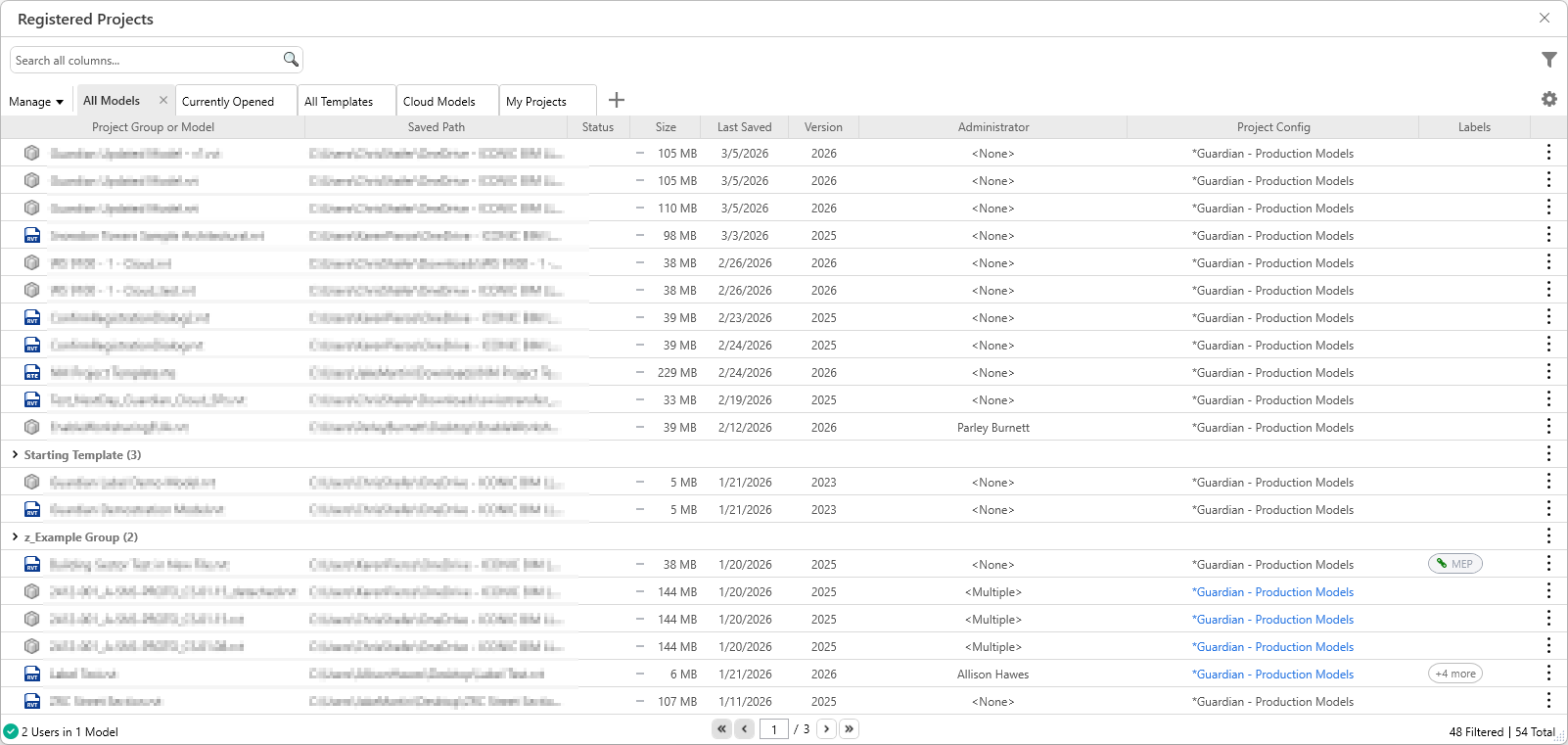
The Registered Projects dialog lets Guardian admins view and manage registered Revit models in one place.
Use it to:
The Registered Projects dialog is available to:
If you do not see Registered Projects, confirm that your Guardian role includes Project or Company Admin permissions.
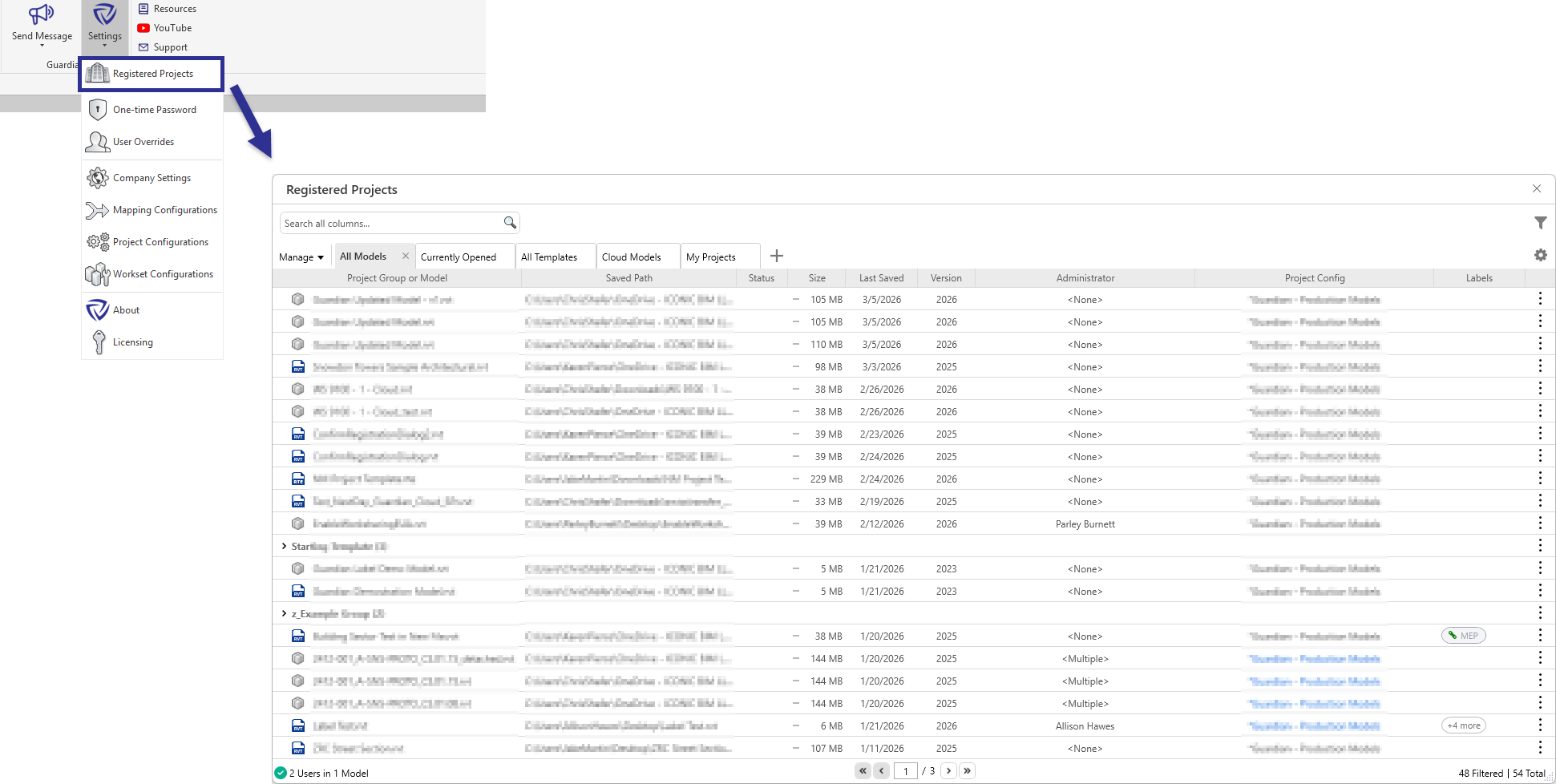
To open Registered Projects in Revit:
The Registered Projects dialog is structured to provide avenues for reviewing and managing the information about all registered models. When first opening the dialog, you’ll see many features that help organize the model data. Details of each feature are further described below:
The Registered Projects dialog includes built-in tabs that make it easier to focus on specific groups of models.
The following tabs are included out of the box:
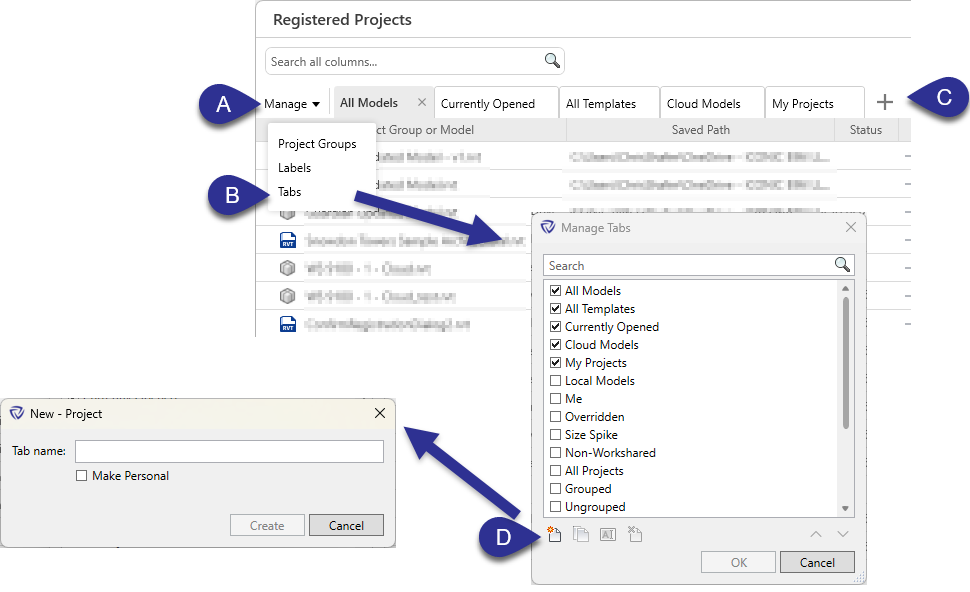
These tabs can be enabled, disabled, or customized through Manage Tabs, or by selecting the plus icon + to the right of the My Projects tab.
From within the Manage Tabs dialog, you can:
This allows teams to standardize common views for project review and management. Company administrators can create tabs that are available and seen by all Project Administrators. Any edits to a tab are limited to the users creating the edits.
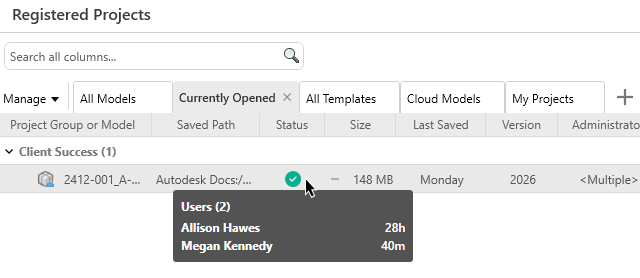
The Currently Open tab shows which models are actively open and who is currently working in them.
To see who is active in a model, hover over the green check mark in the status column.
This shows which users are currently in the model and how long each user has had the model open.
Note: The status column is available on all tabs.
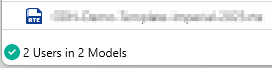
The lower left-hand corner of Registered Projects displays the total active number of users and models.
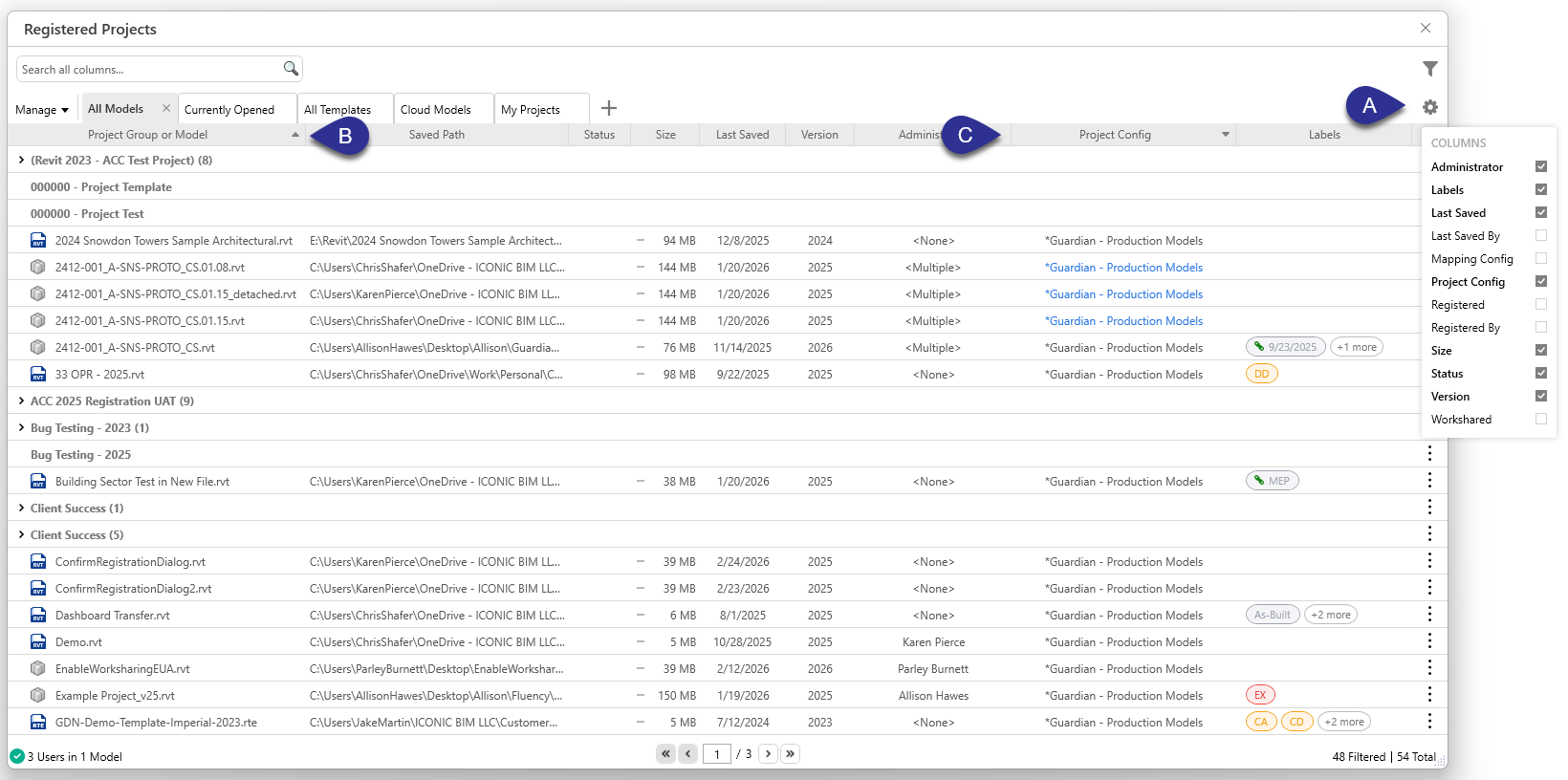
You can adjust which columns are visible in Registered Projects to match your workflow. This can help reduce clutter and make it easier to focus on the project data your team uses most often.
To customize the columns:
You can also:
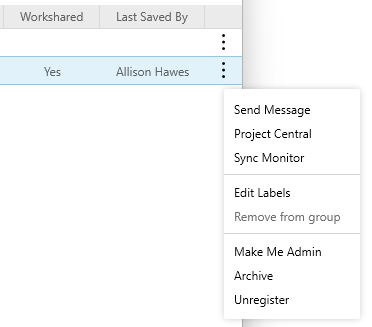
The kebab menu (three-dot menu) located on the far right next is available at both the model and group levels. You can also open this menu by right-clicking the row.
Use this menu to perform actions directly from Registered Projects.
Available actions at the model level may include:
Available actions at the group level (the kebab menu associated with the group level header) may include:
This makes it possible to manage projects without opening each model and leaving the Registered Projects dialog.
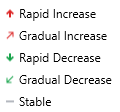
Registered Projects includes a file size indicator that shows how a model’s file size is trending over time.
The indicator helps you quickly identify whether a file is experiencing:
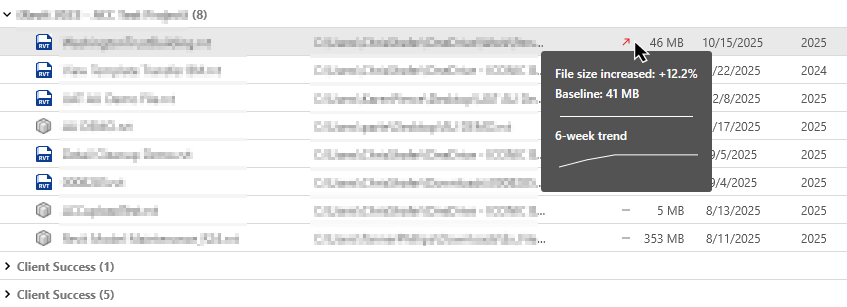
Hover over the file size indicator to see the exact percentage change in file size.
Guardian calculates this trend using a 6-week history, so you can compare current file size behavior against recent model activity.
Note: File size trends will appear once at least 3 weeks of data have been collected.
This can help identify models that may need review before file growth becomes a larger issue.
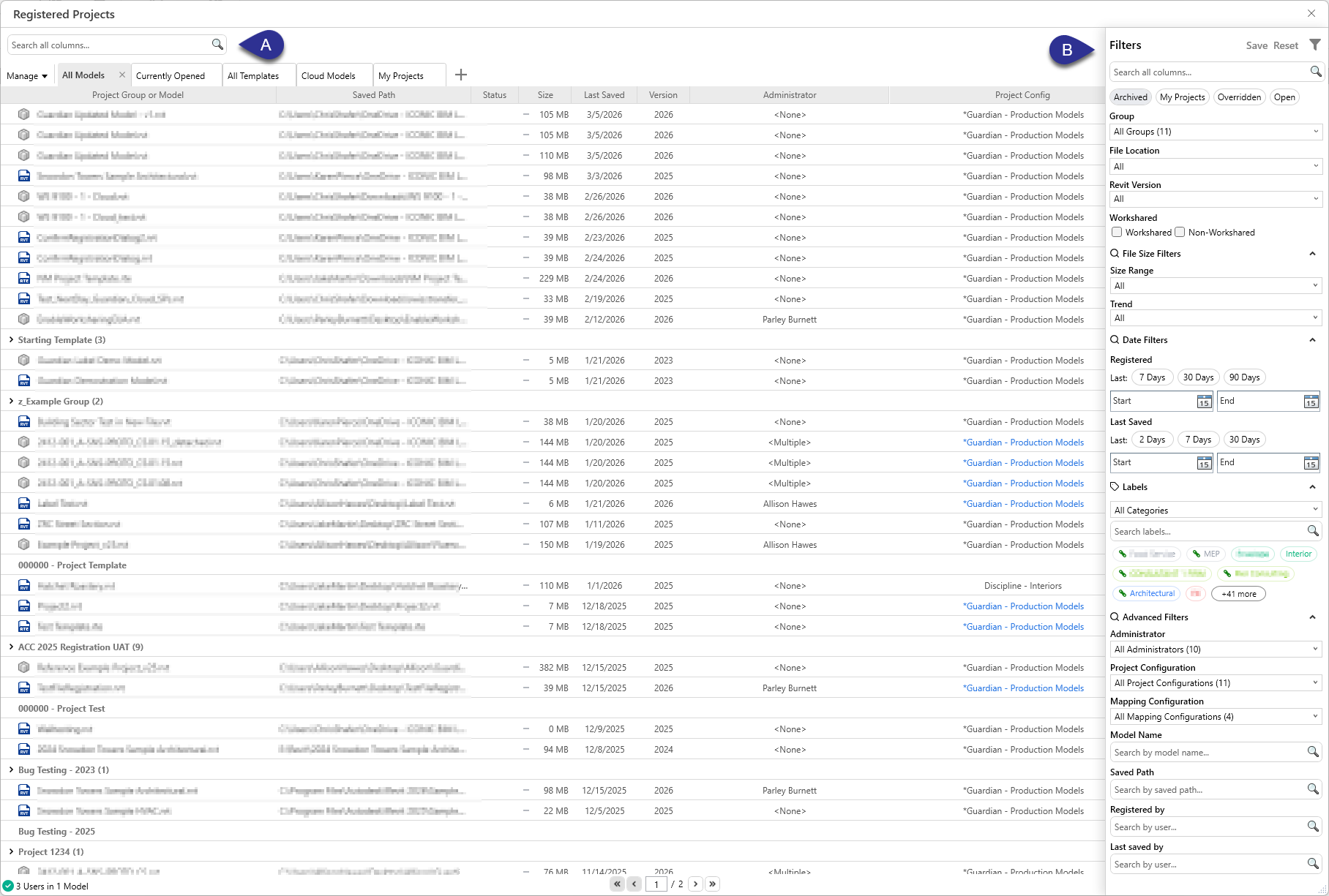
The Registered Projects dialog includes both a search bar (A) and a Filter Panel (B). Both can be used to quickly narrow down results.
Search supports:
Search can scan across available model metadata, including hidden fields, making it easier to locate projects, users, workflows, regions, disciplines, and other project data.
The Filter Panel provides a large assortment of filtering options to narrow the project list based on the metadata most relevant to your workflow.
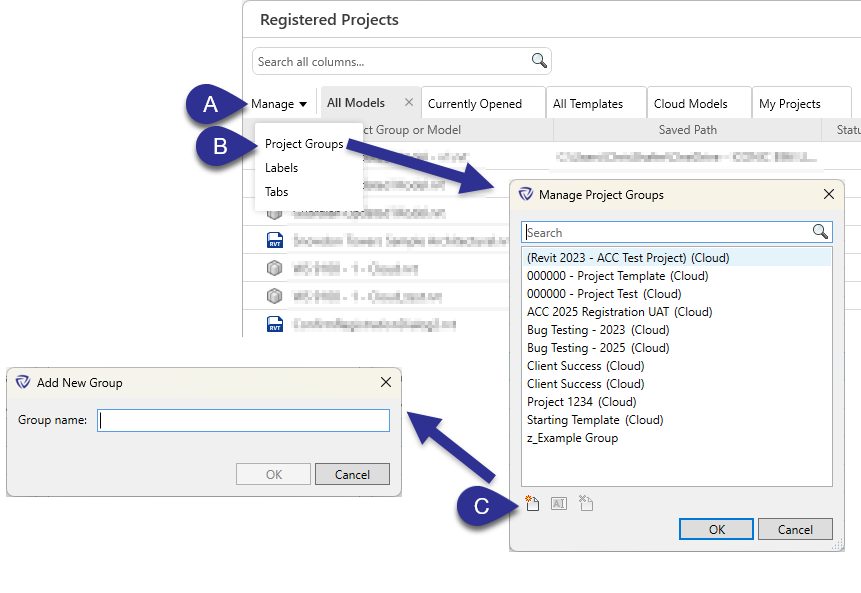
Registered Projects supports project grouping to help you organize related models together in a single view.
For ACC cloud models, Guardian automatically groups related models based on their ACC project (ACC Project GUID). This removes the need to manually create groups for models that already belong together in ACC.
You can also manually create your own custom project groups in Guardian. Please note that auto-grouping of ACC-hosted models takes precedence over manually created groups.
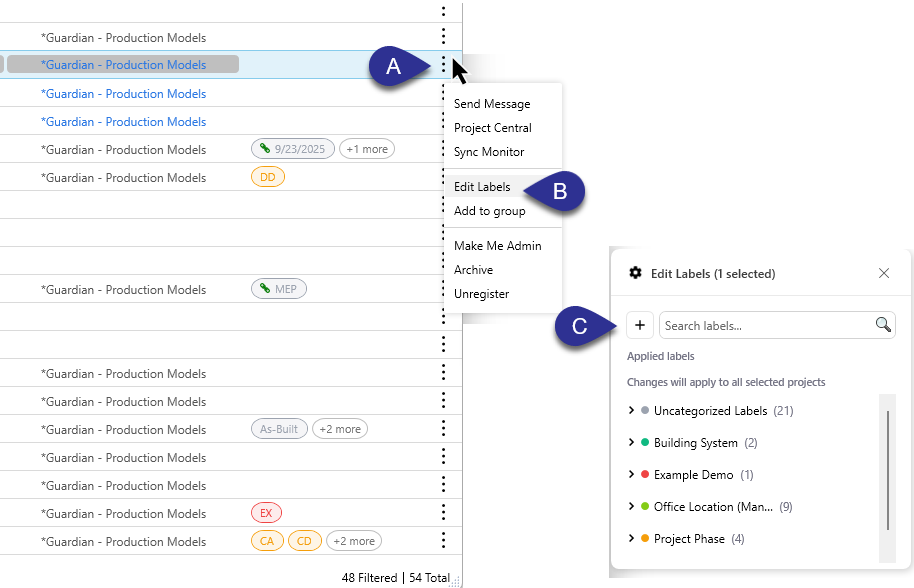
Both Project and Company Administrators can apply Labels to models directly from Registered Projects.
Labels can be automatically assigned to models and can only be created by company administrators. Please refer to the Label Manager article to learn more.
Contact our support team for more information.
The Registered Projects dialog provides many features that enable Company/Project Administrators to view all registered project models, review high-level model data, and edit the Project Configurations and Mapping Configurations for single or multiple project models simultaneously.
Across firms of all sizes, we consistently observed the same challenges:
To address these issues, Registered Projects and Label Manager were redesigned with a new interface in Guardian 3.3. Together, they give BIM leaders a more scalable way to monitor Revit activity, organize project data, and standardize oversight across the firm. Learn more about Label Manager here.
The Registered Projects dialog lets Guardian admins view and manage registered Revit models in one place.
Use it to:
The Registered Projects dialog is available to:
If you do not see Registered Projects, confirm that your Guardian role includes Project or Company Admin permissions.
To open Registered Projects in Revit:
The Registered Projects dialog is structured to provide avenues for reviewing and managing the information about all registered models. When first opening the dialog, you’ll see many features that help organize the model data. Details of each feature are further described below:
The Registered Projects dialog includes built-in tabs that make it easier to focus on specific groups of models.
The following tabs are included out of the box:
These tabs can be enabled, disabled, or customized through Manage Tabs, or by selecting the plus icon + to the right of the My Projects tab.
From within the Manage Tabs dialog, you can:
This allows teams to standardize common views for project review and management. Company administrators can create tabs that are available and seen by all Project Administrators. Any edits to a tab are limited to the users creating the edits.
The Currently Open tab shows which models are actively open and who is currently working in them.
To see who is active in a model, hover over the green check mark in the status column.
This shows which users are currently in the model and how long each user has had the model open.
Note: The status column is available on all tabs.
The lower left-hand corner of Registered Projects displays the total active number of users and models.
You can adjust which columns are visible in Registered Projects to match your workflow. This can help reduce clutter and make it easier to focus on the project data your team uses most often.
To customize the columns:
You can also:
The kebab menu (three-dot menu) located on the far right next is available at both the model and group levels. You can also open this menu by right-clicking the row.
Use this menu to perform actions directly from Registered Projects.
Available actions at the model level may include:
Available actions at the group level (the kebab menu associated with the group level header) may include:
This makes it possible to manage projects without opening each model and leaving the Registered Projects dialog.
Registered Projects includes a file size indicator that shows how a model’s file size is trending over time.
The indicator helps you quickly identify whether a file is experiencing:
Hover over the file size indicator to see the exact percentage change in file size.
Guardian calculates this trend using a 6-week history, so you can compare current file size behavior against recent model activity.
Note: File size trends will appear once at least 3 weeks of data have been collected.
This can help identify models that may need review before file growth becomes a larger issue.
The Registered Projects dialog includes both a search bar (A) and a Filter Panel (B). Both can be used to quickly narrow down results.
Search supports:
Search can scan across available model metadata, including hidden fields, making it easier to locate projects, users, workflows, regions, disciplines, and other project data.
The Filter Panel provides a large assortment of filtering options to narrow the project list based on the metadata most relevant to your workflow.
Registered Projects supports project grouping to help you organize related models together in a single view.
For ACC cloud models, Guardian automatically groups related models based on their ACC project (ACC Project GUID). This removes the need to manually create groups for models that already belong together in ACC.
You can also manually create your own custom project groups in Guardian. Please note that auto-grouping of ACC-hosted models takes precedence over manually created groups.
Both Project and Company Administrators can apply Labels to models directly from Registered Projects.
Labels can be automatically assigned to models and can only be created by company administrators. Please refer to the Label Manager article to learn more.
Contact our support team to receive personalized assistance.
