


Contact our support team for more information.
Label Manager provides a structured way to organize and classify projects in Guardian. Label Manager works with Registered Projects to provide a scalable system for organizing project data across your firm. In conjunction with Guardian Backstage, Labels become the foundation of your project data architecture.
Label Manager provides company administrators with the ability to:
Label Manager is available to:
If you do not see Label Manager, confirm that your Guardian role includes Project or Company Admin permissions.
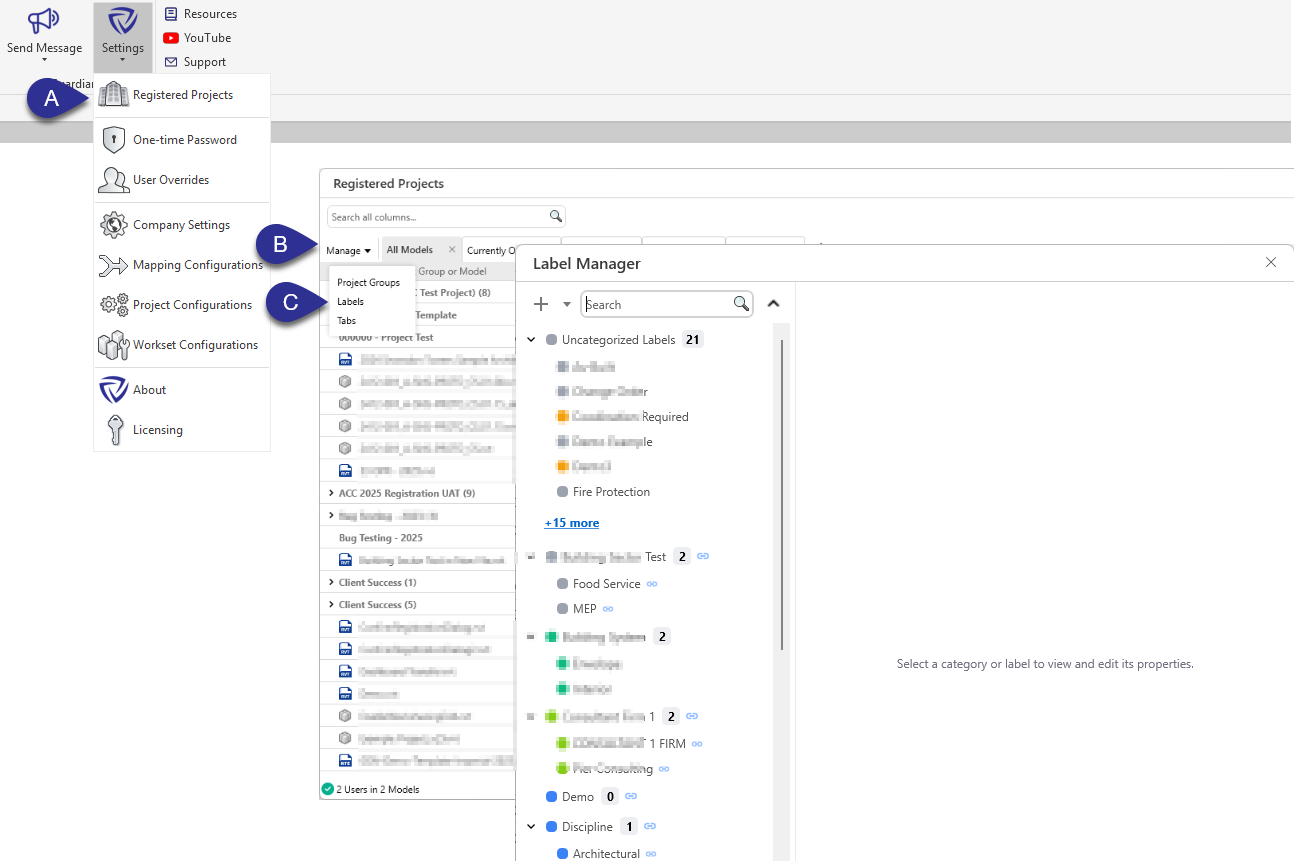
You can open Label Manager from Registered Projects in two ways.
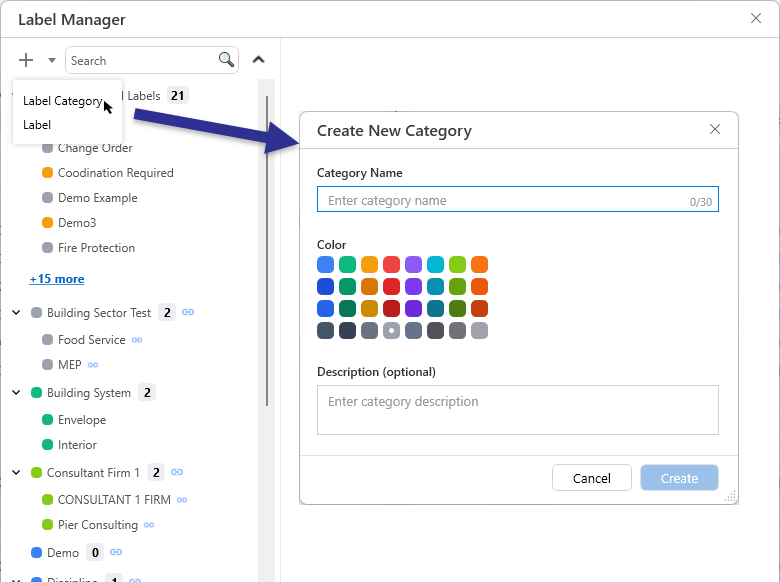
Labels can be created in two ways.
Label Categories define groupings of Labels within Guardian and help organize Labels and your project data architecture consistently across your firm.
For example:
Tip: Examples of Label Categories include region, phase, discipline, project type, or template.
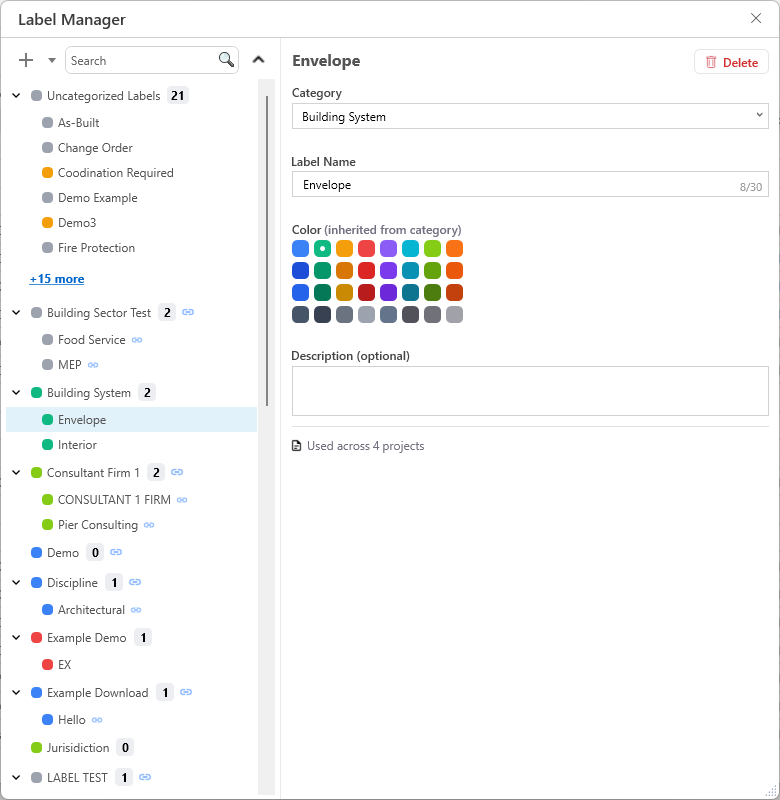
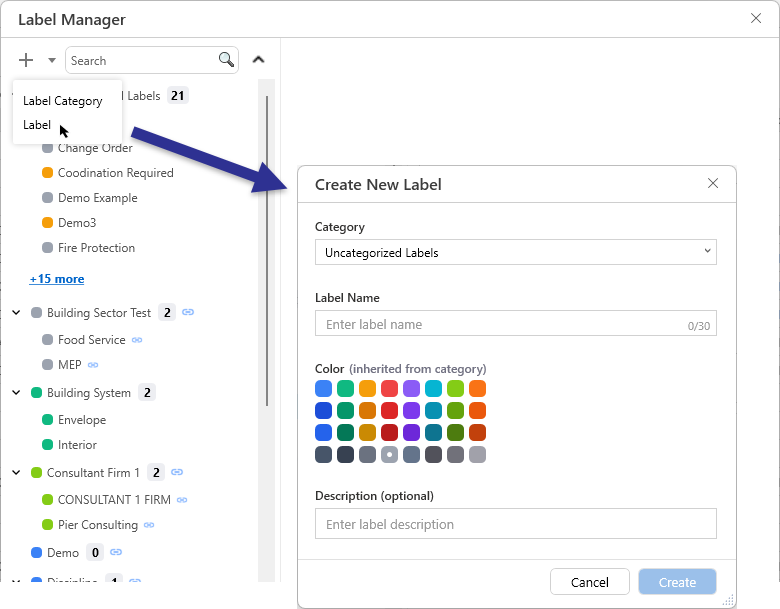
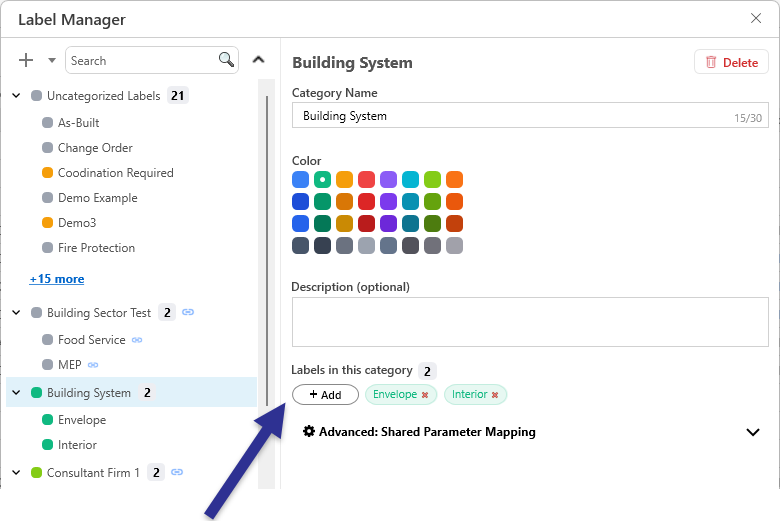
Note: For non-shared-parameter mapping label categories, labels can also be created by selecting a Label Category and clicking Add under Labels in this category.
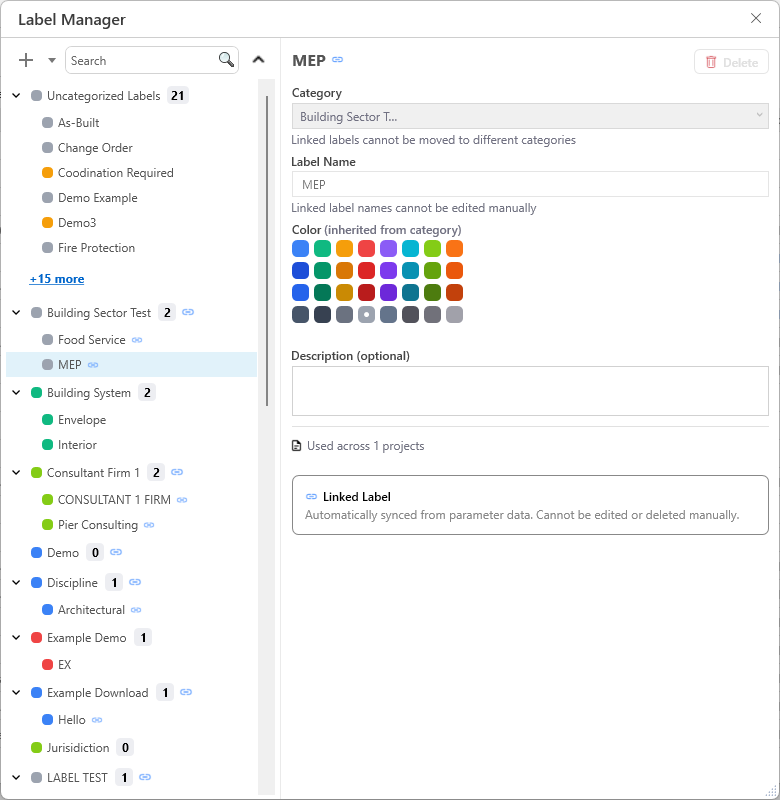
Note: Linked labels cannot be edited or deleted manually in Label Manager.
Label Manager provides the means to create metadata-driven labels by linking a Label Category to a Project Information Shared Parameter in your Revit projects.
This enables Labels to be automatically assigned to models within Registered Projects based on the value assigned to the Project Information Shared Parameter within the given model.
Before creating an automatically linked Label Category and Label, please ensure the following:
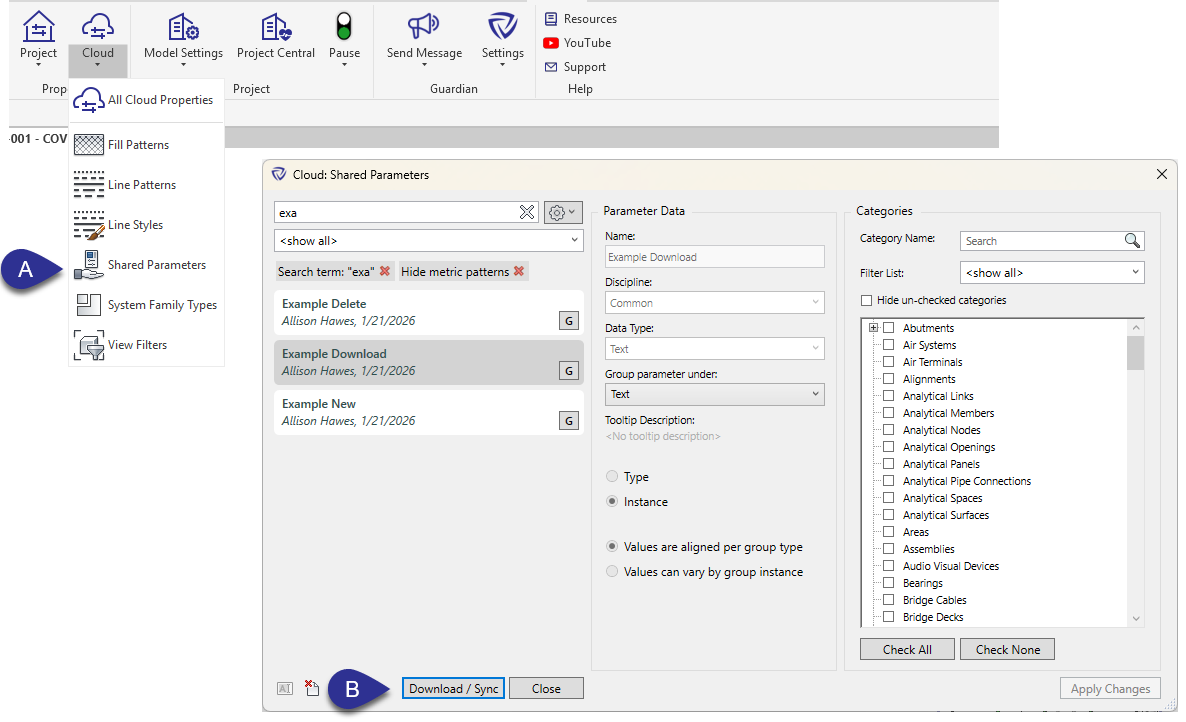
If the Shared Parameter is already loaded to the Guardian Cloud, skip to Linking a Shared Parameter.
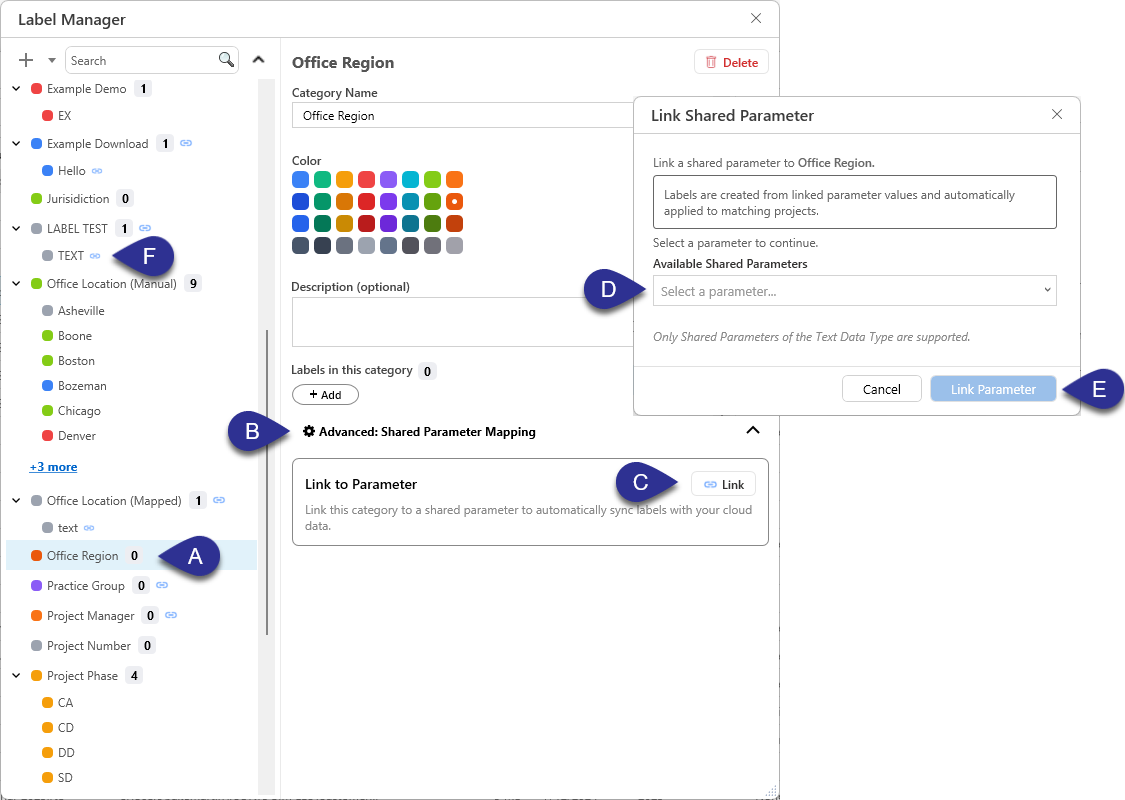
Once linked, individual Labels will be automatically created from the parameter values assigned within project models that have the Project Information Shared Parameter. Those values will be automatically assigned to those project models and appear in Registered Projects.
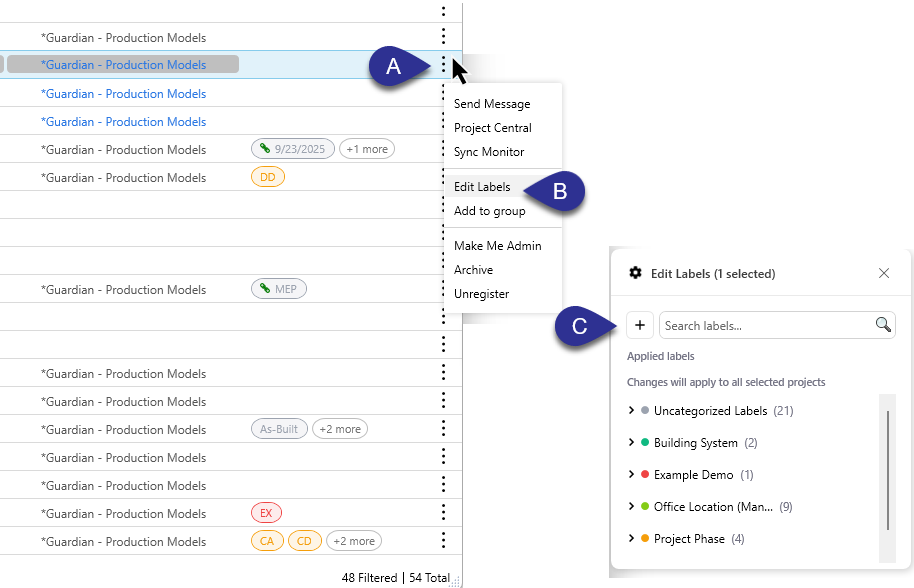
You can apply Labels to models and filter by existing labels directly in Registered Projects.
Labels can be used as filters in Registered Projects in two ways.
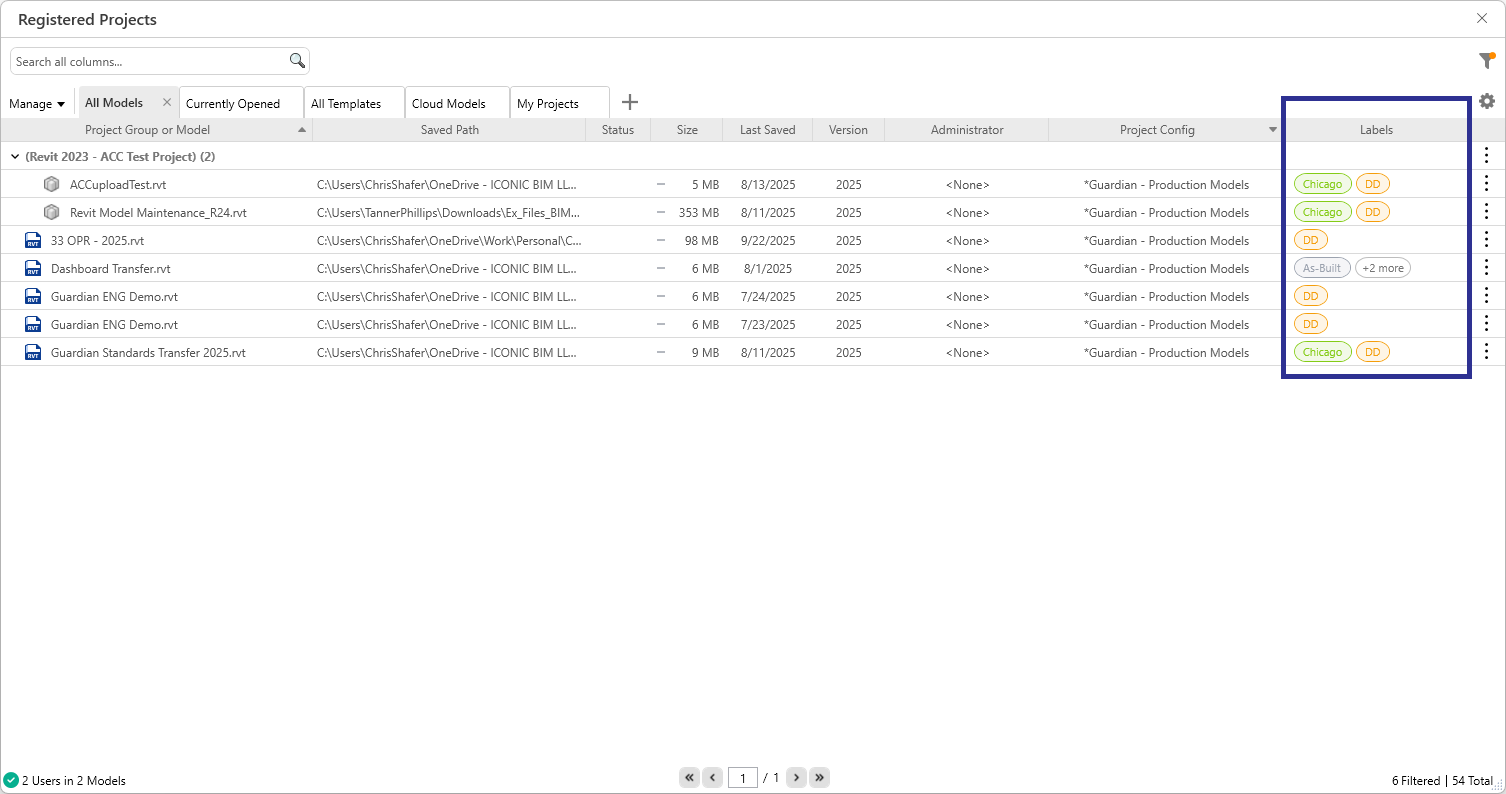
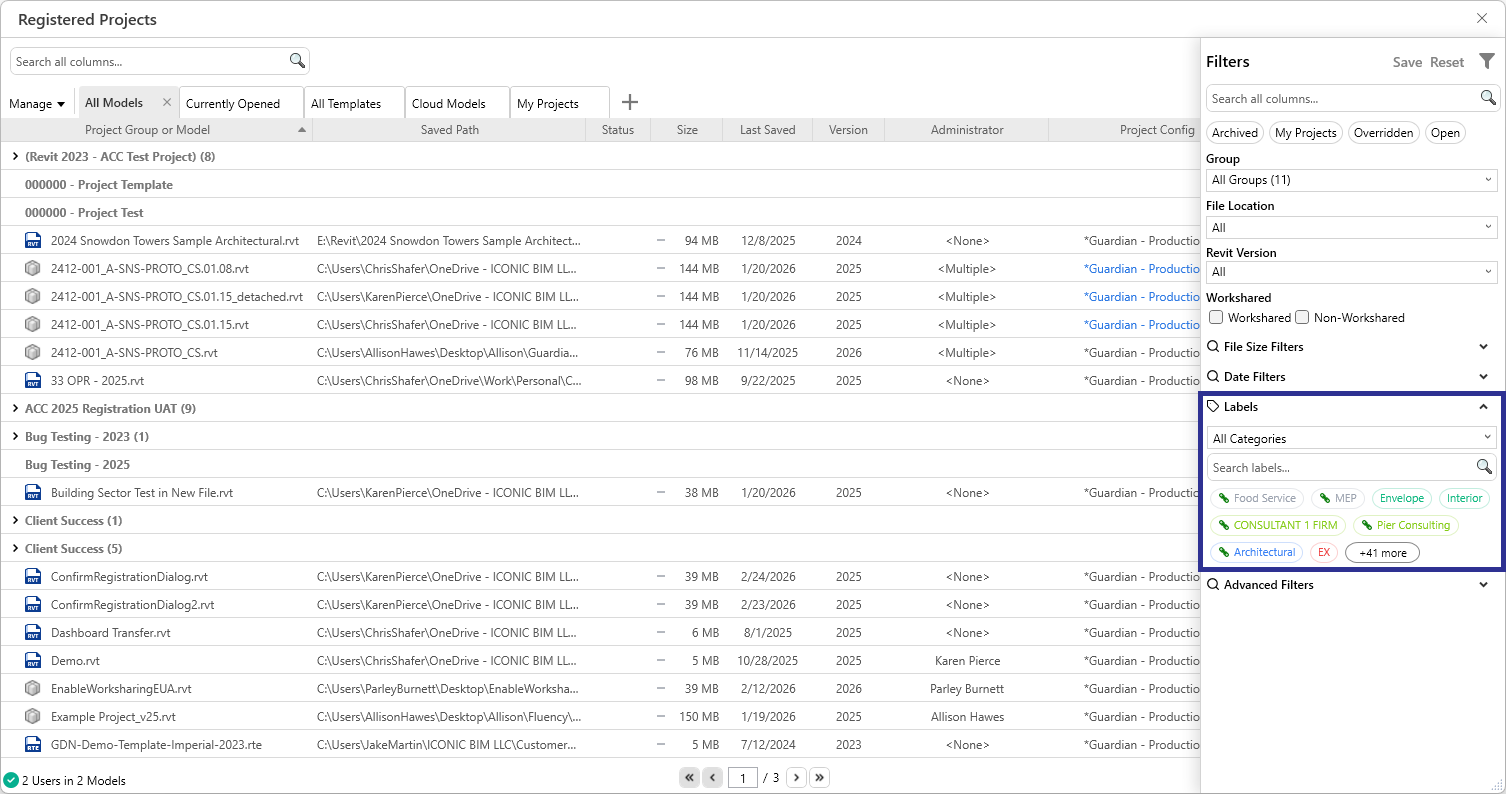
Once Labels are created and applied, they can be used throughout Guardian to help organize and filter project data.
Labels will appear in:
This makes labels a flexible way to organize models, track metadata, and standardize how projects are reviewed across your firm.
Contact our support team for more information.
Label Manager provides a structured way to organize and classify projects in Guardian. Label Manager works with Registered Projects to provide a scalable system for organizing project data across your firm. In conjunction with Guardian Backstage, Labels become the foundation of your project data architecture.
Label Manager provides company administrators with the ability to:
Label Manager is available to:
If you do not see Label Manager, confirm that your Guardian role includes Project or Company Admin permissions.
You can open Label Manager from Registered Projects in two ways.
Labels can be created in two ways.
Label Categories define groupings of Labels within Guardian and help organize Labels and your project data architecture consistently across your firm.
For example:
Tip: Examples of Label Categories include region, phase, discipline, project type, or template.
Note: For non-shared-parameter mapping label categories, labels can also be created by selecting a Label Category and clicking Add under Labels in this category.
Note: Linked labels cannot be edited or deleted manually in Label Manager.
Label Manager provides the means to create metadata-driven labels by linking a Label Category to a Project Information Shared Parameter in your Revit projects.
This enables Labels to be automatically assigned to models within Registered Projects based on the value assigned to the Project Information Shared Parameter within the given model.
Before creating an automatically linked Label Category and Label, please ensure the following:
If the Shared Parameter is already loaded to the Guardian Cloud, skip to Linking a Shared Parameter.
Once linked, individual Labels will be automatically created from the parameter values assigned within project models that have the Project Information Shared Parameter. Those values will be automatically assigned to those project models and appear in Registered Projects.
You can apply Labels to models and filter by existing labels directly in Registered Projects.
Labels can be used as filters in Registered Projects in two ways.
Once Labels are created and applied, they can be used throughout Guardian to help organize and filter project data.
Labels will appear in:
This makes labels a flexible way to organize models, track metadata, and standardize how projects are reviewed across your firm.
Contact our support team to receive personalized assistance.
