


Contact our support team for more information.
This issue has been resolved in the latest versions of the affected add-ins. We have verified compatibility with:
Elum Tools is distributed as separate releases for each supported Revit version. The corresponding releases for Revit 2024 (2024.7.0.4), Revit 2023 (2023.4.0.6), and Revit 2022 (2022.3.0.24) may also include this fix, although those versions have not been independently verified.
If you are using one of the verified versions above, no action is required. The workaround described below is intended only for customers running older versions or those who continue to experience this conflict.
Guardian may not function correctly when a third-party add-in ships its own copy of System.Management.dll that gets loaded before Revit’s version. Because the add-in’s file takes priority in the load order, Revit’s standard library is never reached – leaving Guardian unable to complete the system calls it depends on for role recognition, licensing, and activity tracking.
This issue has been confirmed in Revit 2025 and 2026, but any Revit version where a third-party add-in’s copy of System.Management.dll takes precedence in the load order may be affected.
You may experience one or more of the following:
System.PlatformNotSupportedExceptionThe following add-ins have been confirmed to cause this conflict:
Elum Tools is distributed as separate releases for each supported Revit version. Earlier corresponding releases for Revit 2024 (2024.7.0.4), Revit 2023 (2023.4.0.6), and Revit 2022 (2022.3.0.24) may also be included.
The fix is to replace the add-in’s copy of System.Management.dll with the version shipped by Revit. This ensures the correct file is loaded first, restoring Guardian’s system calls while preventing “missing file” warnings in the add-in.
⚠ Note:
Repeat these steps for every affected Revit version installed on the machine (e.g. once for Revit 2025, once for Revit 2026).
C:\Program Files\Autodesk\Revit 20XXSystem.Management.dll and copy it (Ctrl+C).C:\ProgramData\Autodesk\Revit\Addins\20XX\!ElumTools.bundleAddins\2025\ and Addins\2026\).Unlike Elum Tools, pyRevit may store its System.Management.dll files in different locations depending on how it was installed. Common locations include:
C:\Program Files\pyRevit-Master\ %AppData%\Roaming\pyRevit-Master\ There may be multiple instances of System.Management.dll, replace all of them within your pyRevit installation. Navigate to the appropriate location(s) and replace each file with the Revit version, choosing Replace when prompted.
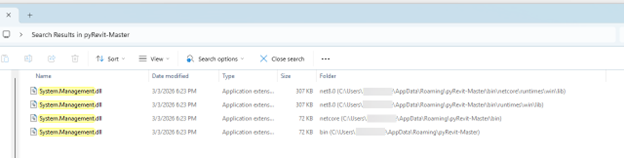
If you are still experiencing issues after following the steps above, another installed add-in may be causing the same conflict. Any add-in that ships its own copy of System.Management.dll and loads before Revit is a potential source. To identify the correct DLL location for any add-in, check its .addin file:
.addin file: C:\ProgramData\Autodesk\Revit\Addins\20XX\.addin file and select Open with > Notepad (or any text editor).<Assembly> tag. The path declared there is where the add-in loads its DLL files — navigate to that folder and if needed, replace System.Management.dll with the Revit version as described above.Note that some add-ins, like pyRevit, install to a location outside the standard Addins folder. The <Assembly> path will always point to the correct location regardless of where the .addin file itself is stored.
IT / Enterprise Deployments
For enterprise or multi-machine deployments, this replacement can be scripted via PowerShell or a software deployment tool. Target the paths above, substituting the appropriate Revit version year and username (or%AppData%environment variable). Note that future updates to Elum Tools or pyRevit may re-install the conflicting file — plan to re-apply this patch after major add-in updates.
If you have followed these steps and Guardian is still not functioning correctly, please contact our support team.
Contact our support team for more information.
This issue has been resolved in the latest versions of the affected add-ins. We have verified compatibility with:
Elum Tools is distributed as separate releases for each supported Revit version. The corresponding releases for Revit 2024 (2024.7.0.4), Revit 2023 (2023.4.0.6), and Revit 2022 (2022.3.0.24) may also include this fix, although those versions have not been independently verified.
If you are using one of the verified versions above, no action is required. The workaround described below is intended only for customers running older versions or those who continue to experience this conflict.
Guardian may not function correctly when a third-party add-in ships its own copy of System.Management.dll that gets loaded before Revit’s version. Because the add-in’s file takes priority in the load order, Revit’s standard library is never reached – leaving Guardian unable to complete the system calls it depends on for role recognition, licensing, and activity tracking.
This issue has been confirmed in Revit 2025 and 2026, but any Revit version where a third-party add-in’s copy of System.Management.dll takes precedence in the load order may be affected.
You may experience one or more of the following:
System.PlatformNotSupportedExceptionThe following add-ins have been confirmed to cause this conflict:
Elum Tools is distributed as separate releases for each supported Revit version. Earlier corresponding releases for Revit 2024 (2024.7.0.4), Revit 2023 (2023.4.0.6), and Revit 2022 (2022.3.0.24) may also be included.
The fix is to replace the add-in’s copy of System.Management.dll with the version shipped by Revit. This ensures the correct file is loaded first, restoring Guardian’s system calls while preventing “missing file” warnings in the add-in.
⚠ Note:
Repeat these steps for every affected Revit version installed on the machine (e.g. once for Revit 2025, once for Revit 2026).
C:\Program Files\Autodesk\Revit 20XXSystem.Management.dll and copy it (Ctrl+C).C:\ProgramData\Autodesk\Revit\Addins\20XX\!ElumTools.bundleAddins\2025\ and Addins\2026\).Unlike Elum Tools, pyRevit may store its System.Management.dll files in different locations depending on how it was installed. Common locations include:
C:\Program Files\pyRevit-Master\ %AppData%\Roaming\pyRevit-Master\ There may be multiple instances of System.Management.dll, replace all of them within your pyRevit installation. Navigate to the appropriate location(s) and replace each file with the Revit version, choosing Replace when prompted.
If you are still experiencing issues after following the steps above, another installed add-in may be causing the same conflict. Any add-in that ships its own copy of System.Management.dll and loads before Revit is a potential source. To identify the correct DLL location for any add-in, check its .addin file:
.addin file: C:\ProgramData\Autodesk\Revit\Addins\20XX\.addin file and select Open with > Notepad (or any text editor).<Assembly> tag. The path declared there is where the add-in loads its DLL files — navigate to that folder and if needed, replace System.Management.dll with the Revit version as described above.Note that some add-ins, like pyRevit, install to a location outside the standard Addins folder. The <Assembly> path will always point to the correct location regardless of where the .addin file itself is stored.
IT / Enterprise Deployments
For enterprise or multi-machine deployments, this replacement can be scripted via PowerShell or a software deployment tool. Target the paths above, substituting the appropriate Revit version year and username (or%AppData%environment variable). Note that future updates to Elum Tools or pyRevit may re-install the conflicting file — plan to re-apply this patch after major add-in updates.
If you have followed these steps and Guardian is still not functioning correctly, please contact our support team.
Contact our support team to receive personalized assistance.
