Accepting, Reviewing and Leaving a Guardian Link

guardian-link
Knowledge Base
Accepting, Reviewing and Leaving a Guardian Link
In Beta

In This Article


Overview

When a Primary Project Team enables a Guardian Link on a model that other companies have also registered, each of those companies joins the Link as a Linked Collaborator. On that model, Linked Collaborators work within the Primary’s Guardian configurations.

What a Linked Collaborator sees first depends on the acceptance mode the Primary chose. If acceptance is required, a Collaborator administrator must accept the Link before anyone from that company can work in the model. If no acceptance is required, Collaborator users work right away, and a Collaborator administrator reviews the Link acceptance afterwards.

How Linked Collaborators Are Notified

A pending Link appears for Linked Collaborators in two places:

  • Guardian ribbon: The Link icon in the Project panel turns yellow when a Link action is pending.
  • Registered Projects: The model’s Link Status shows Accept Link or Review Link, and a Link Actions banner appears above the grid. Select the banner to filter the grid to the models that need attention. Select the status itself to accept or review the Link.

During the beta, if a Linked Collaborator registers the model after the Link was enabled, the prompt appears the next time that company’s users close and reopen the model. At general availability, Linked models will register automatically, so the prompt appears the first time anyone opens the model.

Users who already have the model open when the Link is enabled aren’t prompted until they close and reopen it.

Accept a Link

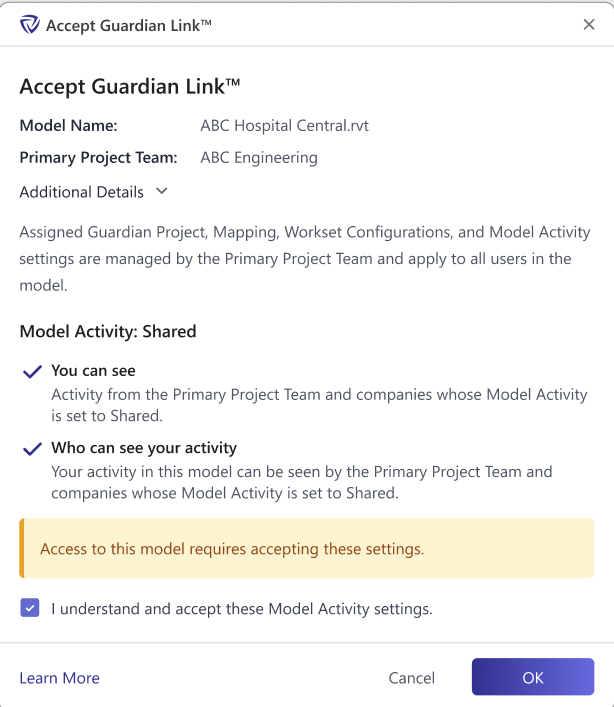
When the Primary requires acceptance, the Linked Collaborator’s Link Status is Accept Link. When anyone from the Collaborator company opens the model, the Accept Link dialog appears as part of opening the file, and the model can’t finish opening until a Collaborator administrator accepts the Link.

The dialog shows the model name and path, the Primary Project Team, and when and by whom the Link was enabled.
For the Collaborator’s Company and Project Administrators

accept-link
  1. Open the model and use the Accept Link dialog that appears, select Accept Link in the model’s Link Status in Registered Projects, or use the pending action on the Link icon.
  2. Check I understand and accept these Model Activity settings, then select OK.

The model finishes opening with the Primary’s configurations applied, and the Link Status changes to Active.

For the Collaborator’s End Users

Collaborator end users can’t accept a Link. The Accept Link dialog shows the Linked Collaborator’s administrator contacts instead, so end users know who to contact to accept the link.

Note: Once the collaborator’s end user closes the Accept Link dialog, Guardian will close the model until it’s accepted by a collaborator’s admin.

Review a Link

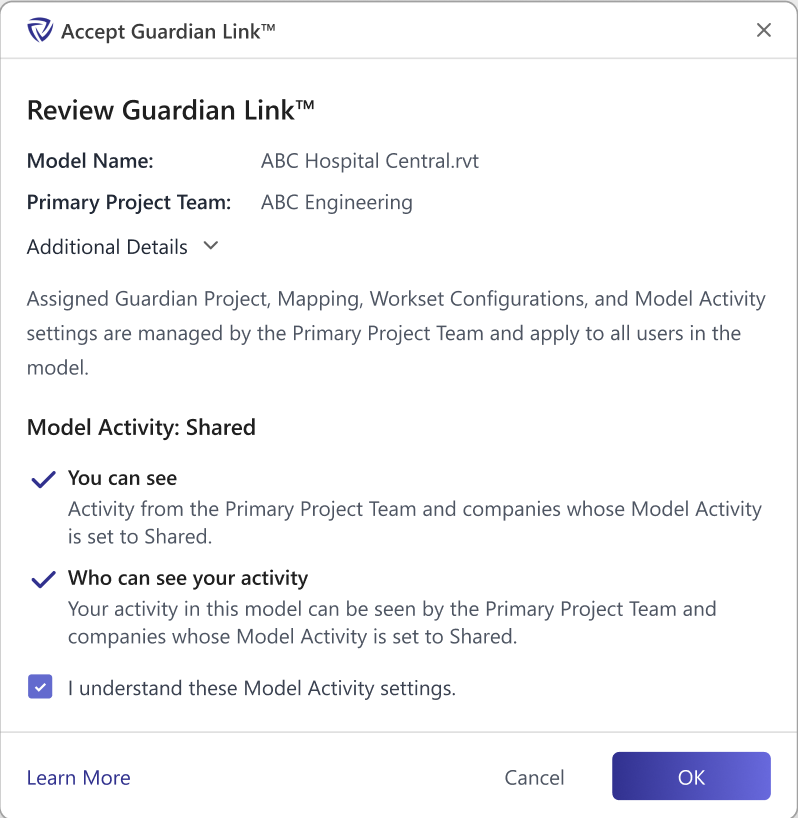
When no acceptance is required, the Linked Collaborator’s Link Status is Review Link. Collaborator users can work in the model right away under the Primary’s standards; nothing blocks them. The next time a Collaborator’s Company or Project Administrator opens the model, a Review Link prompt appears with the same details as the Accept Link dialog.
review-link
  1. Open the model and use the Review Link prompt that appears, select Review Link in the model’s Link Status in Registered Projects, or use the pending action on the Link icon.
  2. Review the Link details.
  3. Check I understand these Model Activity settings, then select OK.

The Link Status changes to Active.

Why There’s No Decline Option

Link membership comes from each Linked Collaborator’s registration of the model, not from an invitation. That keeps the Primary’s configurations consistent for every company working in the model.

Pro Tip: A Linked Collaborator that wasn’t expecting a Link should contact the Primary named in the dialog before accepting.

What Changes for Linked Collaborators

On the Linked model only:

  • Project Configuration, Mapping Configuration, Workset Configuration, and the Guardian Sync Properties come from the Primary and are view-only for Linked Collaborators, and protections are evaluated against the Primary’s configurations.
  • Each Linked Collaborator’s Company Settings and Label Manager stay as their own.
  • The Primary and all Linked Collaborators share one sync queue in Sync Traffic Control and Messages.
  • What each Linked Collaborator sees in Project Central (Activity Feed, History Feed, Users at a Glance, and Transaction Insights) depends on the Model Activity sharing setting the Primary chose. At general availability, the same applies to Guardian Backstage.

A Linked Collaborator’s other models aren’t affected.

Leave a Link

A Linked Collaborator’s Company or Project Administrator can leave a Link from Link Details once their company has accepted or reviewed the Link. Before that, Link Details and Leave Link aren’t available. Leaving affects only that Collaborator’s membership and doesn’t change the standards on the model.

  1. Open Link Details from the Link icon in the Guardian ribbon (Company or Project Administrators) or select Link Details from the model’s kebab menu in Registered Projects.
  2. Select Leave Link.
  3. Confirm.

What Happens After a Collaborator Leaves

  • Leaving resets your company’s membership; it doesn’t remove your company from the Link.
  • The Primary’s configurations still apply to the model. Only when the Primary ends the Link does it return the model to the Collaborator’s own configurations.
  • If the Link doesn’t require acceptance, your company stays active, and its Link Status returns to Review Link. Your users keep working, and activity sharing, the shared sync queue, and the Primary’s configurations all continue. An administrator is prompted to review the Link again the next time they open the model.
  • If the Link requires acceptance, your company’s membership becomes pending, and its Link Status returns to Accept Link. Activity sharing stops in both directions, and your users are blocked the next time they open the model until a Collaborator administrator accepts again.
  • If the Linked Collaborator has finished working on the project, a Collaborator’s Company or Project Administrator can archive the model in Registered Projects. The Primary’s configurations still apply, and the model is unarchived automatically if someone from your company saves it.

Important Notes

  • No new permissions: Joining a Link does not provide the Collaborator’s administrators with any new permissions. On the Linked model, Collaborator’s administrators can view the Primary’s configurations but not change them, and the Collaborator’s Project Administrators are never treated as administrators of the model through the Primary’s administrator list.
  • Guardian version: Everyone working in a Linked model must be on Guardian 3.4.0 or later. The Collaborator’s users on earlier versions keep working without errors but follow the Collaborator’s own configurations instead of the Primary’s.

Pro Tip: If a protection or mapping behaves differently than a Linked Collaborator’s own standards would, check the model’s Link Status in Registered Projects. On a Linked model, Guardian applies the Primary’s configurations, not the Collaborator’s. Link Details shows which company is Primary.

Knowledge Base
Accepting, Reviewing and Leaving a Guardian Link
In Beta

In This Article


Overview

When a Primary Project Team enables a Guardian Link on a model that other companies have also registered, each of those companies joins the Link as a Linked Collaborator. On that model, Linked Collaborators work within the Primary’s Guardian configurations.

What a Linked Collaborator sees first depends on the acceptance mode the Primary chose. If acceptance is required, a Collaborator administrator must accept the Link before anyone from that company can work in the model. If no acceptance is required, Collaborator users work right away, and a Collaborator administrator reviews the Link acceptance afterwards.

How Linked Collaborators Are Notified

A pending Link appears for Linked Collaborators in two places:

  • Guardian ribbon: The Link icon in the Project panel turns yellow when a Link action is pending.
  • Registered Projects: The model’s Link Status shows Accept Link or Review Link, and a Link Actions banner appears above the grid. Select the banner to filter the grid to the models that need attention. Select the status itself to accept or review the Link.

During the beta, if a Linked Collaborator registers the model after the Link was enabled, the prompt appears the next time that company’s users close and reopen the model. At general availability, Linked models will register automatically, so the prompt appears the first time anyone opens the model.

Users who already have the model open when the Link is enabled aren’t prompted until they close and reopen it.

Accept a Link

When the Primary requires acceptance, the Linked Collaborator’s Link Status is Accept Link. When anyone from the Collaborator company opens the model, the Accept Link dialog appears as part of opening the file, and the model can’t finish opening until a Collaborator administrator accepts the Link.

The dialog shows the model name and path, the Primary Project Team, and when and by whom the Link was enabled.

For the Collaborator’s Company and Project Administrators

accept-link
  1. Open the model and use the Accept Link dialog that appears, select Accept Link in the model’s Link Status in Registered Projects, or use the pending action on the Link icon.
  2. Check I understand and accept these Model Activity settings, then select OK.

The model finishes opening with the Primary’s configurations applied, and the Link Status changes to Active.

For the Collaborator’s End Users

Collaborator end users can’t accept a Link. The Accept Link dialog shows the Linked Collaborator’s administrator contacts instead, so end users know who to contact to accept the link.

Note: Once the collaborator’s end user closes the Accept Link dialog, Guardian will close the model until it’s accepted by a collaborator’s admin.

Review a Link

When no acceptance is required, the Linked Collaborator’s Link Status is Review Link. Collaborator users can work in the model right away under the Primary’s standards; nothing blocks them. The next time a Collaborator’s Company or Project Administrator opens the model, a Review Link prompt appears with the same details as the Accept Link dialog.

review-link
  1. Open the model and use the Review Link prompt that appears, select Review Link in the model’s Link Status in Registered Projects, or use the pending action on the Link icon.
  2. Review the Link details.
  3. Check I understand these Model Activity settings, then select OK.

The Link Status changes to Active.

Why There’s No Decline Option

Link membership comes from each Linked Collaborator’s registration of the model, not from an invitation. That keeps the Primary’s configurations consistent for every company working in the model.

Pro Tip: A Linked Collaborator that wasn’t expecting a Link should contact the Primary named in the dialog before accepting.

What Changes for Linked Collaborators

On the Linked model only:

  • Project Configuration, Mapping Configuration, Workset Configuration, and the Guardian Sync Properties come from the Primary and are view-only for Linked Collaborators, and protections are evaluated against the Primary’s configurations.
  • Each Linked Collaborator’s Company Settings and Label Manager stay as their own.
  • The Primary and all Linked Collaborators share one sync queue in Sync Traffic Control and Messages.
  • What each Linked Collaborator sees in Project Central (Activity Feed, History Feed, Users at a Glance, and Transaction Insights) depends on the Model Activity sharing setting the Primary chose. At general availability, the same applies to Guardian Backstage.

A Linked Collaborator’s other models aren’t affected.

Leave a Link

A Linked Collaborator’s Company or Project Administrator can leave a Link from Link Details once their company has accepted or reviewed the Link. Before that, Link Details and Leave Link aren’t available. Leaving affects only that Collaborator’s membership and doesn’t change the standards on the model.

  1. Open Link Details from the Link icon in the Guardian ribbon (Company or Project Administrators) or select Link Details from the model’s kebab menu in Registered Projects.
  2. Select Leave Link.
  3. Confirm.

What Happens After a Collaborator Leaves

  • Leaving resets your company’s membership; it doesn’t remove your company from the Link.
  • The Primary’s configurations still apply to the model. Only when the Primary ends the Link does it return the model to the Collaborator’s own configurations.
  • If the Link doesn’t require acceptance, your company stays active, and its Link Status returns to Review Link. Your users keep working, and activity sharing, the shared sync queue, and the Primary’s configurations all continue. An administrator is prompted to review the Link again the next time they open the model.
  • If the Link requires acceptance, your company’s membership becomes pending, and its Link Status returns to Accept Link. Activity sharing stops in both directions, and your users are blocked the next time they open the model until a Collaborator administrator accepts again.
  • If the Linked Collaborator has finished working on the project, a Collaborator’s Company or Project Administrator can archive the model in Registered Projects. The Primary’s configurations still apply, and the model is unarchived automatically if someone from your company saves it.

Important Notes

  • No new permissions: Joining a Link does not provide the Collaborator’s administrators with any new permissions. On the Linked model, Collaborator’s administrators can view the Primary’s configurations but not change them, and the Collaborator’s Project Administrators are never treated as administrators of the model through the Primary’s administrator list.
  • Guardian version: Everyone working in a Linked model must be on Guardian 3.4.0 or later. The Collaborator’s users on earlier versions keep working without errors but follow the Collaborator’s own configurations instead of the Primary’s.

Pro Tip: If a protection or mapping behaves differently than a Linked Collaborator’s own standards would, check the model’s Link Status in Registered Projects. On a Linked model, Guardian applies the Primary’s configurations, not the Collaborator’s. Link Details shows which company is Primary.

Need More Help?

Contact our support team to receive personalized assistance.

Guardian graphic