


Contact our support team for more information.
All Commands Protections adds a whole new level of protections and training opportunities on all API available Revit commands. Company Administrators now have the ability to add nearly any native Revit command to Guardian’s User Commands, providing Monitor, Guide, and Prevent protections across all of Revit. This also provides administrators with valuable insights into how their users are utilizing Revit to model and document their projects.
With All Commands Protections, there is a greater level of customization for each Revit command. For each command; Message Title, before and after screenshots, Active View information, before and after selected Elements IDs, and default Command Messages can be set for each.
For years, Guardian has provided proactive protections for many Revit commands that contribute to projects going sideways. What we’ve learned from administrators is that Guardian is an effective tool at understanding how their users are utilizing Revit and for providing real-time training on a command-by-command basis. Now, we’ve opened Guardian to provide the traditional Monitor, Guide, and Prevent protections for all API available Revit commands. Administrators can truly understand how their users are modeling and utilizing Revit, while providing helpful guidance and training opportunities on all Revit commands.
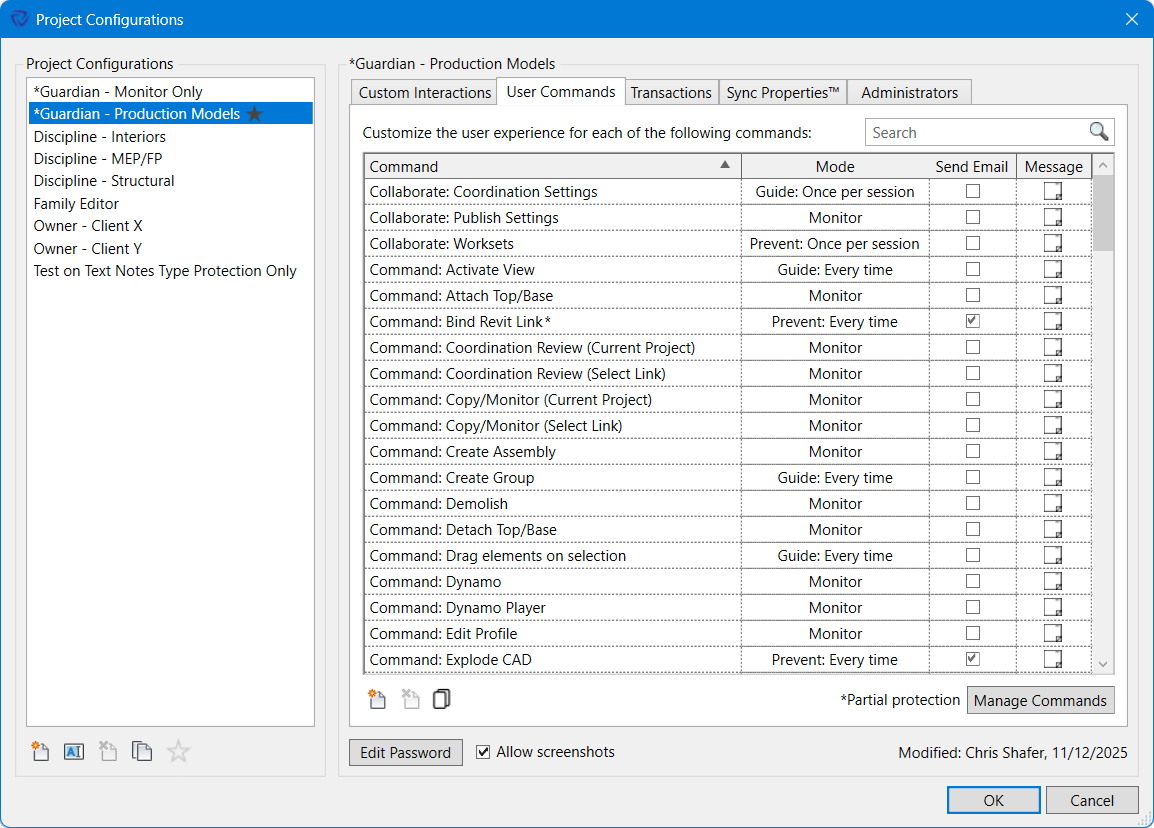
All Commands Protections must first be set up under User Commands within any Project Configuration by selecting the Manage Commands button. While accessible through the Project Configuration, the Manage Commands dialog functions globally and settings within Manage Commands are not specific to the active Project Configuration.
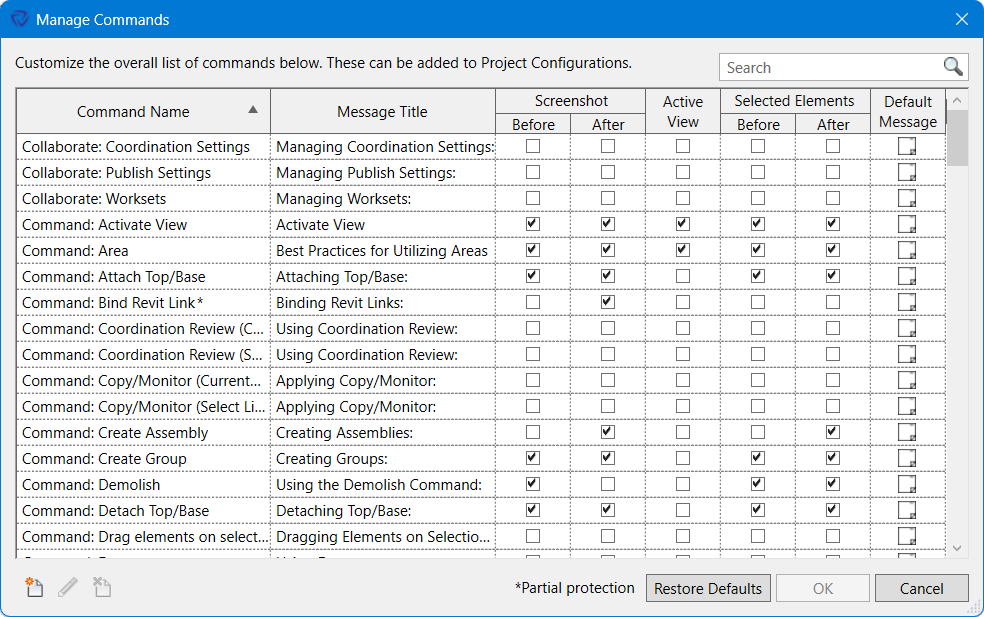
All existing commands will be shown when first opening the Manage Commands dialog. From the dialog, the following default settings can be established for each command:
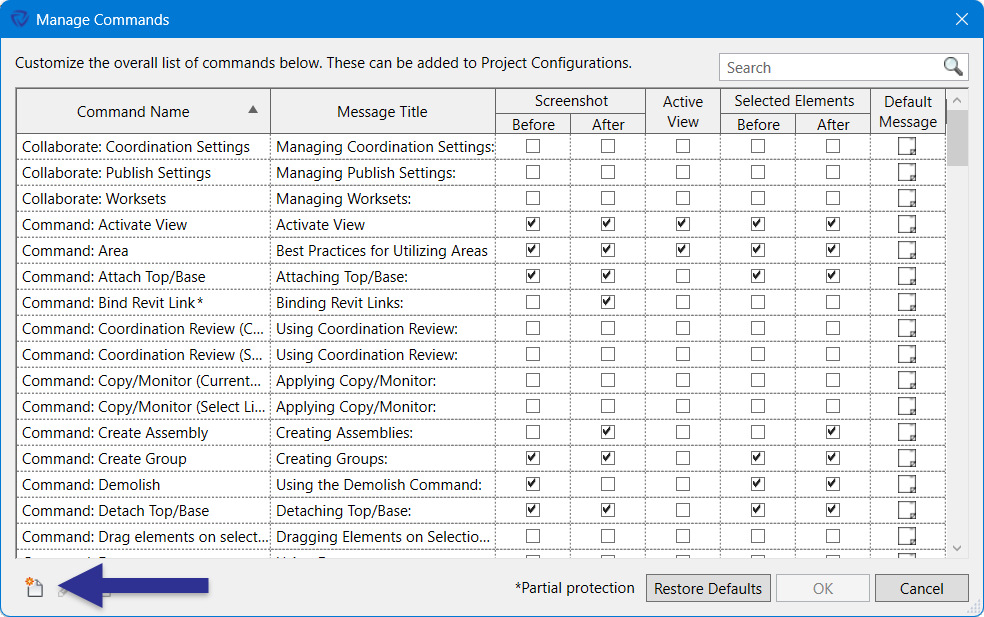
To create a Command from the available Revit postable commands, select the New button.
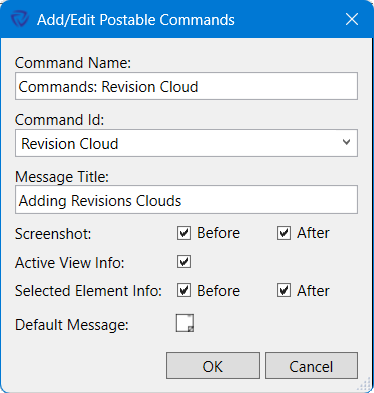
To configure the new command:
The newly created command will need to be added to the appropriate Project Configuration by selecting the New button under the User Commands tab.
Newly created Commands are not automatically assigned to Project Configurations to ensure protections are not inadvertently being added.

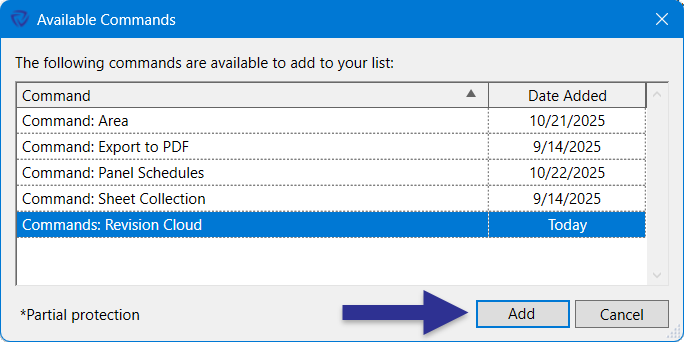
The new command will be listed in the Available Commands dialog and can be added to the Project Configuration by selecting the Add button.
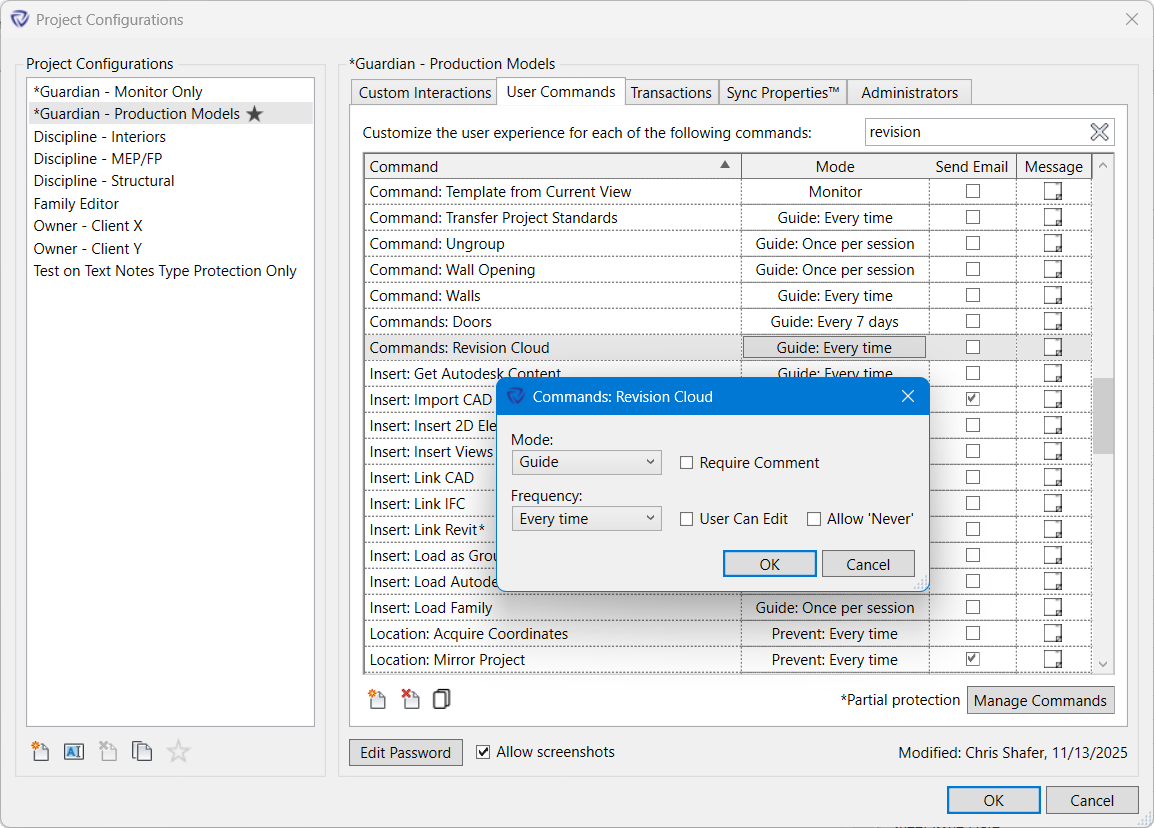
Once the new command is added to the Project Configuration, it becomes a User Command and the typical Monitor, Guide, and Prevent protections, along with frequency and comments, can be set. From there the newly created User Command can be copied to other Project Configurations.
Contact our support team for more information.
All Commands Protections adds a whole new level of protections and training opportunities on all API available Revit commands. Company Administrators now have the ability to add nearly any native Revit command to Guardian’s User Commands, providing Monitor, Guide, and Prevent protections across all of Revit. This also provides administrators with valuable insights into how their users are utilizing Revit to model and document their projects.
With All Commands Protections, there is a greater level of customization for each Revit command. For each command; Message Title, before and after screenshots, Active View information, before and after selected Elements IDs, and default Command Messages can be set for each.
For years, Guardian has provided proactive protections for many Revit commands that contribute to projects going sideways. What we’ve learned from administrators is that Guardian is an effective tool at understanding how their users are utilizing Revit and for providing real-time training on a command-by-command basis. Now, we’ve opened Guardian to provide the traditional Monitor, Guide, and Prevent protections for all API available Revit commands. Administrators can truly understand how their users are modeling and utilizing Revit, while providing helpful guidance and training opportunities on all Revit commands.
All Commands Protections must first be set up under User Commands within any Project Configuration by selecting the Manage Commands button. While accessible through the Project Configuration, the Manage Commands dialog functions globally and settings within Manage Commands are not specific to the active Project Configuration.
All existing commands will be shown when first opening the Manage Commands dialog. From the dialog, the following default settings can be established for each command:
To create a Command from the available Revit postable commands, select the New button.
To configure the new command:
The newly created command will need to be added to the appropriate Project Configuration by selecting the New button under the User Commands tab.
Newly created Commands are not automatically assigned to Project Configurations to ensure protections are not inadvertently being added.
The new command will be listed in the Available Commands dialog and can be added to the Project Configuration by selecting the Add button.
Once the new command is added to the Project Configuration, it becomes a User Command and the typical Monitor, Guide, and Prevent protections, along with frequency and comments, can be set. From there the newly created User Command can be copied to other Project Configurations.
Contact our support team to receive personalized assistance.
