


Contact our support team for more information.
Guardian lets you clean up and standardize Revit families across your projects. Mapping rules tell Guardian how to convert families and their family types (renaming, merging from one family to another, or merging duplicates) so everything loaded into a model meets your firm's standards.
With family mapping, you can:
Family mapping happens in multiple ways:
When families and their types are brought into the active model, they can be renamed, purged, or mapped to families of the same category that already existed in the project. Families and their family types are listed and grouped by family category. Please note, family types must be mapped independently of the family itself. There are unique situations for family types:
The order of operations is important for properly family and family types mapping.
1. Select the Family to be mapped.
2. Select the Family to map to. Mapping of families is limited to families of the same Revit category. Thus, when mapping family types, the available family types available to map will be limited to only those within the selected family.
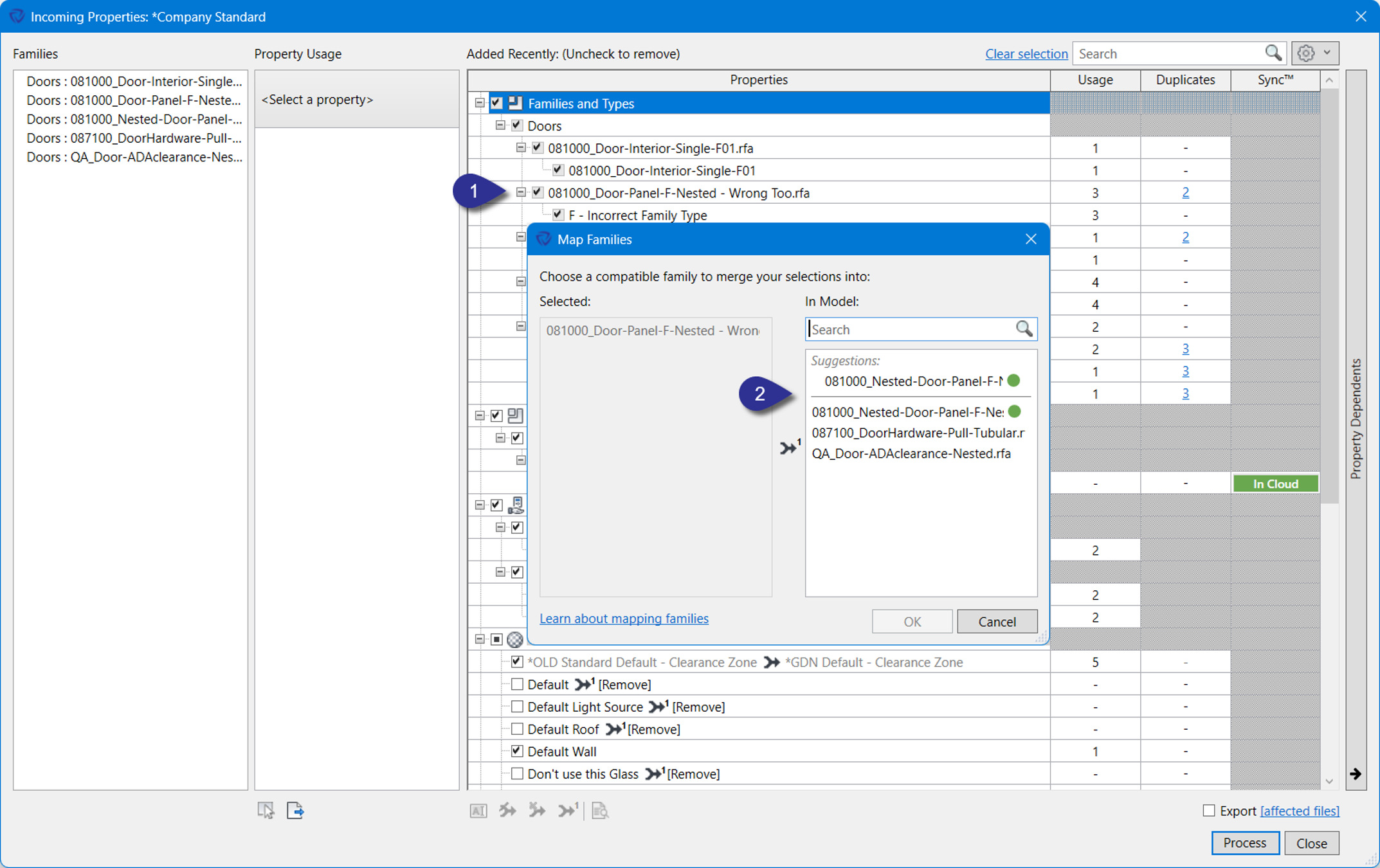
3. Select the Family Type to be mapped.
4. Select the Family Type to map to.
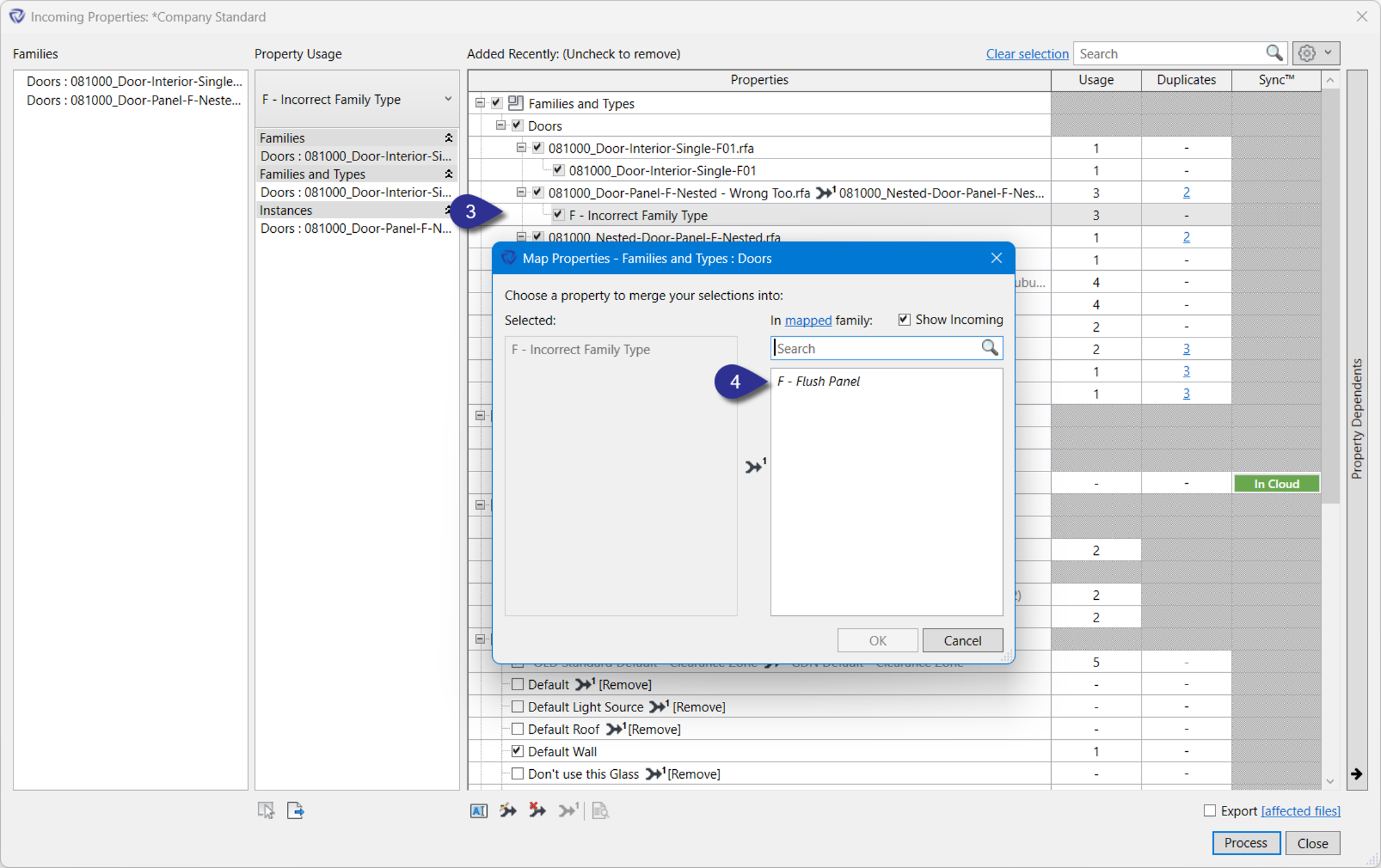
Refer to the Mapping Functions under the Model Properties dialog for a complete list and how the mapping functions work.
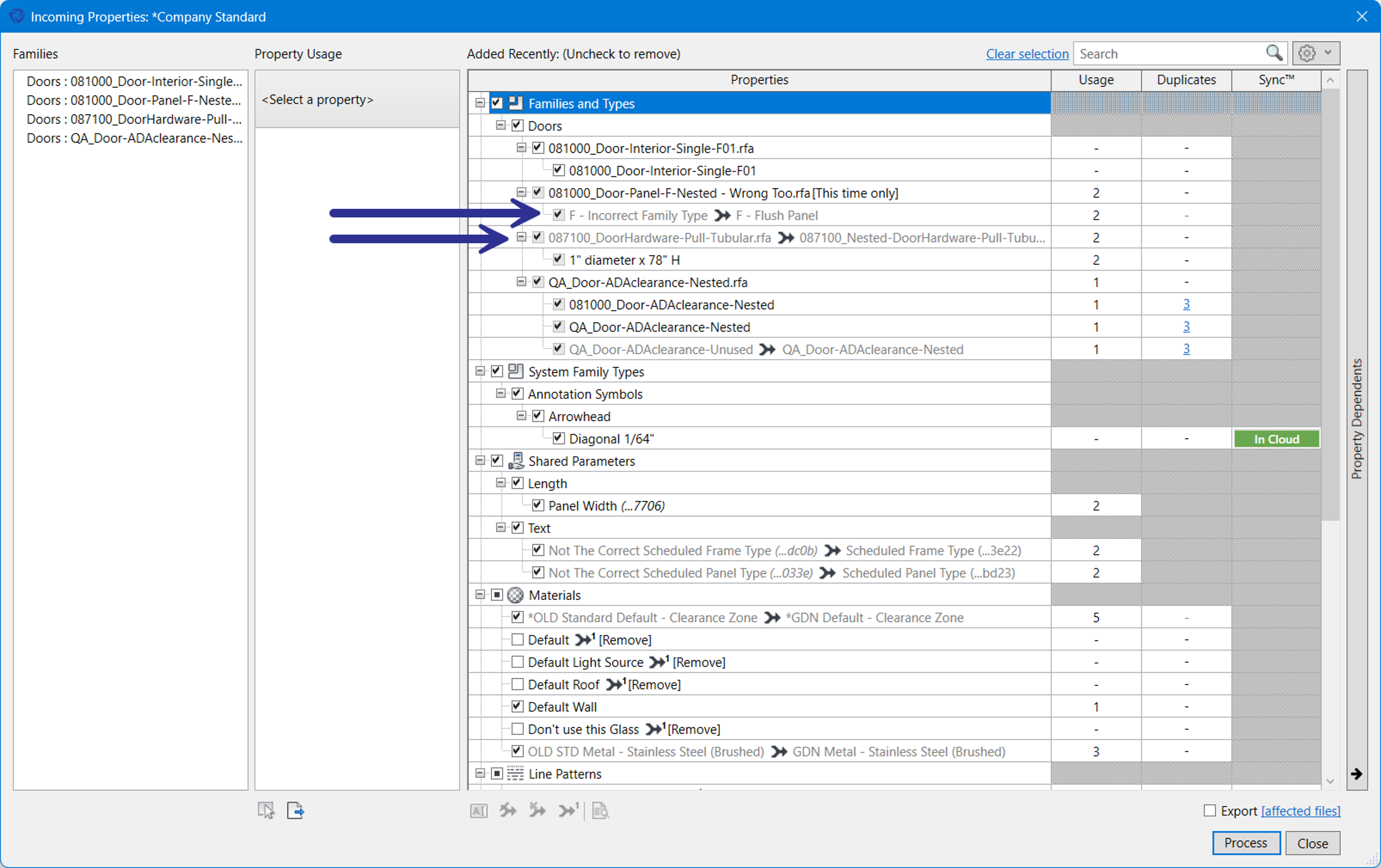
Once mapping rules exist, shown by being grayed out, Guardian applies them automatically whenever a family is loaded or copied into a project. End users don't need to do anything extra.
Admins have additional control: when a new or unrecognized family comes in, Guardian shows it in the Incoming Properties dialog, where you can decide how to handle it. Refer to Transactions to learn more how Guardian handles incoming content.
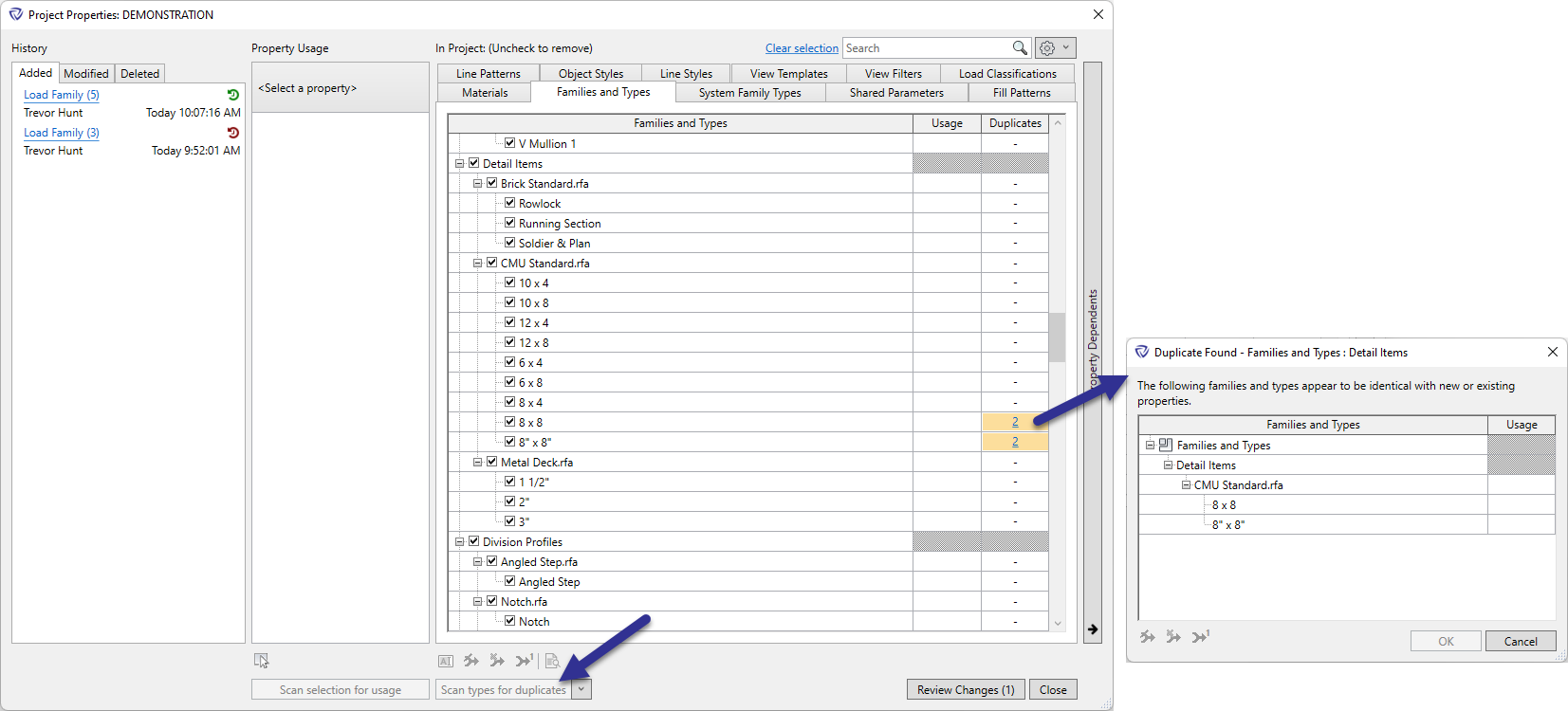
Guardian can also help you identify families and types that aren't actually being used, so you can safely remove them:
1. Deselect the checkbox next to any family or type you want to remove.
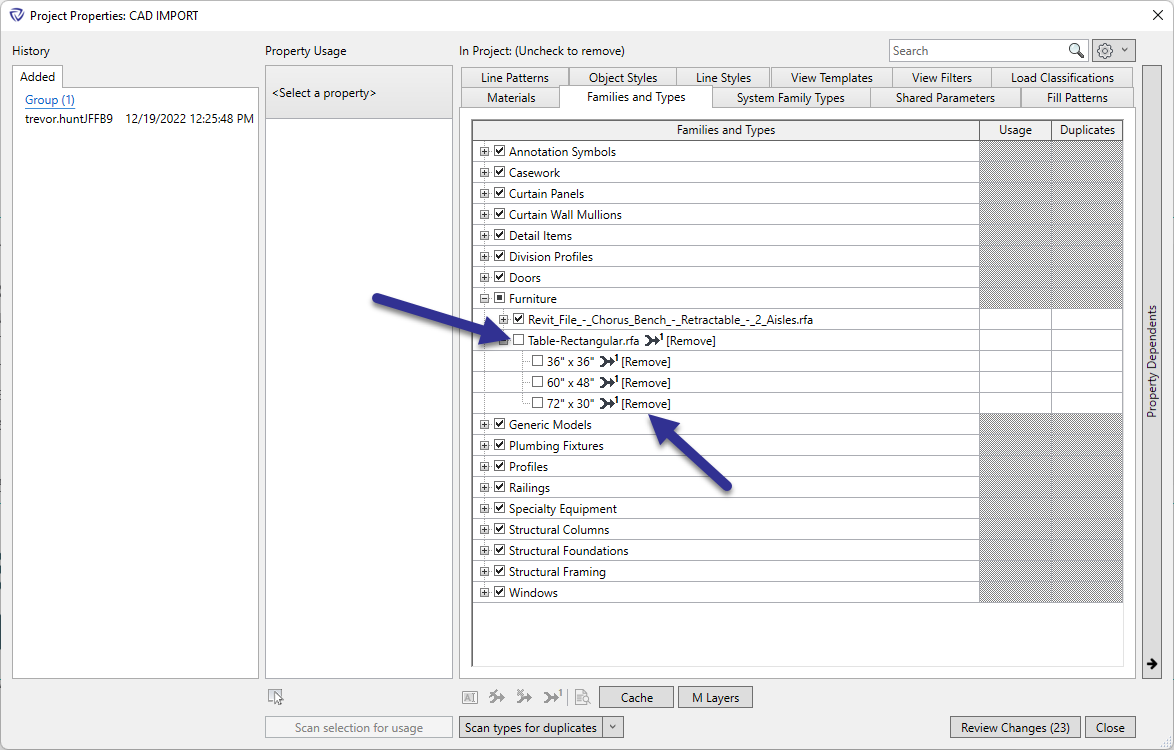
2. To check whether something is in use first, open the dropdown under Scan types for duplicates and choose either:
Contact our support team for more information.
Guardian lets you clean up and standardize Revit families across your projects. Mapping rules tell Guardian how to convert families and their family types (renaming, merging from one family to another, or merging duplicates) so everything loaded into a model meets your firm's standards.
With family mapping, you can:
Family mapping happens in multiple ways:
When families and their types are brought into the active model, they can be renamed, purged, or mapped to families of the same category that already existed in the project. Families and their family types are listed and grouped by family category. Please note, family types must be mapped independently of the family itself. There are unique situations for family types:
The order of operations is important for properly family and family types mapping.
1. Select the Family to be mapped.
2. Select the Family to map to. Mapping of families is limited to families of the same Revit category. Thus, when mapping family types, the available family types available to map will be limited to only those within the selected family.
3. Select the Family Type to be mapped.
4. Select the Family Type to map to.
Refer to the Mapping Functions under the Model Properties dialog for a complete list and how the mapping functions work.
Once mapping rules exist, shown by being grayed out, Guardian applies them automatically whenever a family is loaded or copied into a project. End users don't need to do anything extra.
Admins have additional control: when a new or unrecognized family comes in, Guardian shows it in the Incoming Properties dialog, where you can decide how to handle it. Refer to Transactions to learn more how Guardian handles incoming content.
Guardian can also help you identify families and types that aren't actually being used, so you can safely remove them:
1. Deselect the checkbox next to any family or type you want to remove.
2. To check whether something is in use first, open the dropdown under Scan types for duplicates and choose either:
Contact our support team to receive personalized assistance.
