


Contact our support team for more information.
Sync times are critical for firms when trying to limit downtime. It can be difficult to train users in the importance of syncing files regularly and having them keep to it. Sync Traffic Control allows administrators to prevent sync conflicts and decrease downtime.
This is done in two significant ways: allowing admins to keep track of user sync behavior and creating tailored sync reminders. This feature also has protections that can prevent users from trying to sync a file at the same time as another user.
To start using Guardian’s Sync Traffic Control, it must first be turned on within the Project Configuration that is assigned to the project model. As with all Project Configuration settings, Sync Traffic Control can be modified on a project-by-project basis within File Settings.

The settings can be modified by selecting the cog icon. The settings dialog is divided into two sections. The upper settings are to prevent sync conflicts, while the bottom settings are for sync reminders.

For sync conflict prevention, a Monitor, Guide, or Prevent Protection Mode (A) can be set. The Protection Mode for Sync Traffic Control works differently from Guardian’s other proactive protections.
As with all of Guardian’s other proactive protections, a Send Email, Require Comment, and custom Command Message can be set.
Selecting the checkbox (B), the Guardian sync reminders will appear to users instead of the standard Revit sync reminders.
Once turned on, an initial reminder time can be set for 2 hours, 1 hour, 30 minutes, 10 minutes, or 5 minutes. After which, the length and the number of snooze reminders can be customized. Up to four snooze reminders can be added.
For the last snooze reminder, it will repeat indefinitely if the end user does not Sync with Central unless one of the two options, or both, are selected (C).
The last option (D) is the ability to set how long the reminder and queue prompts will stay active before timing out.
Administrators can monitor user sync activity for any registered workshared file through Project Central in the Sync Traffic Control tab. This tab is updated in real-time so administrators can see the active users in the project model along with critical information about their sync activities.

Project Administrators can select a user within the dialog and click Remind to sync to send a sync reminder to that user. When multiple users have been placed in the sync queue, administrators can use the Move to front button to move users up in the queue. Please note, a queue forms when multiple users’ status is shown as “In Queue”.
The history of syncs by users can also be seen in Project Central under the Timeline: Project Sessions tab. The black vertical dots in the timeline indicate when the user synced last.

When the Sync with Central command is executed, Guardian will check if other users are syncing. When nobody else is syncing, the following dialog will appear to prompt the user to sync. There is a two-minute countdown after which Guardian will automatically start syncing. By default, Guardian will preselect all of the advanced options.

This dialog appears when it is someone else’s turn in the queue, and they’re in the process of beginning to sync. Selecting Cancel will add the user to the queue, and they will receive a reminder when it is their turn to sync.

When the Sync with Central command is executed, Guardian provides a notification that another user is currently syncing. Because the Protection Mode is set to Prevent, the user would have to enter an administrator-provided password to continue to sync, encouraging the user to select Add to Queue.

The user is reminded to Sync with Central where they can select Synchronize or Snooze, if available. Reminders, based on active time in the project, will ask users to sync only when the queue is free.

Why does a username appear twice in Sync Monitor?
A user may appear twice if a previous Revit session crashed or was not closed properly. Guardian relies on Revit's heartbeat signal to determine whether a session is active. When Revit closes unexpectedly, Guardian cannot immediately detect that the session has ended and will continue to display it until the heartbeat timeout expires, typically within 10–15 minutes.
Why does it say a user is syncing when that user isn't in the model?
This is a known issue that can occur when an Intent to Sync is not properly cleared. In most cases, the status resolves automatically within a few minutes.
Why does a user not show up in the list?
This can be caused by an incomplete Guardian installation or network connectivity issues preventing communication with the Sync Traffic Control service.
To troubleshoot:
Why does it say blocked?
A user is marked as blocked when they have an active Intent to Sync but cannot begin syncing because Revit is waiting for them to complete an action, such as finishing a command, sketch, or open dialog.
Why does it show an alert symbol (yellow triangle)?
The yellow alert icon indicates that the user currently syncing has a Revit dialog open that is preventing the sync from completing. Common examples include warnings, error messages, confirmation dialogs, or other Revit prompts requiring user input.
While Revit is awaiting user input:
If additional syncs occur while the user's sync is paused, they will be required to Reload Latest before completing their sync.
Why does my reminder say 1pm but doesn't sync right at 1pm?
Sync reminders are based on active working time rather than clock time.
For example, if a user syncs at 12:00 PM and has a 1-hour reminder configured, Guardian will evaluate at 1:00 PM whether the user has accumulated one hour of active work time in the model. If not, the reminder is delayed until the configured amount of active work time has been reached.
Additionally, Guardian does not prompt users to sync if no work has been performed since their last sync.
A user has been in the model all day but says they've never been asked to sync. Why?
Several factors can prevent sync reminders from appearing:
To troubleshoot:
My user is getting a 'Waiting for approval' dialog, what does it mean?
This dialog appears when a user requests permission to sync.
Under normal conditions, the dialog only appears briefly before syncing begins. If Guardian is experiencing service degradation or connectivity issues, the dialog may remain visible for up to 30 seconds.
If approval cannot be obtained within 30 seconds, Guardian displays a Cannot Connect to Sync Service message, allowing the user to continue syncing using Revit's standard synchronization process.
My user is getting a 'Waiting for X user to sync to begin syncing' dialog, and then 'Waiting for X user to sync' what does it mean?
The referenced user currently has an active Sync Traffic Control dialog and is next in the sync queue but has not yet started the synchronization process.
Why does it say 'Sync monitor not available?'
This typically indicates that Sync Traffic Control is not enabled for the model or that network connectivity issues are preventing Guardian from connecting to the Sync Traffic Control service.
If I make changes to my Sync Traffic Control options, when do users get updated with those changes? (Different for Overrides)
In a standard Project Configuration, changes to Sync Traffic Control will populate immediately for all users in that model. However, if there is a Project Configuration override in place on that model, any changes made to Sync Traffic Control will only be populated the next time the user opens/reopens Revit.
Can I force a user to sync?
Yes. When the Prevent Snooze on Last Reminder setting is enabled, Guardian can send repeated sync reminders. On the final reminder, Guardian automatically initiates the sync process once the countdown timer expires.
Why is the 'Remind to sync' button disabled?
The button is disabled when:
What does reconnecting mean?
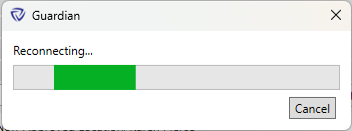
The Reconnecting... dialog can happen for a number of reasons. The most common reason we see for this is traffic being blocked/slowed down at the network level. Network connection/WiFi dropping and reconnecting can cause the connection with our endpoint to not re-establish. If working via WiFi, please attempt connecting directly into an ethernet port if possible as a first troubleshooting step. A quick restart of Revit should also help re-establish the connection needed.
Whitelisting the Sync Traffic Control endpoint address at the firewall/network/VPN levels will ensure Guardian traffic doesn't get bogged down.
https://guardian-signalr-defaultmode-prod.service.signalr.net
If the issue still persists, we'll want to gather some additional logging to get a better picture of what's occurring on the backend. This can be turned on by going to Settings > About on the machine in question and pressing CTRL+ALT+SHIFT+D. The logs can be found at "C:\Users\USERNAME\AppData\LocalLow\Guardian\Diagnostics" .
Why is there a problem connecting to the sync service?
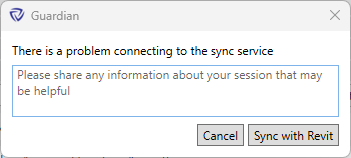
This message appears when Guardian is unable to communicate with the Sync Traffic Control service. Common causes include temporary network interruptions, firewall or proxy restrictions, VPN connectivity issues, or Guardian service degradation.
In most cases, the issue is temporary and communication is restored automatically. If the message persists:
Contact our support team for more information.
Sync times are critical for firms when trying to limit downtime. It can be difficult to train users in the importance of syncing files regularly and having them keep to it. Sync Traffic Control allows administrators to prevent sync conflicts and decrease downtime.
This is done in two significant ways: allowing admins to keep track of user sync behavior and creating tailored sync reminders. This feature also has protections that can prevent users from trying to sync a file at the same time as another user.
To start using Guardian’s Sync Traffic Control, it must first be turned on within the Project Configuration that is assigned to the project model. As with all Project Configuration settings, Sync Traffic Control can be modified on a project-by-project basis within File Settings.
The settings can be modified by selecting the cog icon. The settings dialog is divided into two sections. The upper settings are to prevent sync conflicts, while the bottom settings are for sync reminders.
For sync conflict prevention, a Monitor, Guide, or Prevent Protection Mode (A) can be set. The Protection Mode for Sync Traffic Control works differently from Guardian’s other proactive protections.
As with all of Guardian’s other proactive protections, a Send Email, Require Comment, and custom Command Message can be set.
Selecting the checkbox (B), the Guardian sync reminders will appear to users instead of the standard Revit sync reminders.
Once turned on, an initial reminder time can be set for 2 hours, 1 hour, 30 minutes, 10 minutes, or 5 minutes. After which, the length and the number of snooze reminders can be customized. Up to four snooze reminders can be added.
For the last snooze reminder, it will repeat indefinitely if the end user does not Sync with Central unless one of the two options, or both, are selected (C).
The last option (D) is the ability to set how long the reminder and queue prompts will stay active before timing out.
Administrators can monitor user sync activity for any registered workshared file through Project Central in the Sync Traffic Control tab. This tab is updated in real-time so administrators can see the active users in the project model along with critical information about their sync activities.
Project Administrators can select a user within the dialog and click Remind to sync to send a sync reminder to that user. When multiple users have been placed in the sync queue, administrators can use the Move to front button to move users up in the queue. Please note, a queue forms when multiple users’ status is shown as “In Queue”.
The history of syncs by users can also be seen in Project Central under the Timeline: Project Sessions tab. The black vertical dots in the timeline indicate when the user synced last.
When the Sync with Central command is executed, Guardian will check if other users are syncing. When nobody else is syncing, the following dialog will appear to prompt the user to sync. There is a two-minute countdown after which Guardian will automatically start syncing. By default, Guardian will preselect all of the advanced options.
This dialog appears when it is someone else’s turn in the queue, and they’re in the process of beginning to sync. Selecting Cancel will add the user to the queue, and they will receive a reminder when it is their turn to sync.
When the Sync with Central command is executed, Guardian provides a notification that another user is currently syncing. Because the Protection Mode is set to Prevent, the user would have to enter an administrator-provided password to continue to sync, encouraging the user to select Add to Queue.
The user is reminded to Sync with Central where they can select Synchronize or Snooze, if available. Reminders, based on active time in the project, will ask users to sync only when the queue is free.
Why does a username appear twice in Sync Monitor?
A user may appear twice if a previous Revit session crashed or was not closed properly. Guardian relies on Revit's heartbeat signal to determine whether a session is active. When Revit closes unexpectedly, Guardian cannot immediately detect that the session has ended and will continue to display it until the heartbeat timeout expires, typically within 10–15 minutes.
Why does it say a user is syncing when that user isn't in the model?
This is a known issue that can occur when an Intent to Sync is not properly cleared. In most cases, the status resolves automatically within a few minutes.
Why does a user not show up in the list?
This can be caused by an incomplete Guardian installation or network connectivity issues preventing communication with the Sync Traffic Control service.
To troubleshoot:
Why does it say blocked?
A user is marked as blocked when they have an active Intent to Sync but cannot begin syncing because Revit is waiting for them to complete an action, such as finishing a command, sketch, or open dialog.
Why does it show an alert symbol (yellow triangle)?
The yellow alert icon indicates that the user currently syncing has a Revit dialog open that is preventing the sync from completing. Common examples include warnings, error messages, confirmation dialogs, or other Revit prompts requiring user input.
While Revit is awaiting user input:
If additional syncs occur while the user's sync is paused, they will be required to Reload Latest before completing their sync.
Why does my reminder say 1pm but doesn't sync right at 1pm?
Sync reminders are based on active working time rather than clock time.
For example, if a user syncs at 12:00 PM and has a 1-hour reminder configured, Guardian will evaluate at 1:00 PM whether the user has accumulated one hour of active work time in the model. If not, the reminder is delayed until the configured amount of active work time has been reached.
Additionally, Guardian does not prompt users to sync if no work has been performed since their last sync.
A user has been in the model all day but says they've never been asked to sync. Why?
Several factors can prevent sync reminders from appearing:
To troubleshoot:
My user is getting a 'Waiting for approval' dialog, what does it mean?
This dialog appears when a user requests permission to sync.
Under normal conditions, the dialog only appears briefly before syncing begins. If Guardian is experiencing service degradation or connectivity issues, the dialog may remain visible for up to 30 seconds.
If approval cannot be obtained within 30 seconds, Guardian displays a Cannot Connect to Sync Service message, allowing the user to continue syncing using Revit's standard synchronization process.
My user is getting a 'Waiting for X user to sync to begin syncing' dialog, and then 'Waiting for X user to sync' what does it mean?
The referenced user currently has an active Sync Traffic Control dialog and is next in the sync queue but has not yet started the synchronization process.
Why does it say 'Sync monitor not available?'
This typically indicates that Sync Traffic Control is not enabled for the model or that network connectivity issues are preventing Guardian from connecting to the Sync Traffic Control service.
If I make changes to my Sync Traffic Control options, when do users get updated with those changes? (Different for Overrides)
In a standard Project Configuration, changes to Sync Traffic Control will populate immediately for all users in that model. However, if there is a Project Configuration override in place on that model, any changes made to Sync Traffic Control will only be populated the next time the user opens/reopens Revit.
Can I force a user to sync?
Yes. When the Prevent Snooze on Last Reminder setting is enabled, Guardian can send repeated sync reminders. On the final reminder, Guardian automatically initiates the sync process once the countdown timer expires.
Why is the 'Remind to sync' button disabled?
The button is disabled when:
What does reconnecting mean?
The Reconnecting... dialog can happen for a number of reasons. The most common reason we see for this is traffic being blocked/slowed down at the network level. Network connection/WiFi dropping and reconnecting can cause the connection with our endpoint to not re-establish. If working via WiFi, please attempt connecting directly into an ethernet port if possible as a first troubleshooting step. A quick restart of Revit should also help re-establish the connection needed.
Whitelisting the Sync Traffic Control endpoint address at the firewall/network/VPN levels will ensure Guardian traffic doesn't get bogged down.
https://guardian-signalr-defaultmode-prod.service.signalr.net
If the issue still persists, we'll want to gather some additional logging to get a better picture of what's occurring on the backend. This can be turned on by going to Settings > About on the machine in question and pressing CTRL+ALT+SHIFT+D. The logs can be found at "C:\Users\USERNAME\AppData\LocalLow\Guardian\Diagnostics" .
Why is there a problem connecting to the sync service?
This message appears when Guardian is unable to communicate with the Sync Traffic Control service. Common causes include temporary network interruptions, firewall or proxy restrictions, VPN connectivity issues, or Guardian service degradation.
In most cases, the issue is temporary and communication is restored automatically. If the message persists:
Contact our support team to receive personalized assistance.
