


Contact our support team for more information.
View Template Protections provides Company and Project Administrators the ability to Monitor, Guide, or Prevent the editing of view templates. Administrators can apply View Template Protections on specific view templates or by creating rules-based protections. View templates can be selected on a template-by-template basis within the active project to protect from being edited by end-users. Additionally, rules-based protections can also be created to protect view templates. Once activated for the project model, View Template Protections will display a customized Guardian Command Message when an end-user attempts to edit the protected view template.
This action can be fully prevented or can be used to put a message in front of the user to guide them toward best practices. To utilize this feature, it must first be enabled in the Project Configurations for firm-wide adoption or customized at the project level in the Model Settings.
We’ve heard from you, "Please protect our view templates!" One of the power features of Revit to ensure graphical quality and consistency is also one of its Achilles’ heel. Their power lies in global control, but that’s also their greatest vulnerability. A single change affects every view tied to that template, often without users realizing it. With View Template Protections, you can ensure your view template settings stay set, while also educating your users on the proper ways of utilizing view templates and other view settings within Revit.
When View Template Protections is first enabled within Project Configurations under the Custom Interactions tab, it will be adopted by each registered project model with that assigned Project Configuration. View Template Protections can be further customized at the project level within Model Settings on a model-by-model basis.
Enabling Modifying view template rules will activate View Template Protections.
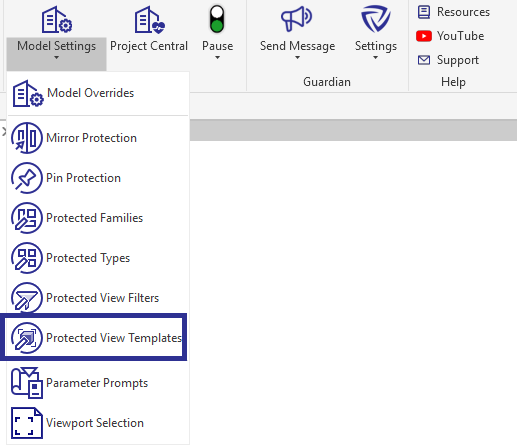
Specific view templates can be protected with Guardian’s Protected View Templates. This can be accessed on the Guardian ribbon by selecting the down arrow below Model Settings.
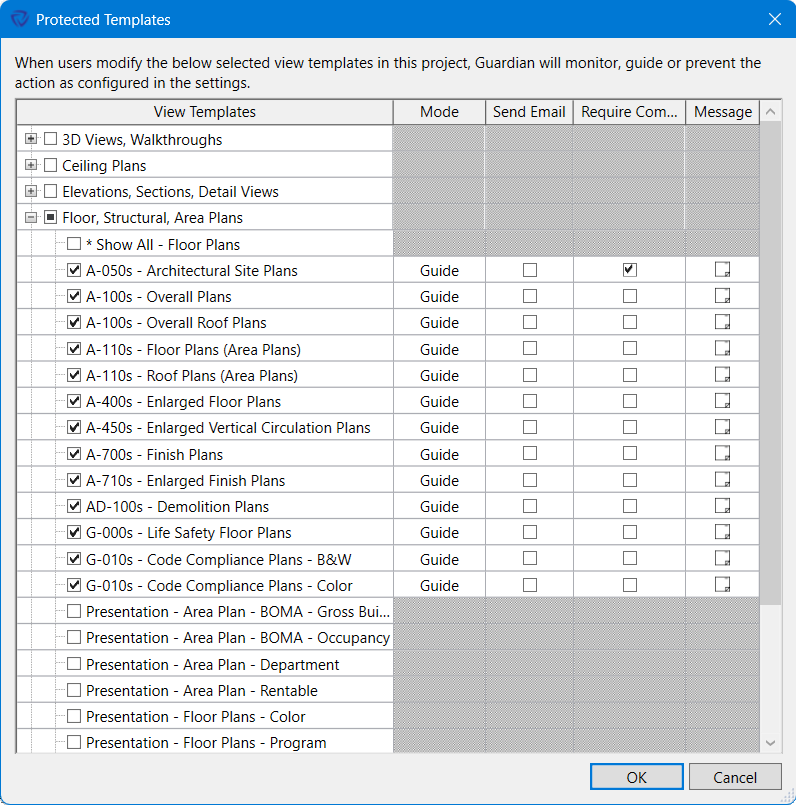
Within the Protected View Templates dialog, the project administrator is presented with all the view templates loaded into the project model, grouped by categories.
Checking the box will apply the View Template Protections for the selected view template. Once selected, the Protection Mode and Command Message can be customized.
Pro Tip: Shift+Left Mouse allows to select multiple view templates at once to be protected.
Any selected view templates within the Protected View Templates dialog will take precedence over rules created within the View Template Protections settings in Project Configurations.
Pro Tip: For all view templates within a firm’s Revit templates, it is recommended using the selection-based protection method as it’s the ideal method for protecting existing view templates, while the rules-based protection method works best for view templates created in the future.
Select the Settings cog to configure rules that will automatically apply View Template Protections to any view template that meets the rule conditions.
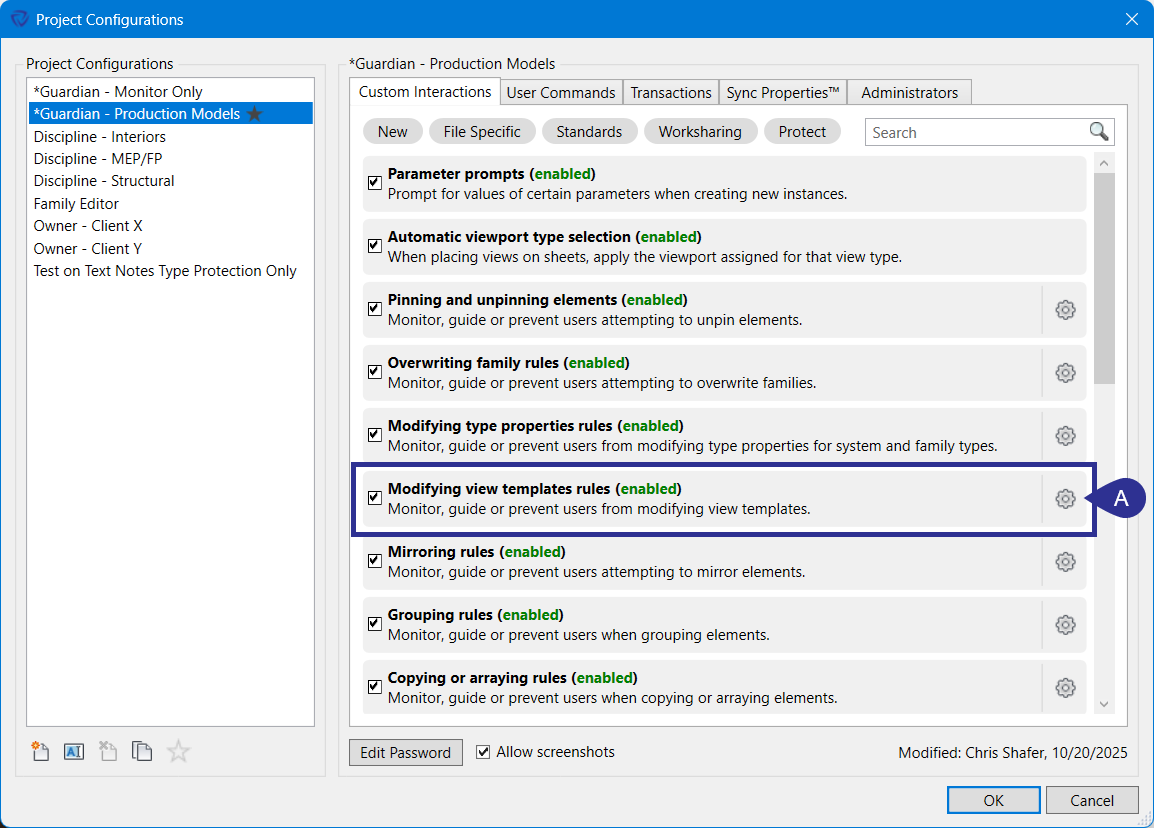
Select the New button to create a new rule to identify which view templates are to be protected. Create as many rules necessary for the view templates that need to be protected.

Different condition types can be used to create rules to meet specific needs for the View Template Protections. The different conditions that can be utilized include:
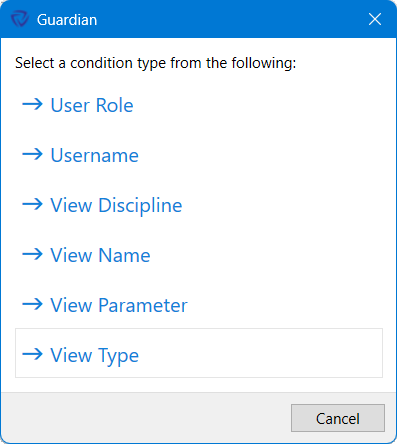
The various conditions above can be used to specify specific view templates that should be protected.
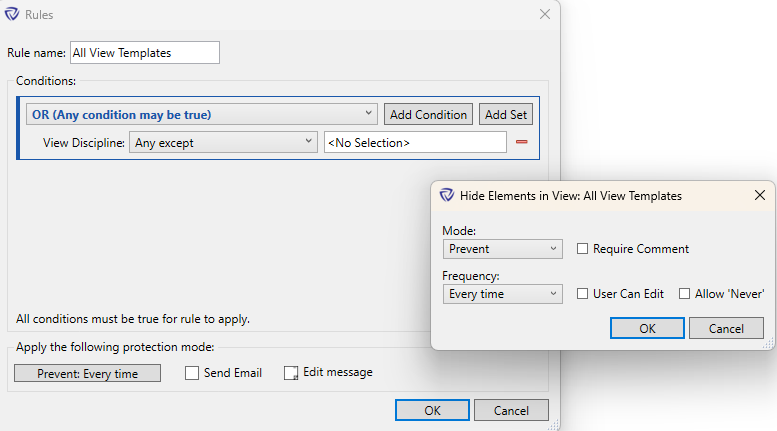
The protection mode can be customized for each rule:
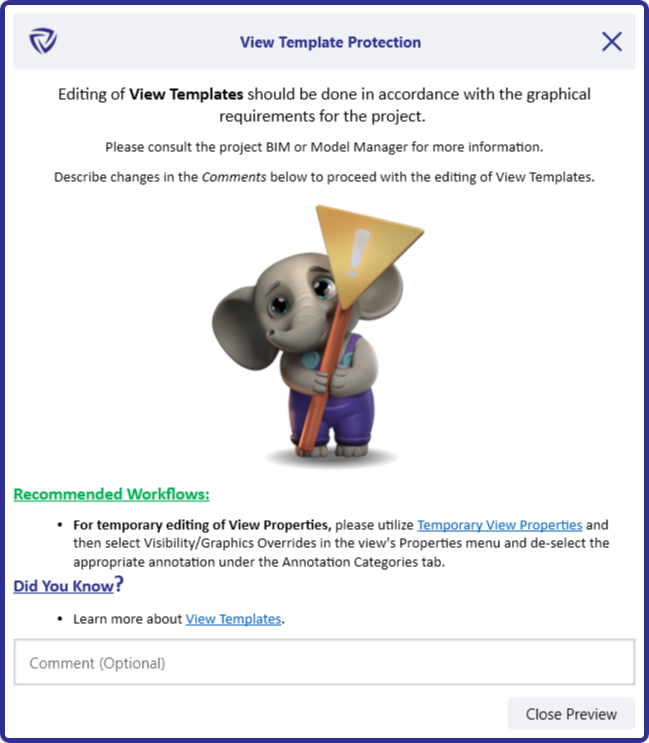
When an end-user attempts to edit a protected view template, Guardian will alert them with the custom Command Message provided by the Project Administrator (if the protection mode is set to Guide or Prevent).
If selected within the Custom Interactions settings for View Template Protections, the end-user will be required to provide a comment to proceed with editing the protected view template.
If set by the project administrator, the end-user will be required to provide the project password or a one-time password to proceed with editing the protected view template.
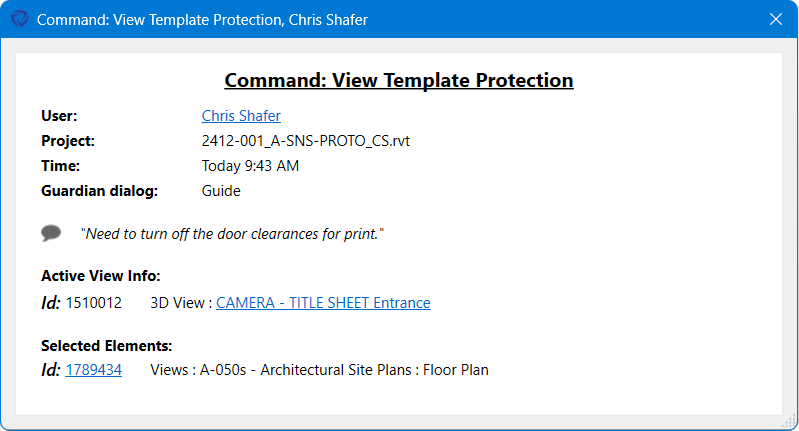
All end-users transactions to modifying a protected view template will show up in Project Central’s Activity Feed, regardless if the protection mode is set to Monitor, Guide, or Prevent.
With email notifications enabled in the View Template Protections settings dialog, project admins will be notified with an email containing the pertinent information when an end-user attempts to edit a protected view template. This is great insight and an opportunity to ask the user what changes they are attempting to make. It could be an indication that the view template needs to be updated.
Contact our support team for more information.
View Template Protections provides Company and Project Administrators the ability to Monitor, Guide, or Prevent the editing of view templates. Administrators can apply View Template Protections on specific view templates or by creating rules-based protections. View templates can be selected on a template-by-template basis within the active project to protect from being edited by end-users. Additionally, rules-based protections can also be created to protect view templates. Once activated for the project model, View Template Protections will display a customized Guardian Command Message when an end-user attempts to edit the protected view template.
This action can be fully prevented or can be used to put a message in front of the user to guide them toward best practices. To utilize this feature, it must first be enabled in the Project Configurations for firm-wide adoption or customized at the project level in the Model Settings.
We’ve heard from you, "Please protect our view templates!" One of the power features of Revit to ensure graphical quality and consistency is also one of its Achilles’ heel. Their power lies in global control, but that’s also their greatest vulnerability. A single change affects every view tied to that template, often without users realizing it. With View Template Protections, you can ensure your view template settings stay set, while also educating your users on the proper ways of utilizing view templates and other view settings within Revit.
When View Template Protections is first enabled within Project Configurations under the Custom Interactions tab, it will be adopted by each registered project model with that assigned Project Configuration. View Template Protections can be further customized at the project level within Model Settings on a model-by-model basis.
Enabling Modifying view template rules will activate View Template Protections.
Specific view templates can be protected with Guardian’s Protected View Templates. This can be accessed on the Guardian ribbon by selecting the down arrow below Model Settings.
Within the Protected View Templates dialog, the project administrator is presented with all the view templates loaded into the project model, grouped by categories.
Checking the box will apply the View Template Protections for the selected view template. Once selected, the Protection Mode and Command Message can be customized.
Pro Tip: Shift+Left Mouse allows to select multiple view templates at once to be protected.
Any selected view templates within the Protected View Templates dialog will take precedence over rules created within the View Template Protections settings in Project Configurations.
Pro Tip: For all view templates within a firm’s Revit templates, it is recommended using the selection-based protection method as it’s the ideal method for protecting existing view templates, while the rules-based protection method works best for view templates created in the future.
Select the Settings cog to configure rules that will automatically apply View Template Protections to any view template that meets the rule conditions.
Select the New button to create a new rule to identify which view templates are to be protected. Create as many rules necessary for the view templates that need to be protected.
Different condition types can be used to create rules to meet specific needs for the View Template Protections. The different conditions that can be utilized include:
The various conditions above can be used to specify specific view templates that should be protected.
The protection mode can be customized for each rule:
When an end-user attempts to edit a protected view template, Guardian will alert them with the custom Command Message provided by the Project Administrator (if the protection mode is set to Guide or Prevent).
If selected within the Custom Interactions settings for View Template Protections, the end-user will be required to provide a comment to proceed with editing the protected view template.
If set by the project administrator, the end-user will be required to provide the project password or a one-time password to proceed with editing the protected view template.
All end-users transactions to modifying a protected view template will show up in Project Central’s Activity Feed, regardless if the protection mode is set to Monitor, Guide, or Prevent.
With email notifications enabled in the View Template Protections settings dialog, project admins will be notified with an email containing the pertinent information when an end-user attempts to edit a protected view template. This is great insight and an opportunity to ask the user what changes they are attempting to make. It could be an indication that the view template needs to be updated.
Contact our support team to receive personalized assistance.
