


Contact our support team for more information.
There are two ways to install Guardian:
Both methods use the same .msi installer and require the security certificate.
Deploying doesn’t use licenses. A Guardian license is activated only when a registered project is opened on a user’s machine, so you can safely install Guardian on every Revit machine in your firm.
Make sure you have:
The security certificate stops Revit’s “Allow Add-in” prompt from appearing when users open Revit. Install it in the machine’s Trusted Publishers store. Choose the method that matches how you manage machines.
Follow Microsoft’s guide, Distribute Certificates to Client Computers by Using Group Policy.
*Important: When the guide asks you to choose a certificate store (step 4), select Trusted Publisher, not Trusted Root Certification Authorities.
Follow Microsoft’s guide, Create trusted certificate profiles in Microsoft Intune.
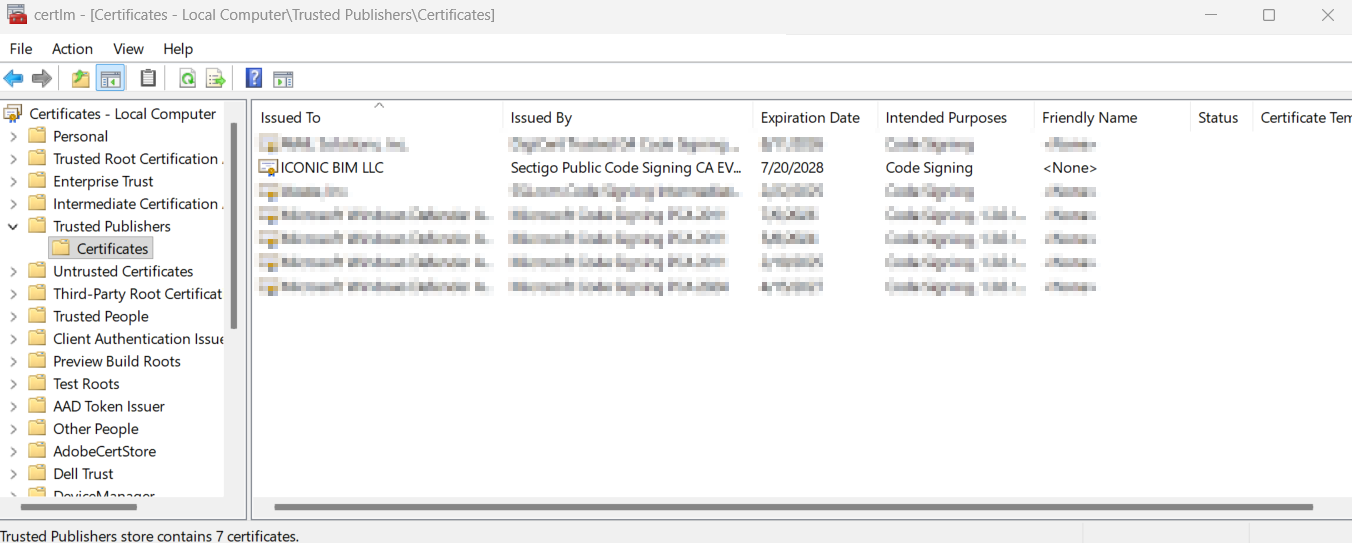
On the target machine, open certlm.msc and go to Trusted Publishers > Certificates. The Guardian certificate should be listed.
A transform file tells your deployment tool how to install the .msi silently with your firm’s settings. You’ll create it with Orca, a free Microsoft tool included in the Windows SDK.
1. Install Orca, open it, and load the Guardian .msi file.

2. On the main menu, click Transform > New Transform.

3. In the Property table, set these values:

4. In the CustomAction table, find COMPANYID and enter your Company ID in the Target column. This writes your company key file to the correct folder during installation.

5. Click Transform > Generate Transform and save the .mst file in the same folder as the .msi.

Before rolling out firmwide, deploy to one or two machines with your deployment tool. A typical silent-install command looks like this:
msiexec /i "<path>\<filename>.msi" /qn TRANSFORMS="<path>\<filename>.mst" /l*v "<path>\guardian-install.log"
The /l*v switch writes a detailed log, which is useful if the install fails. Then complete Step 3: Verify the installation on each test machine.
Once the test machines pass verification, deploy to the rest of your Revit machines.
1. Run the Guardian .msi installer. When the setup wizard opens, click Next.

2. Read through the license agreement, select I Agree, and click Next.

3. Choose who to install Guardian for. We recommend All Windows Users. Click Next.

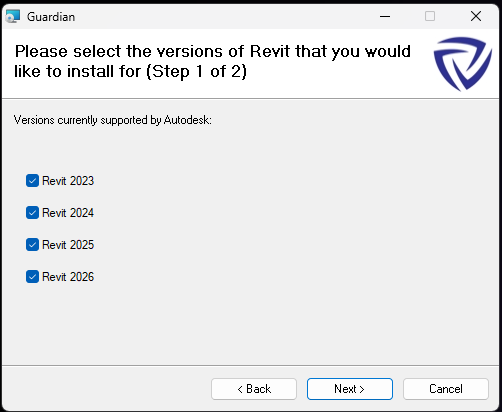
4. Select the Revit versions to install Guardian for, then click Next. The first page lists supported versions; the second lists older, unsupported versions.
Note: Guardian creates a version for all Autodesk supported versions plus two versions.
5. Enter your Company ID and click Next. The Company ID connects every user at your firm to the same Guardian account, so double-check it.
6. Click Close to finish.

For end-users (non-administrator users) of Guardian, their accounts will be authenticated automatically through the Company ID and will be able to use Guardian immediately when opening a registered project! No user management required!
Open the Guardian.key file in Notepad or Notepad++ and replace the Company ID. The file is in one of these locations:
What’s the recommended way to install Guardian across our firm?
A silent deployment using a transform file (.mst). It’s the most efficient option and avoids the mistakes that come from users installing Guardian on their own. See Step 2a: Deployment install above.
Do I need the .mst file, or can I deploy the .msi by itself?
You need both. The .mst tells your deployment tool how to install the .msi, including your Company ID. A common mistake is creating the transform but leaving it out of the command line or deployment software, so make sure your command includes TRANSFORMS="<path>\<filename>.mst".
Should I install for the current user or for all users?
Either works, but pick one and use it for every install and upgrade. Switching between them creates Guardian files in two different locations. If you need to change the option, fully uninstall Guardian first, then reinstall with the new setting.
Does Revit need to be closed during deployment?
Yes. This is the most common cause of failed installs. If Revit is open when Guardian deploys, the add-in files don’t get added. Make sure Revit is closed on every target machine before you deploy.
Why isn’t my Company ID working?
The most likely cause is an extra space or line break picked up when copying the ID. Paste it into a plain text editor first to check for hidden characters, then re-enter it. To fix it after installation, see If the Company ID is Wrong above.
How can I tell whether the installation worked?
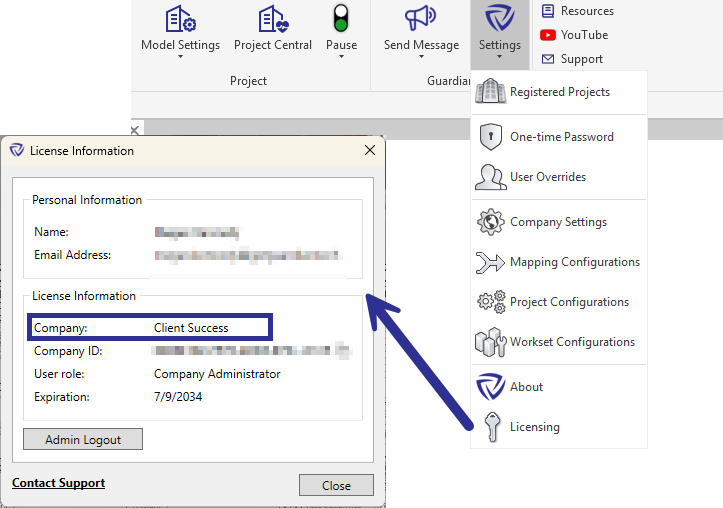
Open Revit and go to Add-Ins > Guardian > Settings > Licensing. If your company name appears, the install succeeded. If you see Not Found, check that the Guardian add-in files exist on the machine and that the Company ID loaded correctly.
You can also check Guardian Backstage. If a machine doesn’t show the new Guardian version on the Installs page within a day or two of deployment, something went wrong with that install.
How do I see which versions everyone is running?
The Installs page in Guardian Backstage lists the Revit, Desktop Connector, and Guardian versions for every user. For a single model, Project Central shows each user who has worked in it and which Revit and Desktop Connector versions they’re using.
Can I upgrade over my existing version, or do I need a clean install?
For upgrades within the same minor version (for example, 3.3.x to 3.3.7), you can run the new .msi over the existing install. When upgrading from an older version (for example, 3.2.x to 3.3.7), fully uninstall Guardian first and then do a clean install.
A user is reporting problems with Guardian. What should I check first?
Their versions. Older versions of both Revit and Guardian can affect the user experience. Look the user up on the Backstage Installs page before troubleshooting further.
Can our firm’s security settings block Guardian?
Yes. Firewalls, application blockers, and other security tools can interfere with installation or with Guardian connecting to its services. If the install looks correct but Guardian still isn’t working, check with your IT team.
Is there anything we can share with users before rollout?
Yes. Communicating to the users that Guardian is being deployed and what is Guardian and what to expect with Guardian, helps them understand the messages and features they’ll see.
If additional assistance is needed, please reach out to our team at support@iconicbim.com.
Contact our support team for more information.
There are two ways to install Guardian:
Both methods use the same .msi installer and require the security certificate.
Deploying doesn’t use licenses. A Guardian license is activated only when a registered project is opened on a user’s machine, so you can safely install Guardian on every Revit machine in your firm.
Make sure you have:
The security certificate stops Revit’s “Allow Add-in” prompt from appearing when users open Revit. Install it in the machine’s Trusted Publishers store. Choose the method that matches how you manage machines.
Follow Microsoft’s guide, Distribute Certificates to Client Computers by Using Group Policy.
*Important: When the guide asks you to choose a certificate store (step 4), select Trusted Publisher, not Trusted Root Certification Authorities.
Follow Microsoft’s guide, Create trusted certificate profiles in Microsoft Intune.
On the target machine, open certlm.msc and go to Trusted Publishers > Certificates. The Guardian certificate should be listed.
A transform file tells your deployment tool how to install the .msi silently with your firm’s settings. You’ll create it with Orca, a free Microsoft tool included in the Windows SDK.
1. Install Orca, open it, and load the Guardian .msi file.
2. On the main menu, click Transform > New Transform.
3. In the Property table, set these values:
4. In the CustomAction table, find COMPANYID and enter your Company ID in the Target column. This writes your company key file to the correct folder during installation.
5. Click Transform > Generate Transform and save the .mst file in the same folder as the .msi.
Before rolling out firmwide, deploy to one or two machines with your deployment tool. A typical silent-install command looks like this:
msiexec /i "<path>\<filename>.msi" /qn TRANSFORMS="<path>\<filename>.mst" /l*v "<path>\guardian-install.log"
The /l*v switch writes a detailed log, which is useful if the install fails. Then complete Step 3: Verify the installation on each test machine.
Once the test machines pass verification, deploy to the rest of your Revit machines.
1. Run the Guardian .msi installer. When the setup wizard opens, click Next.
2. Read through the license agreement, select I Agree, and click Next.
3. Choose who to install Guardian for. We recommend All Windows Users. Click Next.
4. Select the Revit versions to install Guardian for, then click Next. The first page lists supported versions; the second lists older, unsupported versions.
Note: Guardian creates a version for all Autodesk supported versions plus two versions.
5. Enter your Company ID and click Next. The Company ID connects every user at your firm to the same Guardian account, so double-check it.
6. Click Close to finish.
For end-users (non-administrator users) of Guardian, their accounts will be authenticated automatically through the Company ID and will be able to use Guardian immediately when opening a registered project! No user management required!
Open the Guardian.key file in Notepad or Notepad++ and replace the Company ID. The file is in one of these locations:
What’s the recommended way to install Guardian across our firm?
A silent deployment using a transform file (.mst). It’s the most efficient option and avoids the mistakes that come from users installing Guardian on their own. See Step 2a: Deployment install above.
Do I need the .mst file, or can I deploy the .msi by itself?
You need both. The .mst tells your deployment tool how to install the .msi, including your Company ID. A common mistake is creating the transform but leaving it out of the command line or deployment software, so make sure your command includes TRANSFORMS="<path>\<filename>.mst".
Should I install for the current user or for all users?
Either works, but pick one and use it for every install and upgrade. Switching between them creates Guardian files in two different locations. If you need to change the option, fully uninstall Guardian first, then reinstall with the new setting.
Does Revit need to be closed during deployment?
Yes. This is the most common cause of failed installs. If Revit is open when Guardian deploys, the add-in files don’t get added. Make sure Revit is closed on every target machine before you deploy.
Why isn’t my Company ID working?
The most likely cause is an extra space or line break picked up when copying the ID. Paste it into a plain text editor first to check for hidden characters, then re-enter it. To fix it after installation, see If the Company ID is Wrong above.
How can I tell whether the installation worked?
Open Revit and go to Add-Ins > Guardian > Settings > Licensing. If your company name appears, the install succeeded. If you see Not Found, check that the Guardian add-in files exist on the machine and that the Company ID loaded correctly.
You can also check Guardian Backstage. If a machine doesn’t show the new Guardian version on the Installs page within a day or two of deployment, something went wrong with that install.
How do I see which versions everyone is running?
The Installs page in Guardian Backstage lists the Revit, Desktop Connector, and Guardian versions for every user. For a single model, Project Central shows each user who has worked in it and which Revit and Desktop Connector versions they’re using.
Can I upgrade over my existing version, or do I need a clean install?
For upgrades within the same minor version (for example, 3.3.x to 3.3.7), you can run the new .msi over the existing install. When upgrading from an older version (for example, 3.2.x to 3.3.7), fully uninstall Guardian first and then do a clean install.
A user is reporting problems with Guardian. What should I check first?
Their versions. Older versions of both Revit and Guardian can affect the user experience. Look the user up on the Backstage Installs page before troubleshooting further.
Can our firm’s security settings block Guardian?
Yes. Firewalls, application blockers, and other security tools can interfere with installation or with Guardian connecting to its services. If the install looks correct but Guardian still isn’t working, check with your IT team.
Is there anything we can share with users before rollout?
Yes. Communicating to the users that Guardian is being deployed and what is Guardian and what to expect with Guardian, helps them understand the messages and features they’ll see.
If additional assistance is needed, please reach out to our team at support@iconicbim.com.
Contact our support team to receive personalized assistance.
