


Contact our support team for more information.
A Mapping Configuration is Guardian’s memory for your firm’s standards. When a Company or Project Administrator uses Model Properties to convert, or “map,” incoming Revit properties to those in the active project model, the Mapping Configuration stores and remembers those rules, or “Mapping Rules” – making them available for automatic mapping for every project that uses that configuration.
Think of Mapping Configurations as reusable rule sets: you build them once, assign them to projects, and Guardian applies the rules automatically every time content is loaded.
Mapping Configurations work in conjunction with Model Properties and Transactions. Think of Model Properties as the engine for executing mappings. Transactions are the signal for Guardian to automatically launch Model Properties for incoming content. Mapping Configurations are the keys to the engine and its memory system.
Note: Model Properties and any of its tangential features will not operate without a Mapping Configuration assigned to the model.
Guardian does not include any pre-loaded Mapping Configuration files. They must be created by a Company Administrator. It is recommended to start with three configurations:
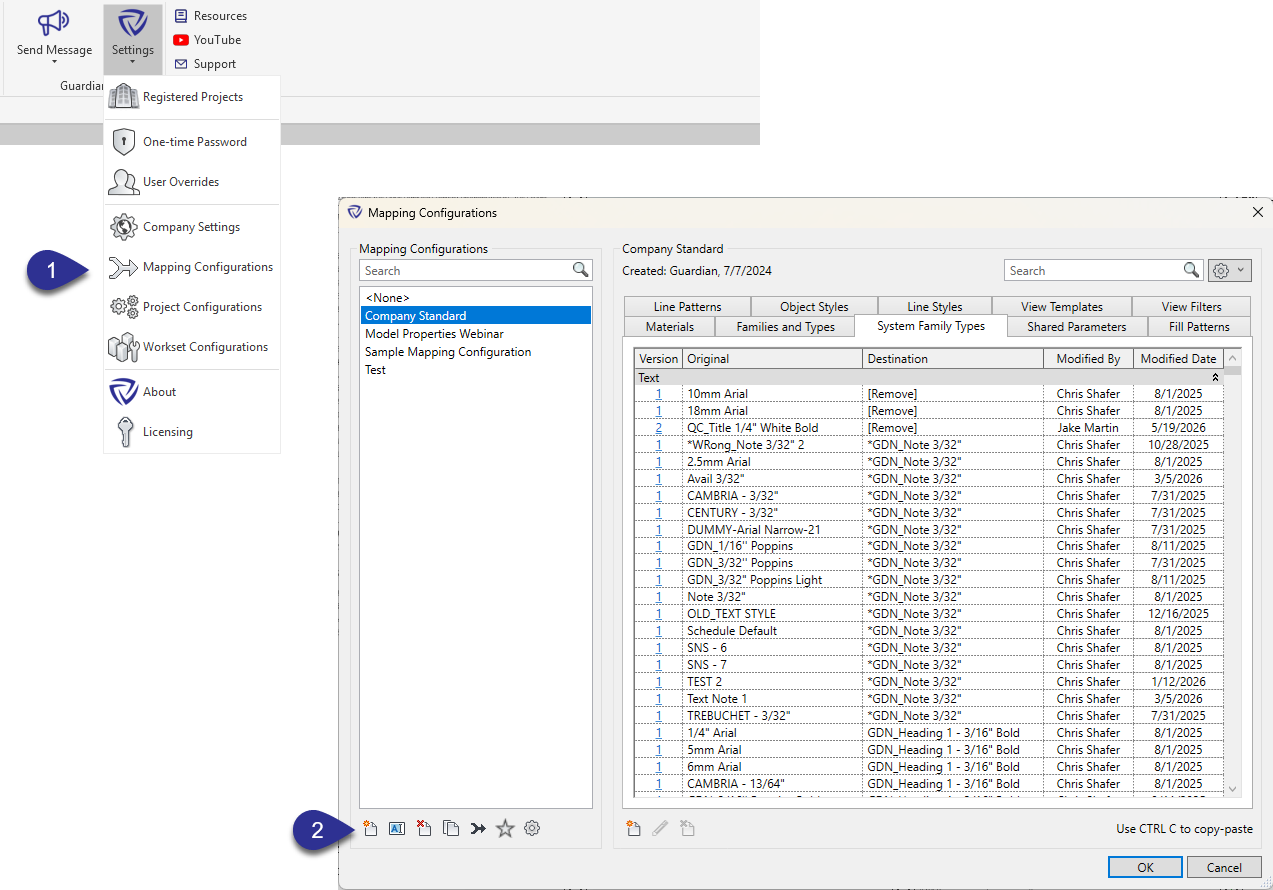
The other buttons in the window allow you to Rename, Delete, Duplicate, or Merge existing configurations.
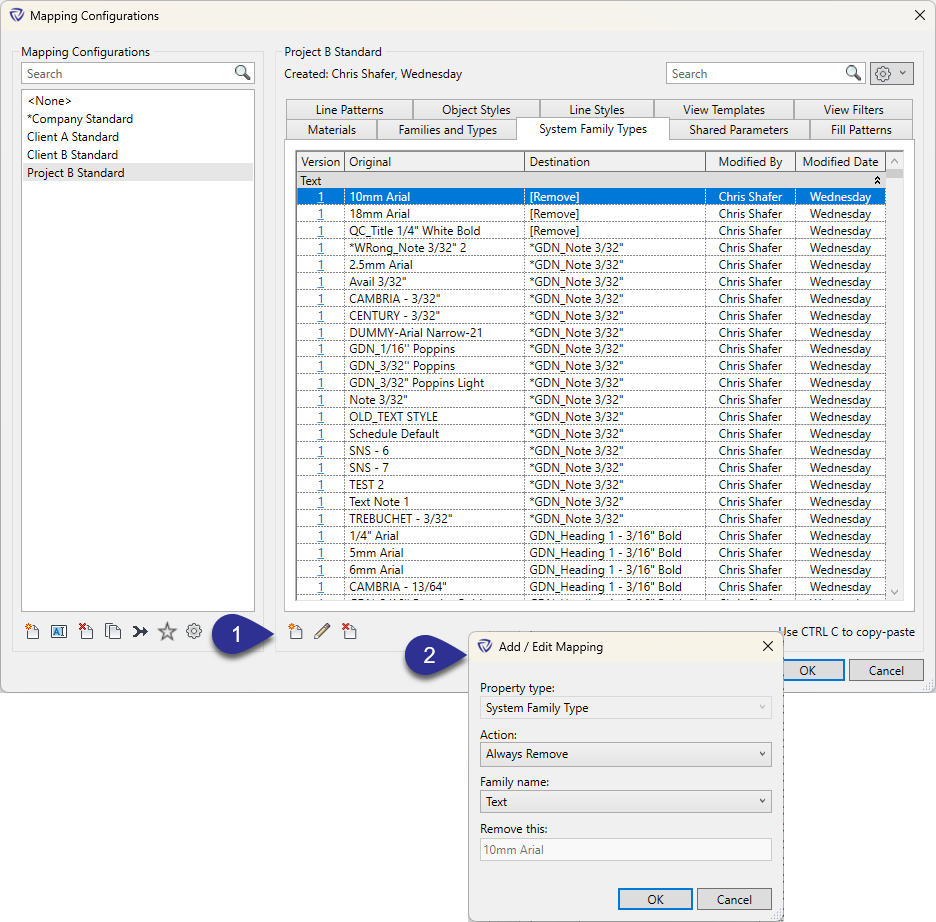
Mapping rules can be created and modified within the Mapping Configurations dialog.
Pro Tip: While Mappings can be created within the Mapping Configuration dialog, it is highly recommended to perform all mappings within the Model Properties or Incoming Properties dialogs as the UI is specifically designed to perform these mappings effectively and within context.
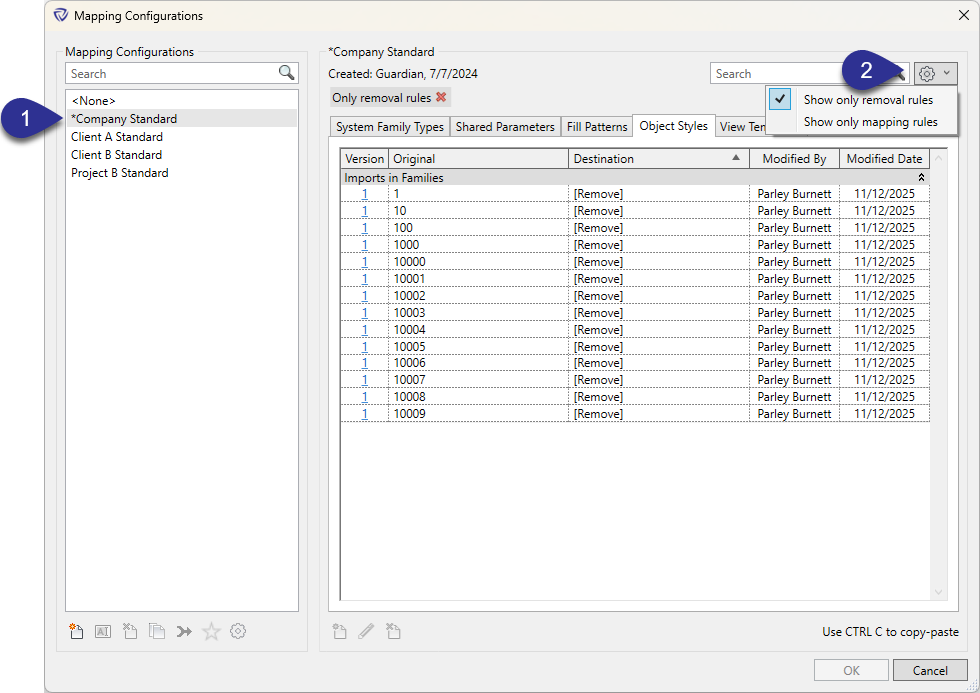
In the Mapping Configurations dialog, mapping rules can be filtered to show only removals or only mappings.
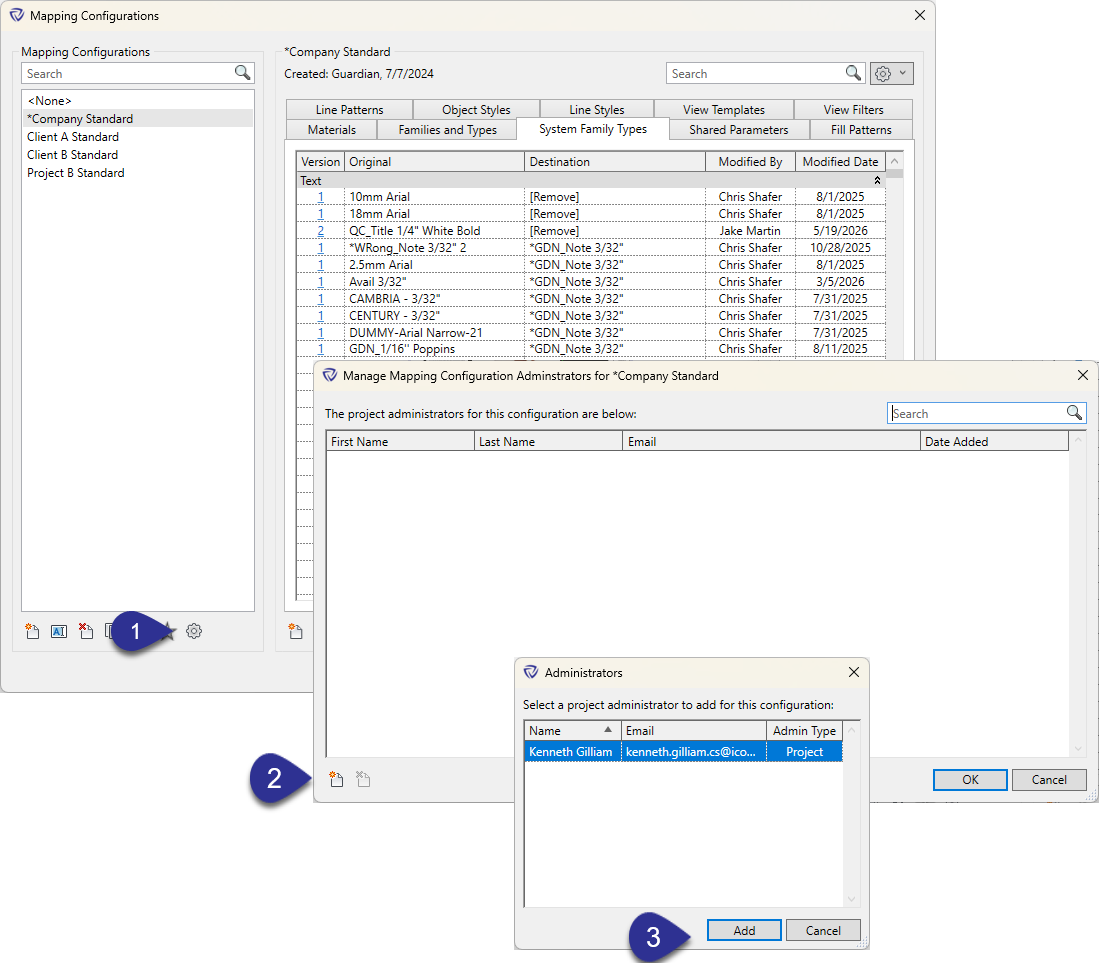
Project Administrators must be assigned to a Mapping Configuration for them to execute full mappings (or memorized mappings) on the model they are assigned. Otherwise, any mapping performed by a Project Administrator will only be a One-Time Mapping. Company Administrators will always be able to perform full mappings.
A Mapping Configuration can be applied automatically whenever a new model is registered with Guardian. This is the recommended approach to ensure Guardian functions correctly from the moment a model is registered.
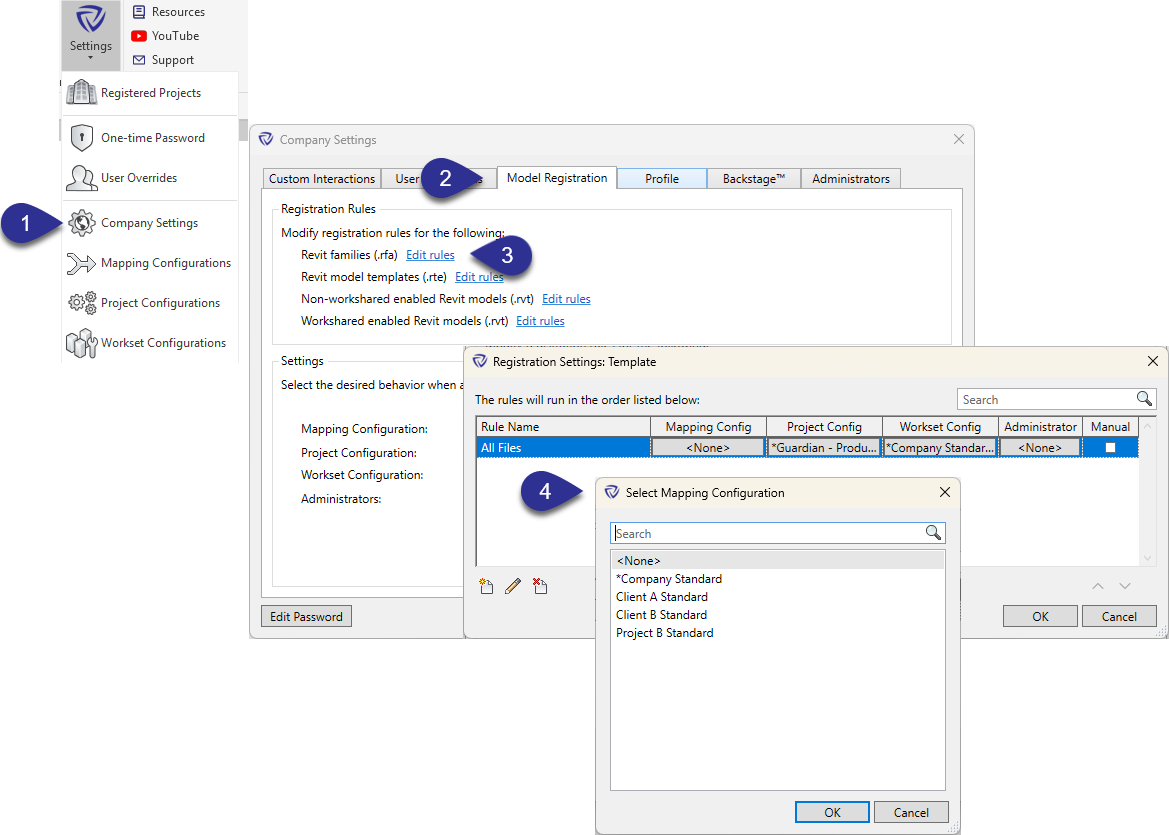
To set the Mapping Configuration assigned for all newly registered models:
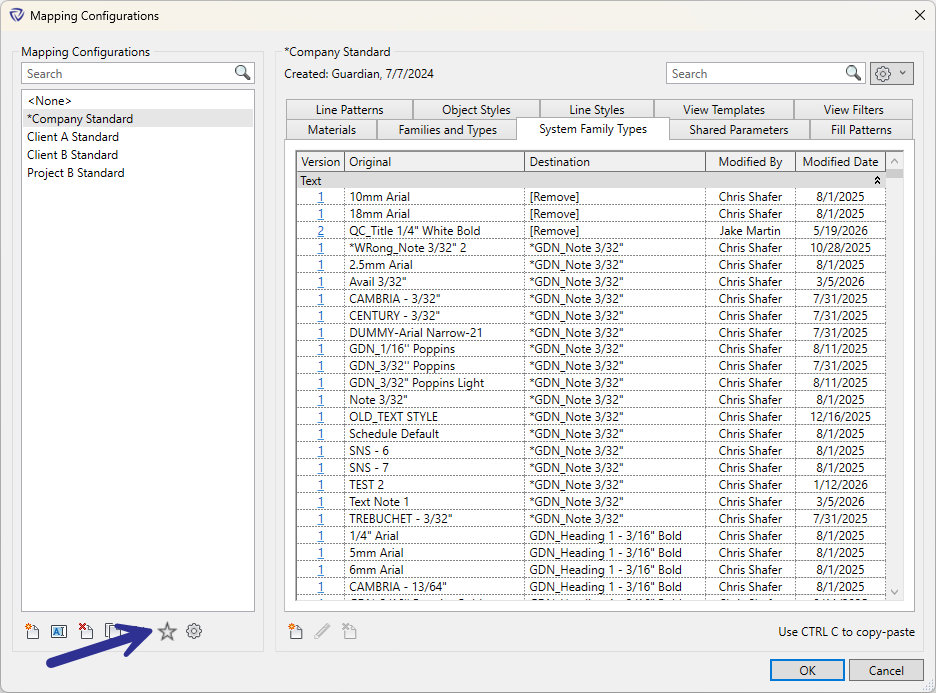
Note: A default Mapping Configuration can also be assigned from the Mapping Configurations dialog (Settings > Mapping Configurations). Clicking the Star button will assign that Mapping Configuration to all new projects in which a Mapping Configuration has not been assigned as part of the Model Registration rules.
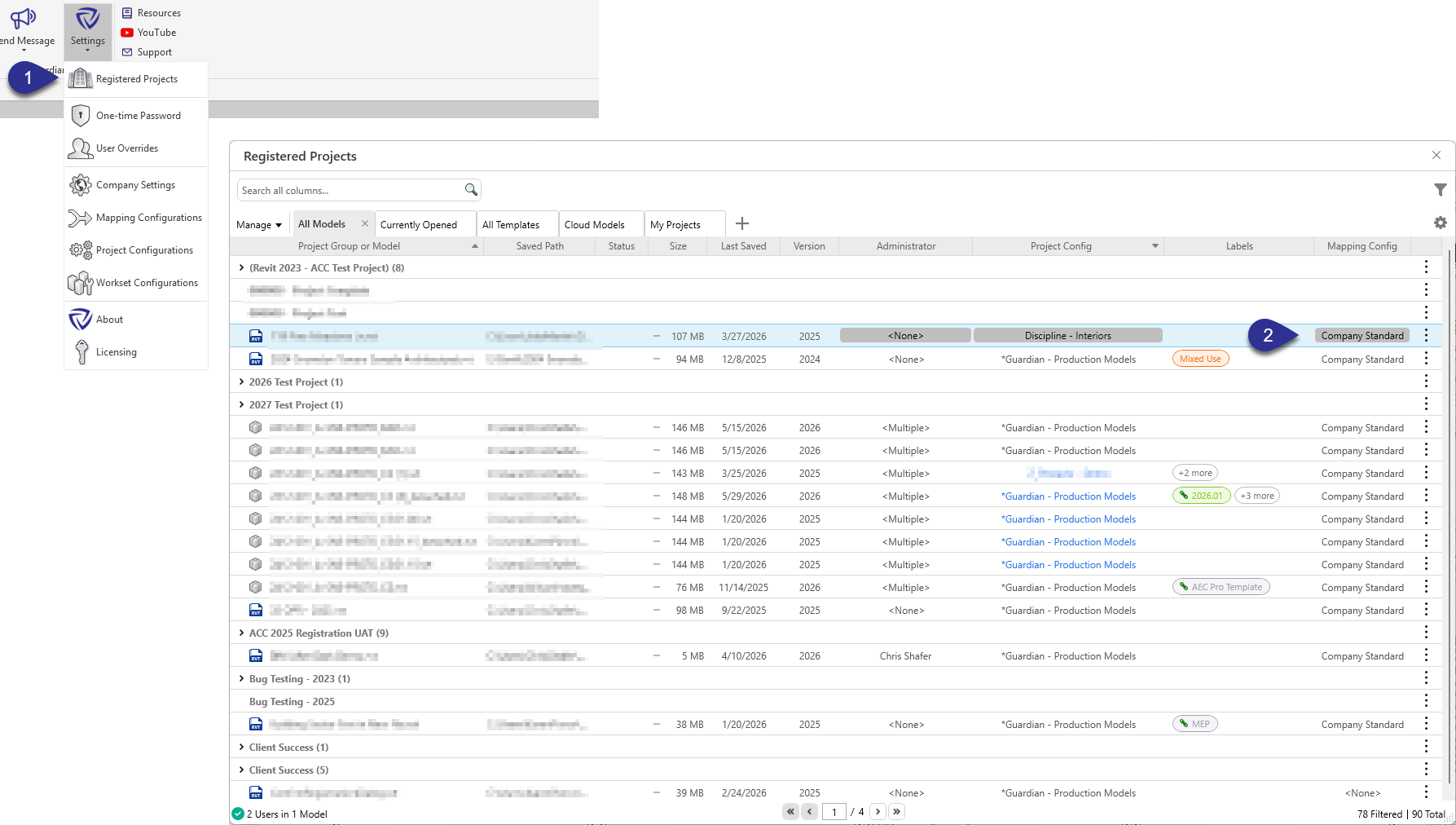
The Mapping Configuration assigned to an already-registered model can be changed at any time.
Contact our support team for more information.
A Mapping Configuration is Guardian’s memory for your firm’s standards. When a Company or Project Administrator uses Model Properties to convert, or “map,” incoming Revit properties to those in the active project model, the Mapping Configuration stores and remembers those rules, or “Mapping Rules” – making them available for automatic mapping for every project that uses that configuration.
Think of Mapping Configurations as reusable rule sets: you build them once, assign them to projects, and Guardian applies the rules automatically every time content is loaded.
Mapping Configurations work in conjunction with Model Properties and Transactions. Think of Model Properties as the engine for executing mappings. Transactions are the signal for Guardian to automatically launch Model Properties for incoming content. Mapping Configurations are the keys to the engine and its memory system.
Note: Model Properties and any of its tangential features will not operate without a Mapping Configuration assigned to the model.
Guardian does not include any pre-loaded Mapping Configuration files. They must be created by a Company Administrator. It is recommended to start with three configurations:
The other buttons in the window allow you to Rename, Delete, Duplicate, or Merge existing configurations.
Mapping rules can be created and modified within the Mapping Configurations dialog.
Pro Tip: While Mappings can be created within the Mapping Configuration dialog, it is highly recommended to perform all mappings within the Model Properties or Incoming Properties dialogs as the UI is specifically designed to perform these mappings effectively and within context.
In the Mapping Configurations dialog, mapping rules can be filtered to show only removals or only mappings.
Project Administrators must be assigned to a Mapping Configuration for them to execute full mappings (or memorized mappings) on the model they are assigned. Otherwise, any mapping performed by a Project Administrator will only be a One-Time Mapping. Company Administrators will always be able to perform full mappings.
A Mapping Configuration can be applied automatically whenever a new model is registered with Guardian. This is the recommended approach to ensure Guardian functions correctly from the moment a model is registered.
To set the Mapping Configuration assigned for all newly registered models:
Note: A default Mapping Configuration can also be assigned from the Mapping Configurations dialog (Settings > Mapping Configurations). Clicking the Star button will assign that Mapping Configuration to all new projects in which a Mapping Configuration has not been assigned as part of the Model Registration rules.
The Mapping Configuration assigned to an already-registered model can be changed at any time.
Contact our support team to receive personalized assistance.
