


Contact our support team for more information.
This feature allows Project Administrators to add Guide and Prevent protections to elements that should not be mirrored. Once activated for the project model, model elements with Mirror Protection will display a customized Guardian Command Message when mirrored, requiring the end-user to enter a comment and/or a password to continue to mirror the model element. Elements can be protected by either creating rules for generic situations or to apply the protection directly to a family.
Don’t you hate it when the left filler strip parameter on the casework turns on the right filler strip instead? So do we. This is obviously a low-risk example, but some families have scheduling parameters that rely on a specific orientation and can cause problems in the field if they are incorrect. No one wants to be scalded with hot water because someone didn’t catch the error in the field.
When Mirror Protections is first enabled within Project Configurations under the Custom Interactions tab, it will be adopted by each project model once the model is registered. Mirror Protections can be further customized at the project level within Model Settings on a model-by-model basis.
Select the setting cog next to Mirroring rules to customize rules that will apply the Mirror Protection.
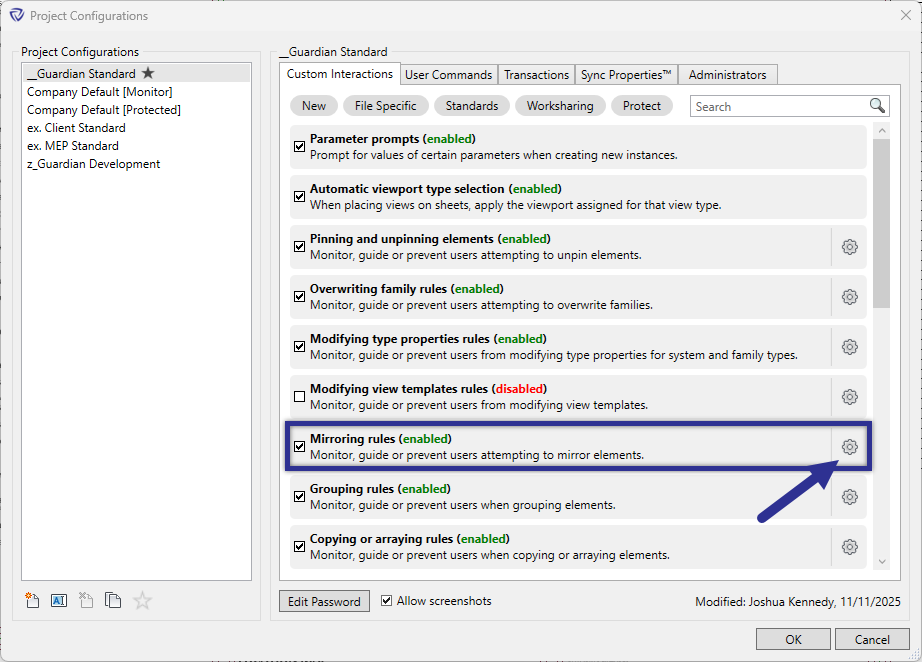
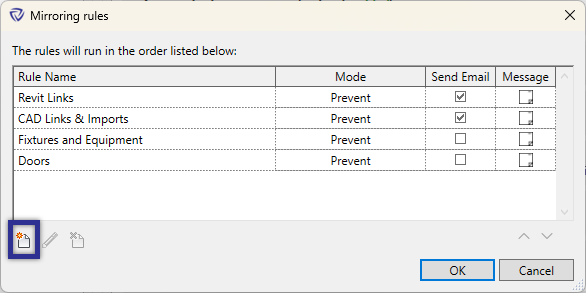
Within the Mirror Protection Rules dialog, any existing rules will be listed out. Each of these rules will run in order from top to bottom until a match is found (if any at all).
To create a new rule, the New button can be selected at the bottom.
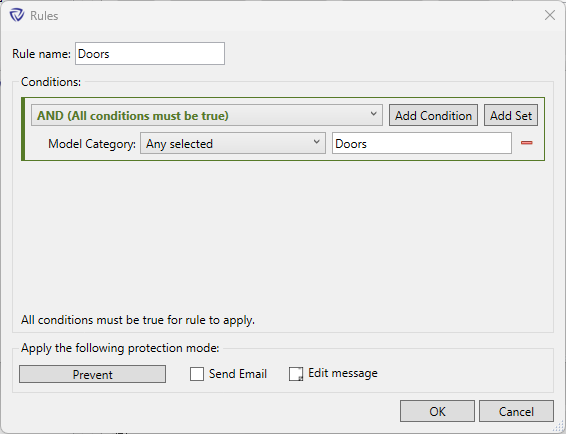
In the Rules dialog, a name for the rule can be set. Conditions can be added in AND or OR sets to specify the type of family to apply the Mirror Protection to.
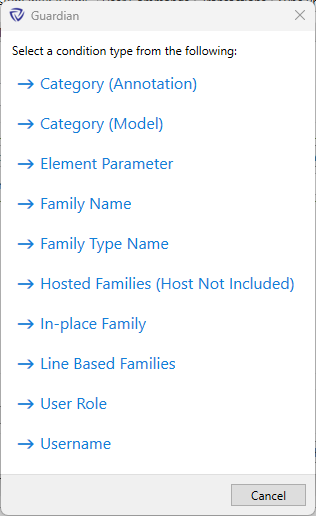
There are many different conditions that can be used to specify a family either by the category, family name, or even by the name of the user who is attempting to mirror an element.
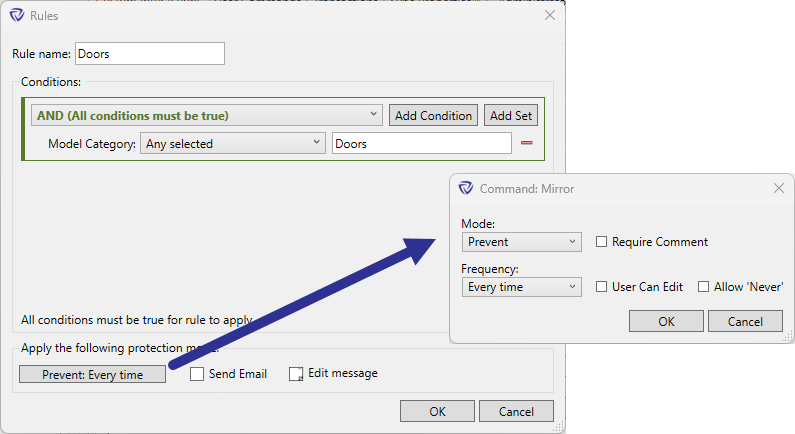
The protection mode can be customized for each rule:

The Mirror Protection can be applied to specific families as well. Guardian’s Mirror Protections can be accessed on the Guardian ribbon by selecting the down arrow below Model Settings.
Within the Mirror Protections dialog, the Project Administrator is presented with all families loaded into the project model, grouped by Family Category.
Simply checking the box will apply the Mirror Protections for the selected family.
Once selected, the Project Administrator can then customize the Protection Mode and Command Message applied to that family.

Pro Tip: Shift+Left Mouse click allows you to select multiple families at once to be protected.
It is also possible to apply the Mirror Protection within the family itself in the Family Editor using the same Mirror Protection dialog found in the Guardian Ribbon.
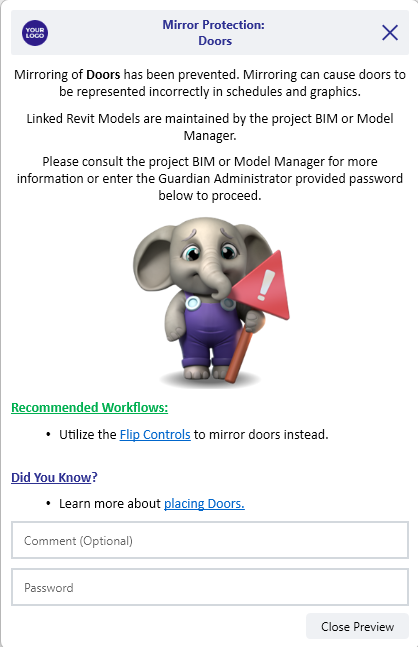
When an end-user attempts to mirror a protected family, Guardian will alert them with the custom Command Message provided by the Project Administrator. The Command Message will also provide the name of the rule that was triggered.
If selected within the Custom Interactions settings for Mirror Protections, the end-user will be required to provide a comment to proceed with mirroring the protected family.
If set by the Project Administrator, the end-user will be required to provide the project password or a one-time password to proceed with mirroring the protected family.
Enable email notifications in the Mirror Protection rules by checking Send Email. When an end-user attempts to mirror a family, the Project Administrator will be notified with an email containing the pertinent information.

Contact our support team to receive personalized assistance.
