


Contact our support team for more information.
Approved Content Sources provides Guardian level of protections by presenting a Command Message when an end-user attempts to load a Revit family from a non-approved location. Approved Content Sources can respond differently to incoming families based on different conditions and rules, such as enacting Incoming Properties when the family comes from a non-approved source and disabling scanning and processing for content inserted from the firm’s content management solution.
Guardian does this by comparing incoming families with any rules created by administrators. These rules can be specific to the location the file is loaded from, the families category, or even the name of the file itself. If a match is determined, Guardian will, or will not, scan and process the family’s Incoming Properties as determined by the user experience set by company/project administration for that rule. If the protection mode for the triggered rule is set to Guide or Prevent, Guardian will provide the end-user a customized Command Message.
Firms and project administrators spend a tremendous amount of time and money creating and maintaining Revit family libraries that align with the firm’s standards and BIM infrastructure at large. Too many times, these standards are undermined when end-users load Revit families from locations other than the firm’s library. Guardian’s Approved Content Sources does exactly as its name implies, it ensures Revit families are being sourced from the firm’s libraries and discourages families from unknown sources.
As BIM managers, we work hard to keep a clean, curated, and comprehensive family library. It is imperative to a healthy file and to maintaining company standards. It is generally preferred that end-users use this content first before downloading from online sources or digging into that desktop folder they have been collecting over the years.
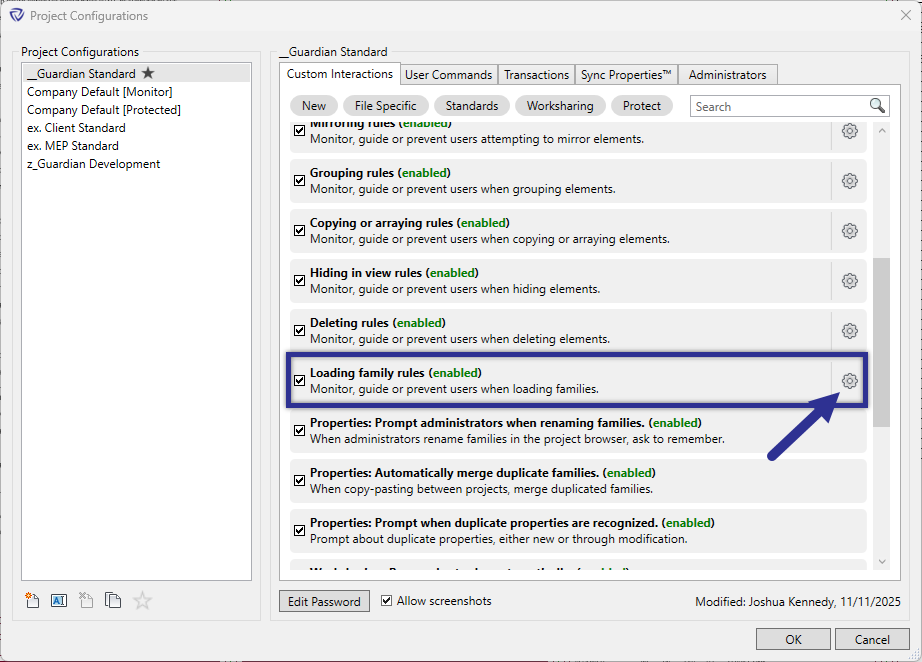
When Loading Family Rules is first enabled within Project Configurations under the Custom Interactions tab, it will be adopted by each project model once the model is registered. Loading Family Rules can be further customized at the project level within Model Settings on a model-by-model basis. Select the Setting Cog next to Loading family rules to customize the Guardian protections for Approved Content Sources.
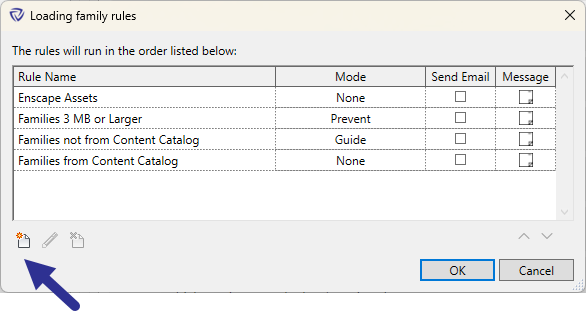
Within the Loading Family Rules dialog, one or more rules can be established. Guardian provides pre-loaded rules to use as a template. Any rules created will be shown in this dialog.
Select the New button to create a new rule. Once created, the rules can be modified, deleted, or re-ordered. It is important to note that the rules will run in order from top to bottom until a match is found (if any at all).
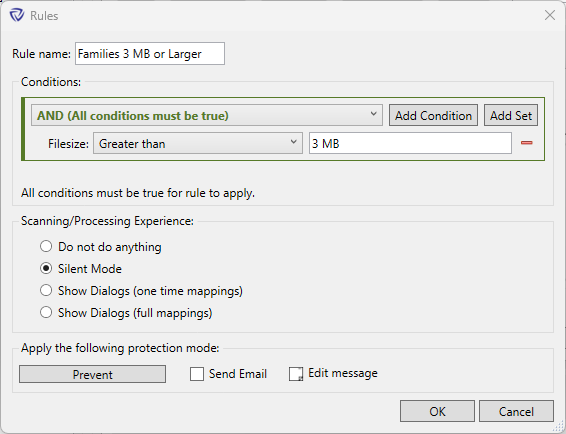
Within the Rules dialog, a rule name can be entered and the criteria for the rule can be set.
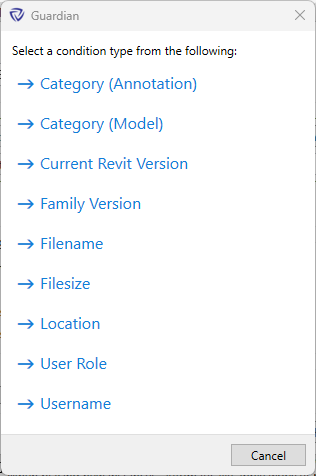
Many condition types are available to specify the type of file or file location that the rule should capture.
The user experience for Revit families loaded into projects can be specified under the Scanning/Processing Experience (A) section of each rule.

The available options are explained below:
The protection mode (B) can be customized for each rule:
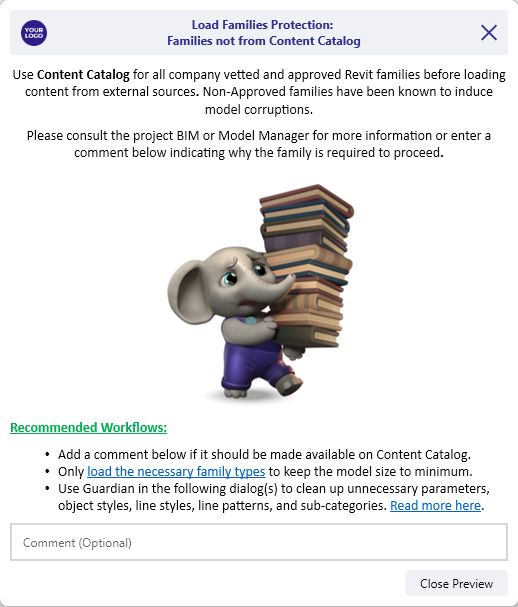
When an end-user attempts to load a family from a non-approved content source, Guardian will alert them with the custom Command Message provided by the Project Administrator. Depending on the applied Protection Mode settings, the end-user may be required to input a comment and/or password before proceeding. The Command Message will also show the name of the rule that triggered the protection. Depending on the user experience, the end-user may be required to process the incoming Revit family’s Incoming Properties.
Contact our support team to receive personalized assistance.
