Revit sometimes presents a mystery that is worthy of Agatha Christie, Jessica Fletcher, the Hardy Boys, and maybe even the Scooby-Doo gang.
Here’s the plot: After a relaxing night away from your computer, you open Revit to find the efficient size of your model has met an unlikely demise. The file was 250 MBs yesterday, but this morning it’s almost half a gigabyte. Open and sync times have increased, and you can’t figure out what caused the model to expand so crazily.
Zoinks!
Unfortunately, Revit can be a mystery machine, and solving the sudden file swell isn’t as easy as unmasking the evil owner of the haunted amusement park. Too often, BIM managers have no choice but to engage in a hunt-and-peck exercise to determine the root cause of the spike.
The process doesn’t need to be as bloated as the Revit file. The workflow is as easy as spotting the spike, investigating the cause, and fixing the problem at the source. Let’s look at these steps further — and how Guardian for Revit can help solve the mystery.
Spikes Are Serious … and Purges Aren’t Guaranteed
Revit models operate better when they are lean and mean. The actual design isn’t a problem the way in-place and duplicate families and all the little things that get introduced from other models are. Revit doesn’t react well to the bloat and, ironically, creates more bloat in response. The result: file size spikes, slow open and sync times, increased crashes, and even model corruptions. The additional result: Revit teams that are frustrated to no end and lose time to focus on actual design and execution.
Hold on, doesn’t Revit have commands to eliminate all the bloat it creates? Yes, but Purge Unused and Compact provide only temporary fixes. Both commands treat the symptoms, but without knowing why spikes are happening, they will just happen again. It’s like adding motor oil to your leaky engine without actually fixing the leak. Consider:
Purge Unused identifies and ousts what the model isn’t using. That’s helpful to a point: The command doesn’t show you the things that are being used and causing problems, nor does it prevent purged elements from being re-introduced or restored.
The consolidation functionality of the Compact command does help improve model performance, but like Purge Unused, it does nothing to address the true drivers of file spikes. Think of Compact as a sort of “Clear Revit Cache” command: It kicks the clutter out of the yard but doesn’t close the gate.
BIM managers shouldn’t solely rely on either command to minimize file spikes. They need a strategy to rein in Revit file size — and it only takes three steps, with some help from Guardian.
Step 1: Spot the Spike Before It Blows Up
Runaway Revit file size issues often aren’t limited to just one model, occurring across every model and every project. Addressing spikes early (before your team complains) improves Revit model performance and reduces the potential for more spikes. But you need to know what to look for.
Read the File Size Trend in Registered Projects
Each project in Guardian’s Registered Projects tab shows a file size trend indicator. When you hover over this, you are shown an exact percentage change, based on the previous six weeks.
Note, this trend first appears after three weeks of data have been generated in the model.
Build a Saved ‘Size Spike’ Tab
Next, you will take advantage of Guardian’s customization capabilities to build an easily accessible resource to look at file sizes across all your models. Here’s how to set it up:
- Navigate to Filters → File Size Filters.
- Set Trend to Rapid Increase or Gradual Increase (and don’t be shy about creating tabs for both).
- Save the tab.
Your new custom tab automatically surfaces any Revit model file size trending up, eliminating the need to page through every registered project to see if and where spikes are happening.
Watch the Trend Charts in Backstage
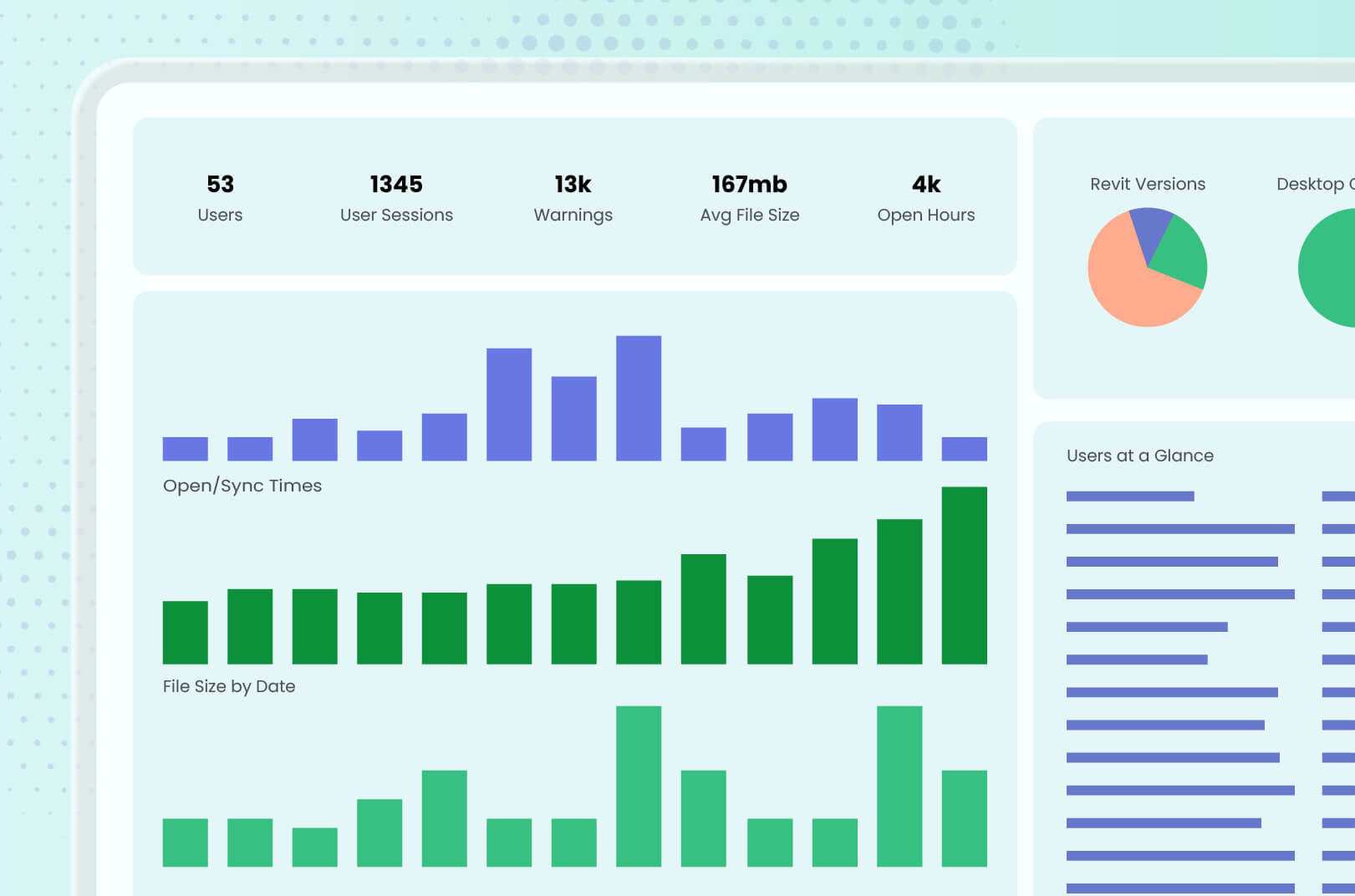
Besides your new custom tab, you can identify trouble signs from Project Overview in Guardian Backstage™. Arrange the Open Time, Sync Time, and File Size columns side by side to get a quick look at which models might be going off the rails. If all three seem unusually bad, that’s a troubling sign that a spike is in progress or already has occurred.
Step 2: Determine What Caused the Revit File Size Increase
As much as it feels like Revit just does annoying things for no reason, something is causing the file size spikes that all the signs are pointing to. Following the data trail and understanding why a spike occurred helps you determine what you need to do to solve the problem.
Pinpoint the Day in Project Central
Determining when the Revit file size spike occurred will help you find the underlying cause. Although the scenario from the beginning of this article is realistic, so is the possibility that you don’t notice the spike until you start noticing open and save slowdowns.
The timeline feature in Guardian’s Project Central can reveal the exact file size jump, allowing you to focus on just one day of project activity instead of the entire history. From there, you can check the Activity Feed on that date for families added, elements copied, links mirrored, and groups or in-place families duplicated to see what went awry. Or, you can rely on Model at a Glance (with the model open) to flag these conditions automatically.
Dig into Commands, Families, and Properties
In Guardian Backstage, a trio of features lets you drill into the model history to see the action(s) that might have led to the spike:
- Commands All/Details: With this feature, you can search for a specific Revit action (e.g., copy, mirror, delete), as well as pull up before/after screenshots, the active view, and affected element IDs.
- Family Loading: See what families were loaded, where they came from (e.g., approved library versus a desktop file), how many properties they carry, and how often a family was loaded. In an extreme-but-not-so-extreme example, a 6,000-property family loaded 11 times will increase the file size awfully fast.
- Properties: Customize a filter to the family in question to see which properties were added, modified, or deleted.
Know the Spiky Actions
In a perfect world, Revit would prevent file size spikes — or at least provide ample warning that an action a user is about to perform. And unfortunately, there are some spiky actions that are unavoidable, leaving you to deal with the fallout.
Knowing what causes spikes makes cleanup much easier. Here are a few examples of Revit activities that balloon file size — and how Guardian helps mitigate the problem:
- Import CAD: Imported DWGs become part of the model instead of just remaining external references. When those CAD files are large or complex, the model size can inflate. Guardian’s User Commands and All Commands protections can be applied to Import CAD to prevent this.
- Explode CAD: Perhaps too aptly named, exploding CAD can create enormous numbers of Revit elements, line styles, patterns, and other content. Guardian’s User Commands can track and prevent these explosions.
- Load Family: Guardian admins can set up custom family loading rules to evaluate incoming content — including file size — to guide or prevent end-users from bringing problematic content into the model.
- Loading families from uncontrolled sources: Content from external sources, from the web to random downloads to old projects, can contain excessive geometry, nested families, imported CAD (or SAT, SKP, 3DM, OBJ formats that are excessively bad), materials, parameters, excessive types, and other things that spike file size. Through Approved Content Sources (which will be renamed Load Family Protections for Guardian 3.4) and custom family loading rules, Guardian can identify the offending sources and redirect users toward approved content and custom family loading rules.
- Copy/Paste from another project: Copying content from other Revit files can bring much more than the visible elements. Unintended, file-increasing dependencies that might be pasted include family definitions, types, materials, and line styles. Guardian’s rules-based protections can identify “No Path” family loads commonly associated with copying and pasting.
Step 3: Fix the Spike at the Source
As you get better at identifying the cause of Revit file size spikes, you can shift from a cleanup strategy to prevention. The goal is making sure the same spikes aren’t happening again and again — and as already teased in the last section, Guardian can help with this proactive approach.
Add Project Configuration Rules
Guardian allows you to set up rules within Revit projects to restrict or require certain actions that could cause problems. Are duplicated links causing file size spikes? Copied in-place families? Excessive groups? Customizable rules can warn users before they attempt something that might increase file size — or prevent them from executing the command altogether.
Note, changes in Guardian to a Project Configuration propagate to every model it’s applied to, which is nice because one fix then scales across projects.
Set Family Loading Rules
Families contribute so much to model bloat. Guardian offers the ability to set rules to flag or block families over a chosen size and purge its unused properties such as materials, for example. Then, the software can redirect users to the approved content management system with a custom Command Message. In this way, users are not only preventing spikes but also learning the project and firm best practices that build quality and efficiency.
Close the Loop and Stop the Spikes
Revit file size spikes shouldn’t be frustratingly mysterious, nor should they require hours of your week to clean up. With a strategy of spotting, investigating, and fixing, BIM managers eventually stop wasting time looking for spikes and can trust that their accumulated efforts are keeping files lean and efficient.
To see this workflow in action, check out our webinar, “Follow the Data: Solving Real Revit Problems with Guardian.” And if you want to see a spike investigation in your own models, book a demo and let us walk you through everything Guardian has to offer.