It’s a tale as old as time, or at least as old as Revit:
Families are loaded from old projects, manufacturers’ standards, internet downloads, and users’ personal stashes. Content libraries drift. Time is wasted cleaning up the mess within the model.
Lather, rinse, repeat. However, the rinse often never happens — the drift isn’t fixed because it takes too much time to do so. Graphical standards become even more inconsistent, which then, of course, leads to more rework and QA/QC.
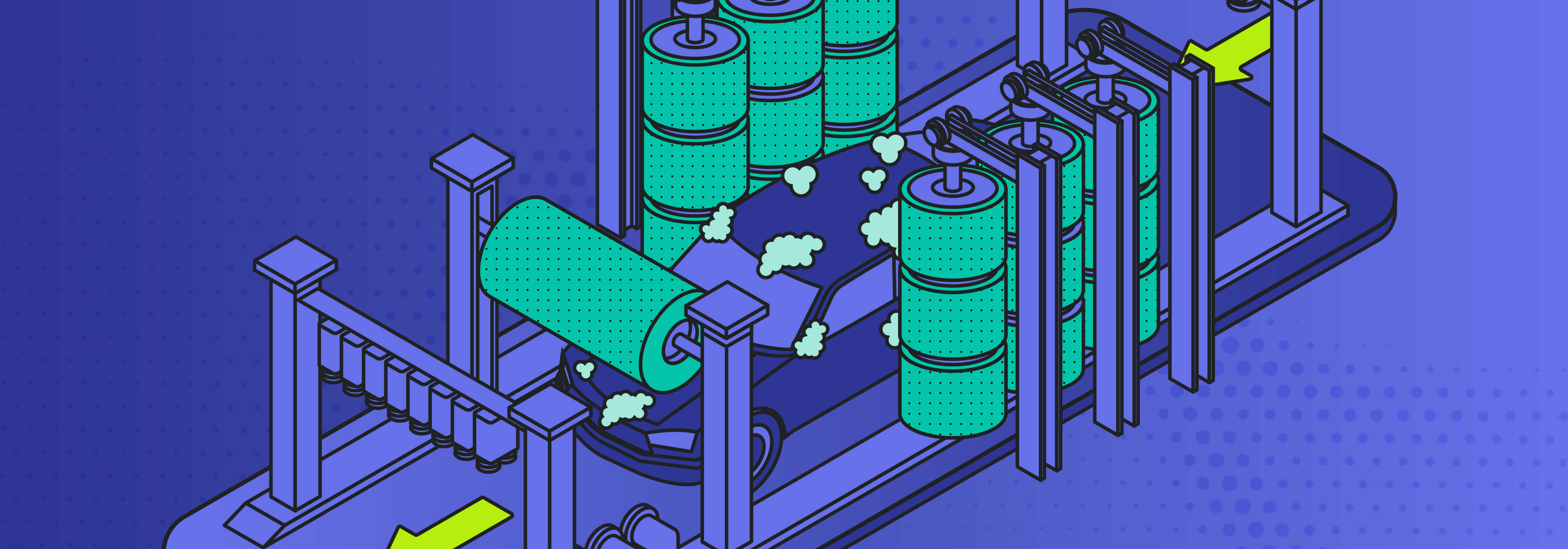
Here at Guardian, we created a six-step process to keep Revit content libraries clean and align them with firm standards. We call it the Content Car Wash, and it takes Guardian’s already impressive software capabilities to an innovative new level while rescuing Revit teams from time-consuming rework, reputation-damaging gaffes, and seemingly endless frustration.
What Is the Guardian Content Car Wash?
We coined the term Content Car Wash specifically with cleaning in mind. As you drive your car, it gets dirtier, no matter how careful you are. Dust settles on it. Birds poop on it. Rain splotches the windshield. Bugs meet an unceremonious end on the front bumper. And all that isn’t even considering taking your vehicle on unpaved roads …
Failing to wash your car can lead to rust, paint damage, safety issues, and a shorter vehicle lifespan. And never mind that, people will judge you for being an untidy, undisciplined person.
Your Revit libraries can suffer a similar fate. Muck from new and unvetted content dirties things up. Deliverables don’t look as good, and models don’t perform as well. All the nooks and crannies get messy.
Just like a regular car wash, whether you take it to an automated wash or clean it in your driveway, the Content Car Wash is a process with steps that, when followed correctly, get the job done. The process is repeatable, and because Guardian learns your cleaning habits, it becomes automatic for previous properties, so future cleanings get quicker and quicker.
Guardian’s Model Properties feature is a big part of the Content Car Wash. It maps incoming properties to firm standards. Then, when Guardian memorizes a mapping with Mapping Configurations, it can apply what it’s learned to subsequent content and projects. This sounds magical, and though we think it is, it’s merely taking advantage of Guardian’s powerful features in a unique way.
Why Revit Content Cleanup Matters
The Content Car Wash addresses an issue many BIM managers and their teams encounter in their day-to-day operations: content libraries that don’t align with the firm’s graphical Revit standards. Revit content cleanup is necessary to achieve that alignment internally and with project deliverables. Quality is at stake, and periodic trips through the Content Car Wash boost quality when and where it matters most.
As already mentioned, the Content Car Wash teaches Guardian to learn your Revit standards and Revit properties to automatically apply to future work. Nonconforming content will continually be introduced into your libraries with new projects, users, partnering firms, and manufacturers’ content — there’s no real way around that — but with our process, Guardian knows what to do to ensure your standards are taking precedence.
This boost in quality not only takes some pressure off your Revit teams but also gives you a business case to prioritize cleanup of your content libraries. Backed up by data, accessible through Guardian Backstage™, you can show that regular cleanup, often dismissed outside of Revit teams as just “BIM busy work,” is visible, reportable, repeatable, and valuable.
The 6 Steps of the Content Car Wash
What follows is a brief overview of the six steps that comprise the Content Car Wash. This outline touches upon the basics of Revit content cleanup; we have created our own Family Cleanup Tool template for Revit to demonstrate how to get your own Content Car Wash model started.
Note: The Content Car Wash operates on the idea that the model you’re working in is your source of truth. Therefore, all your Revit properties and standards must be loaded into that model in order for Guardian to execute all the mappings.
1. Define Graphical Standards
Forgive the obviousness of this advice, but to align your libraries to your standards, you need to clearly define what those standards are. As much as that seems like a no-brainer, a lack of established standards can contribute to drift — and the Content Car Wash provides a great impetus for your team to collaborate and finally establish guidelines. Here’s a quick list of what you should do:
- Define line patterns and styles, fill patterns and regions, text styles, dimension styles, and so on.
- Add your standards into your firm’s Revit project template.
- Create a standards dashboard in the project template.
If you don’t have a standard established for something, just leave a placeholder for now. And don’t worry about being “perfect” with your standards in the present — you’ll continue to learn what works with your standards along the Revit content cleanup journey.
Send the Revit properties and standards to Guardian Sync Properties™ so that it’s now in the cloud.
2. Clean Your Revit Template
Once standards are defined, the initial cleaning actions can begin. This starts with working through Guardian’s Model Properties feature, tab by tab, on the project template first. With the new standards loaded, you should be able to map the old standards to the new.
This process ensures your Revit project template is perfectly cleaned and aligned to your standards, thus benefiting your project teams. Moreover, this creates a baseline tool for all future content efforts, including using it as a container file to store all your Revit content.
3. Create a Family Cleanup Tool
Here’s where the Content Car Wash process becomes neat, both literally and figuratively. You will create a unique .rte file directly from your Revit project template. In this file, remove any project-specific views and sheets. In their place, create multiple views specifically to review content in fine, medium, and coarse detail levels, including:
- Plan
- RCP
- Elevation, Front/Side
- Section
- 3D
Next, create View Templates for each content detail and color code subcategories to ensure they’re properly assigned to elements within the individual Revit family.
Your family cleanup tool is now complete. It will serve two purposes:
- Handling template cleaning of Revit families to align them with your standards
- Providing a quick, visual QA that helps ensure families are properly graphically represented in all views along with detail levels.
This foundational tool can be used whenever needed to clean up content, but as users become more confident with using Guardian, they may find that they won’t need it as much because families will be loaded into the content container (more on that in Step 5). The tool is also great for periodically reviewing your existing graphical content to see what may need revising/updating.
4. Clean Your Content!
With your template and family cleanup tool in place, you can begin the Content Car Wash. Here is what to do:
- Load Revit families into the family cleanup tool.
- Start with a couple “base” families for each category/type (e.g, doors, casework).
- After the initial base families, limit loads to 50-100 families at a time. That number might seem like it will take forever if you have thousands of families, but you’ll be surprised how fast the process goes because Guardian might map 90 percent of the properties within just the first base families.
- Map incoming properties to those in the family cleanup tool.
- Create placeholders (i.e., with a “TBD” prefix) for unknown properties that can be addressed and renamed later.
5. Create a Content Container
Whether you like content containers or aren’t the biggest fan, they are useful — almost mandatory — in truly understanding your standards. This container houses a single Revit model that includes all Revit families. This strategy:
- Creates a source of truth for all content
- Provides a broad overview of all Model Properties
- Processes placeholder properties (i.e., TBDs)
- Can be used for managing standard details as well as Detail Item families.
Once you have secured a good handle on your standards, you can directly clean families within the content container itself.
6. Export Cleaned Content
This last step might be the easiest — you’ve already done much of the hard work, and there are multiple ways to execute the export of Revit families to your content management solution (e.g., Content Catalog). During this step, you should also upload any new or updated graphical standards to Guardian Sync Properties™.
We recommend this export at the end of the process, and not during an earlier step, after standards are fully resolved. By waiting, you can address TBDs after everything is in alignment. Also, exporting later means you can save families directly out of Revit instead of the family editor, resulting in smaller file sizes for each individual family.
Model Properties: Handling the Heavy Lifting
The Content Car Wash wouldn’t be possible without Model Properties, a key component of Guardian’s software. This feature cuts through what otherwise would be time-consuming manual processes.
Model Properties handles the heavy lifting by:
- Mapping incoming properties to approved standards
- Automatically purging unused properties
- Merging of duplicate families.
- Preserving instance parameter values during swaps (such as detail items, like break lines, with instance values assigned)
- Learning mappings so future content is cleaned automatically
- Helping align shared parameters across content libraries
The Model Properties functionality does all these things even if you aren’t running a Content Car Wash. The time saved by Revit teams not worrying about duplicates and inconsistencies allows for more focus on quality, creativity, and innovation.
Content Car Wash Best Practices
If you want to use Guardian to clean your content libraries, you’ll be impressed with how easy the process is and how it will curtail drift. Here are some best practices we recommend for your first Content Car Wash:
Start Small
Understandably, you might be tempted to load massive batches of families into the process on your first day. You don’t want to be drowned by the Content Car Wash, and as already stated, Guardian can map an incredible amount of Revit properties from just a few families.
Therefore, start small, and think about complexity more than volume. Try a single, more complex family (e.g., doors or casework) to minimize processing times but still get you to cover a comprehensive amount of mappings.
Use TBD Placeholders
Establishing standards can become daunting if you feel you must define literally everything. Although you don’t want to leave metaphorical stones unturned, you don’t need to reach that amount of detail all at once. Furthermore, edge cases often require you to see the entire picture of your like families to see how they will fit in.
Instead of guessing or wasting hours defining and defining some more, use placeholders. If you aren’t sure if something should become a standard, mark it TBD and review it later in the content container. Besides not getting bogged down, you’ll have a better perspective on standards after your first (and subsequent) Content Car Washes.
Think Holistically
As you go through the Revit content cleanup process, with its emphasis on loading families to be scrubbed, forgetting the long-term goals of consistent libraries is possible. That’s why a holistic approach is best to keep in mind as you go through the Content Car Wash.
Ultimately, the content container is where patterns and problems will become visible. For example, with casework families, a “cabinet” versus “carcass” subcategory naming issue just needs to be initially identified during the Content Car Wash, then later can be updated holistically as Guardian will make the change in each family accordingly. When you think holistically instead of family by family, you’ll get a clearer focus on the bigger picture.
How Guardian Helped a Design Firm Clean Up Its Library
One of Guardian’s earliest success stories with Revit content cleanup highlights how thousands of families and tens of thousands of elements aren’t a deterrent to a streamlined library. We helped Ratio Design, an Indianapolis-based architecture firm with offices nationwide, perfect its Revit family library.
The existing library was cluttered, to say the least. It had 3,741 “approved” families and 4,470 “non-approved” families miring Revit. It also had more than 56,000 overall elements to contend with. Fortunately, Ratio already had strong established standards, and we developed a robust process to clean the library.
When the project was completed, we had cleared thousands of elements — including materials, fill patterns, filled regions, line styles, object styles, and CAD import properties — from the library and mapped hundreds more.
Talking About the Car Wash …
The whole library cleanup process with Ratio required only about 40 hours of work, which is nothing compared with the lasting time and resource savings achieved. And after the first run through the process, subsequent cleanups become much, much less time-consuming, effectively minimizing drift by not letting it get out of control.
If you want to see the Content Car Wash in action, check out our webinar in which we demonstrate each step of the process.
Of course, the Content Car Wash is just one way of many that firms benefit from Guardian. If you aren’t using our platform but want to learn more, book a demo to discover all of the software’s capabilities.