The average American employee, any industry, loses 6 hours, 33 minutes a week to distractions, according to a 2023 survey. Other research discovered that it takes more than 25 minutes for someone to get back on track after becoming distracted.
With those numbers in mind, even the most efficient design firms need to make the most out of every minute of the day. Sadly, something often causes end-users, BIM managers, and executives working in Revit to waste valuable time: Revit.
For all Revit excels at, it doesn’t protect well against BIM model errors and well-meaning-but-detrimental user actions. This often leads to hours of Revit rework — time that could be devoted to training, improvement, creativity, innovation, and, dare we say it, boldness.
Knowing what errors are slowing you and the model down can help get some of that wasted time back. Here are five common Revit mistakes that quietly might be holding you back:
Mistake No. 1: Ignoring Revit Warnings
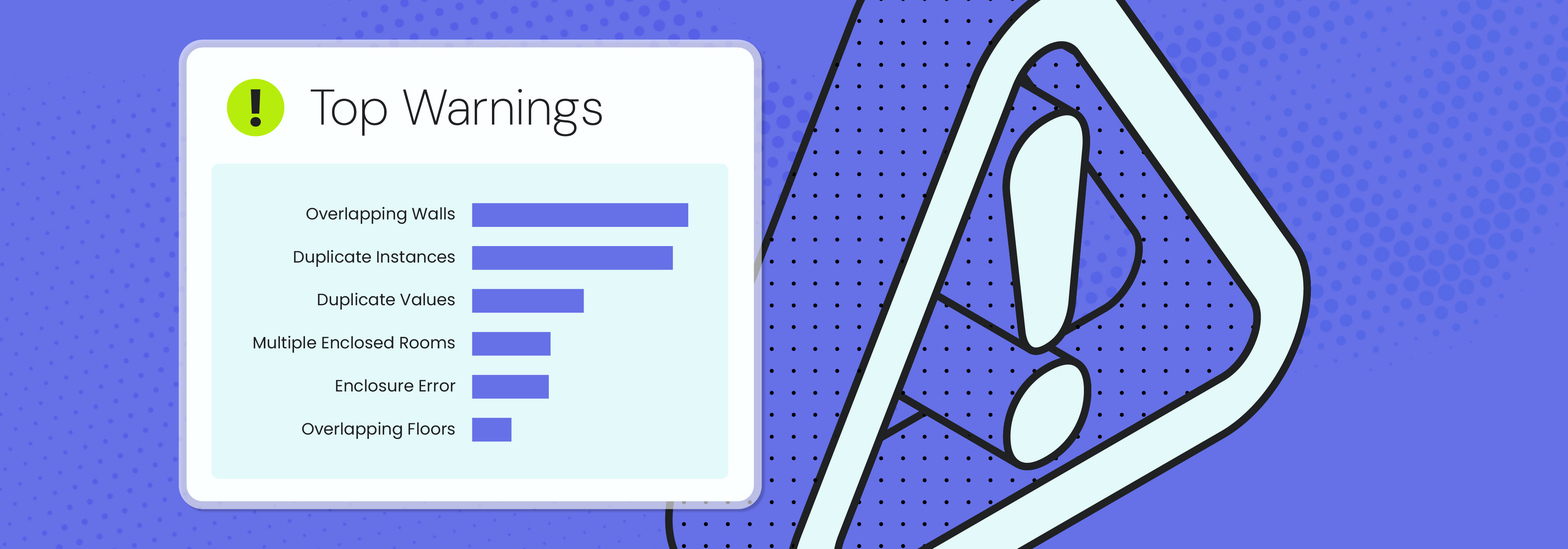
Why it happens: Revit makes it easy to create hundreds of warnings, most of which appear harmless. Because these warnings might not stop the model from working, users ignore them, assuming everything is fine.
Why it wastes time: Ignore a check engine light on your car long enough, and whatever issue triggered it eventually becomes a bigger problem. The same applies to Revit warnings — they compound, particularly if hundreds or even thousands of warnings are generated. End-users might not notice anything wrong at first, but eventually, sync times drag out, open times take longer, and navigation sinks to a crawl. And unfortunately, this overall slower Revit experience tends to worsen the closer you get to the deadline.
What BIM managers think: Revit warnings can be a leading indicator of model health … if BIM managers have proactive access to warning data, including who triggered specific warnings. Alas, BIM managers are more than likely taking reactive measures — educating users after the fact and begging them not to ignore warnings. By that time, the model may already be performing slower, threatening deliverables and deadlines.
Mistake No. 2: Overlapping or Duplicate Elements
Why it happens: No one purposely sets out to overlap or duplicate elements, but Revit doesn’t do much to prevent it from unintentionally happening. Everyone is self-trained to ignore Revit’s yellow warning box. And, wow, it can happen a lot, often because of:
- Copying/pasting between views without the user knowing everything that’s being copied
- Linked models reloaded multiple times (usually because the linked model is hidden in the user’s current view)
- Families placed on top of each other
With users sometimes, or always, ignoring Revit warnings, overlapped or duplicated elements are completed — and Revit doesn’t visually indicate either issue unless you are specifically looking for it.
Why it wastes time: The mess created by an overlapping or duplicated elements:
- Doubles quantities
- Breaks schedules
- Confuses clash detection
- Corrupts BIM exports
As a result, fixtures don’t match panel schedules, areas don’t match square footages, and clash detection flags fake collisions. Someone must manually audit and clean all this chaos, pulling them away from otherwise productive, proactive tasks and initiatives.
What BIM managers think: If geometry can’t be trusted because of overlaps and duplicates, can schedules and quantities even be trusted? BIM stops being less about building information modeling and more about busy work.
Mistake No. 3: Misuse of In-Place Families
Why it happens: In-place families are easy to use — maybe too easy —so people rely on them for all sorts of end-uses within Revit. Unfortunately, in-place families become an unreliable shortcut when firms haven’t created necessary Revit families or users don’t know where to find them.
Why it wastes time: Loadable families are compiled once and then efficiently instanced many times. However, in-place families get fully recalculated with every instance, which increases memory usage and file size. Model performance suffers, and regeneration takes more time.
What BIM managers think: An in-place family is fine, even helpful, when it’s used once or twice to create geometry into the adjacent architecture — that is its primary purpose, and its impact on the model is limited. When firms start using and copying in-place families at will, even recklessly, model performance gets hammered, and all the enhanced capabilities that loadable families provide are not realized.
BIM managers spend hours creating approved libraries that fit firm standards, naming conventions, subcategories, parameters, formula calculations, and data structure. Misusing in-place families wastes all that time and effort — which is intended to save time and effort.
Mistake No. 4: Improper Workset Management
Why it happens: Simply, users don’t pay attention to their active workset — but that’s only half the story. Most end-users don’t even understand the functional purpose of worksets. These users may create dozens of useless worksets or only use Workset 1.
If only Revit could create pre-defined firm standard worksets, users might not make them up on the fly. As a result, elements are placed on worksets almost on a whim.
Why it wastes time: Workset madness causes inconsistency in the graphic output of models that require time to fix. Moreover, bad workset management can cause sync conflicts, block people from doing their work, slow down the model, and produce random “can’t save” errors.
What BIM managers think: Worksets are the digital equivalent of physical space in a Revit model — essentially, only so many people can work in the space at a given time. Also, inconsistent creation of worksets leads to their inconsistent use, and people waste time trying to find elements that were placed on the incorrect workset.
Furthermore, in what is often an overlooked consideration, many clients have their own workset requirements for BIM deliverables. The last thing firms want to do is give a client a model that not only doesn’t meet specifications but also is a workset mess.
Mistake No. 5: Drafting Instead of Modeling
Why it happens: When deadlines are tight and teams want the view to look right, users turn to drafting, which is faster in the short term and more comfortable — after all, it’s what is taught in architecture school.
Why it wastes time: Drafted elements, as opposed to modeled elements, don’t update, keynote, schedule, or efficiently coordinate. That means every change, no matter how small, means redrawing, rechecking, and re-coordinating — which means more time.
What BIM managers think: Drafting doesn’t easily coordinate with 3D design and has no data integrity. The model becomes pretty pictures instead of coordinated design — and is definitely not BIM.
Mitigating the Common Revit Mistakes with Guardian
Individually, these five common Revit mistakes may seem minor, even manageable, and the time loss could be negligible in the short term. But collectively, they reveal deeper issues: limited visibility into what’s happening inside live Revit models and inconsistent adherence to modeling standards.
Because these problems often are unintentional, develop quietly, and are barely (if at all) mitigated by Revit itself, their true cost doesn’t emerge until performance degrades, threatened deadlines loom, budgets are busted, and teams are forced into rework and reactive cleanup.
Guardian for Revit helps firms overcome and prevent common Revit mistakes. Our add-in improves visibility within the model, communicates standards and best practices in the moment, and applies project protections to save you time and eliminate frustration. Book a demo to see for yourself everything Guardian can do.